Showing posts with label Chromebooks. Show all posts

Thursday, March 23, 2017

Argumentation Template: March Madness!!

 We love a good competition. The largest one that takes place around this time of year as the flowers begin to bloom is the NCAA Basketball Tournament. If you don't know what this is, ask a student of yours. Now, not all are fans, this I know, but a number of our students are. I like to incorporate as many student interests in my curriculum as much as I can, regardless of my feelings of them. Side Note: Never try to have your students recreate the story of American Imperialism using the "Twilight" series as inspiration <enter shivering emoji that doesn't exist>

Standards dictate student-writing across the curriculum. And it's not just writing for writing's sake. Different forms of writing need to be taught, practiced, critiqued, honed, and improved upon. Argumentation is one of those forms. Now our students love to argue. But can they argue effectively? Can they communicate their voice effectively in writing?

This activity forces them to take a stance on competing ideas, concepts, individuals, events, or anything else you can think of. The idea is to create a tournament in which students determine the winner by practicing their argumentation and writing skills. I've used this activity in class as a review activity for the Rise of Totalitarianism in the 20s & 30s. The students had to take a stance on certain events and argue which one had greater influence on the rise of dictators and the shift towards isolationism around the globe during the time period. It was well received as students were able to analyze events and movements we'd covered in an in-depth manner. I made it a partnered activity and it was interesting watching pairs argue with each other to place one event over the other.
This is a snapshot of the template I created that you can use and alter as you see fit
If you're interested in creating your own bracket, I've created a document you can make a copy of and alter as you see fit to suit your needs. It's pretty basic so get creative with it. I've included different ideas in the margins of the file for your benefit on how to use the file. If you'd like help with setting up an activity like this, please do not hesitate to ask me. I'd be happy to help.

Download Argumentation Template - March Madness!!

Tuesday, March 14, 2017

District Shift in Blended Learning: The Case for Full Schoology Implementation from a Skeptic

Being out of the classroom this past year has been an interesting venture. I've worked with so many dedicated, thirsty educators looking to improve their craft and in turn their students' experiences. I'm always asked if I miss teaching. I always correct them, quick to say I'm still teaching. My classroom has changed however. And I miss the traditional classroom experience. Immensely. I look at, dissect, play with, and analyse all sorts of different EdTech tools all the time. I send out tips and updates twice a week to you on things I would love to use in the classroom!! Actively Learn? Man I would love to use that!! Digital BreakoutEDU? I would use that all the time! Google Sites? All my students would have their own! But these things flow with my style in the classroom and I feel comfortable using them....which with anything takes time. But this is an era of booming educational technology that I would take advantage of for classroom efficiency, student agency, student engagement, and to help give our students an authentic voice. We all have one bit of technology at our fingertips that is grossly underused in our district that can help in these areas. It's high time we commit to it.

The purpose of this post is to persuade, not to teach. I believe all teachers should have a Schoology presence in their classroom curriculum starting next year. This may be scary for some. Those that know me well, know I was a Schoology resister. I believe it would benefit our student population, our interactions with parents, and help get students "College and Career Ready." Future posts on Schoology will be more geared towards teaching.

Student Engagement
Our students need to be engaged in their learning. This takes on many forms in the context of a given year, unit, or even lesson. There isn't one way to truly engage all learners. The only way we can drive towards near full engagement is through innovative and inspired lesson design. It's you as an expert in your subject and craft developing lessons that challenge and push your students' understanding of the material. Shifting towards a Schoology delivery system will not instantly make your lessons more engaging but it will get you creating and sharing new ideas on how to innovate your curriculum. Once comfortable in a Blended Learning environment, the educator, ever the big picture thinker, starts to see possibilities of innovation. They start to ask "what can I do with this?" That is when students become engaged. When we as educators continually keep things fresh. When we inspire our students to be innovative thinkers through our own.

Interactions with Parents
Study after study shows a growing need for parents to be connected to the classroom to encourage student success. Schoology automates this process as they have access to student performance, they're able to see what goes on a daily basis, and individual or group communication becomes a snap. Because parents "sign in" as a parent to your class their information is there and at the ready for you to easily connect with them. A number of parents have told me they like how easy it is for them to know what is happening in the classroom and that it cuts down on the "How's my kid doing?" emails and phone calls. We have a problem with "system overload" for parents. Teachers have various  avenues of reporting information to parents (websites, eSchools, Schoology, other apps and services, etc ). All are excellent means of communication but for a parent, sometimes even for the tech savviest of them all, this proves both a challenge and a frustration to get a clear picture of how their student is doing. Through uniformity of processes, we can solve this problem if we commit to using Schoology as our chief source of communication with parents through curriculum delivery, parent communication, and timely grade updates.

College and Career Ready
College and Career readiness is not just about content preparation and academic skill development. We've been told for years that we are preparing students for jobs that don't exist yet. I'd say we're doing quite well considering that's like trying to unlock a door in a room full of doors in darkness. However, that's not an apt metaphor. We do know that the world economy is trending towards greater automation and using systems (no matter the career) to manipulate or use data to solve problems. In order to prepare our students we must model this through the delivery of curriculum via a system that allows them to organize and track data, to manage their workflow, and to learn how to solve problems efficiently and collaboratively. This was one of the reasons for the 1:1 initiative - for students to become familiar and proficient in a 21st century environment. I'm not sure the worksheet system is one that prepares our students for future careers. Using an LMS in the classroom will get them familiar with systems they will find themselves learning in as they extend their formal education and when they enter into their chosen careers. The LMS you have at your disposal is Schoology. And it's a pretty good one.

Is Schoology perfect? No way. Teachers have legitimate problems with the system with respect to its integration with 3rd party services (namely eSchools and TurnItIn). Some teachers haven't had enough experience in the environment to understand how it can benefit them and their students - I was certainly that teacher when we purchased the product years ago. I also know that a number of teachers need a lot of tech training in general to feel comfortable to take the leap. I sympathize with those concerns. I also believe that those fears and concerns could dissipate through time with a full commitment to make it work better for teachers, better for students, and better for parents. Take time looking into Schoology this summer (only a few months away) if not sooner and think about what is possible. I'm here to assist those that want to make that shift. I'm hoping everyone will if you haven't already.


Tuesday, February 14, 2017

Voice & Choice Activity: Show Me What You Know!

Student engagement is key in the 21st century classroom. Technology can help engage students but nothing beats sound lesson design and flow that piques and quenches a student's thirst for understanding the world around them.

Students invariably want greater control of their learning experiences. It's a lot more than just "What" they learn. Providing opportunities for students to express their voice and choose the method in which they express it is just one of the ways students get engaged in any classroom.

One easy-to-implement strategy that addresses this need for engagement and allows students to take control of their learning is through the old "menu option" assignment. Although not a new idea, its a powerful one and with technology the opportunities for student creativity goes beyond the traditional paper-and-pen method.

An example of this is the document embedded below from a group of teachers in the UK who literally took the "menu option" idea and used a popular restaurant amongst British teenagers as the basis for their choices.


If you'd like a copy of this doc, grab it here: Cheeky Nandos Copy

Utilizing the menu options giving students 'voice" and "choice" is an easy way to substitute assessment ideas using technology. The students will feel empowered to produce their best work if they feel they had some control over their choice. Especially when they publish their work for you and their peers to see....the focus of this post.

Show Me What You Know!
This idea comes from one of the creators of the Hyperdoc movement, Lisa Highfill. The idea is pretty straight forward - when appropriate in the curriculum, allow students to choose how they showcase their knowledge and understanding of what they have learned in order to demonstrate mastery.

If you would like to see other examples of this idea, visit her site here and while you're there poke around some of the other areas where she provides rich ideas for the classroom.

I've created one below as a Google Slides template for you all to have copies of. You will have to edit it to change elements on the file including: how students turn in their work to you, some of the resources you want to give them a choice to explore, or anything you'd like to add to personalize the assignment. After you edit it, simply copy and paste it into an already existing Slide deck, publish it to the web, or embed it in your Schoology course or on your website.

Get your copy of the above file HERE.

Give this a go and see what you get from students. Encourage them to explain themselves in a rich manner. Push them to produce their best and most creative work. Publish their work to the class, to other classes, to parents, to the world. Don't be scared you might not be an expert in any of these technologies. In fact, its best you aren't. Encourage your kids to be the experts. Learn with them. They may surprise you how much ownership they take on knowing you can help them only so far.

If you need help implementing this (or similar ideas like it) please do not hesitate to get in touch with me.

Thursday, January 12, 2017

Reading Comprehension Task: Black Out Text

Going through Twitter # searches for EdTech ideas is a daunting but exciting task. Exciting because there are countless innovative and inspiring teachers in the world harnessing and leveraging technology to help students become better humans. Daunting because there is so much content out there that sometimes I go numb just looking at it. I have however found a number of educators and organizations that I lean on to get some amazing ideas and resources.

A view of my Tweetdeck - feel like a day trader sometimes watching this thing
Eric Curts, of Control Alt Achieve is one of my favourite go-to resources for new trends, tips, and resources. A while ago he posted on his blog a reading comprehension technique geared towards the use of Google Docs and a 1:1 environment. It was a techno-twist on an existing strategy called "Text Reduction Strategy" where students would identify the main ideas and points of articles or a given text and "black out" the irrelevant information using the highlighting or paint rolling format tools in Google Docs. Students use their critical thinking skills individually or collaboratively to identify what is essential versus non-essential information. Instead of having to summarize the text, they have virtually created one with the text's own words. The full detailed blog post is here but I will give you a snapshot of how it works.

Black Out Text Reading Comprehension Activity:
Step 1: Locate and copy text you would like your students to use on the Internet or other web resources
Step 2: Paste the text in a Google Document and set up the activity with directions at the top
Step 3: Push the assignment out to students via Schoology, your website, or other means
Step 4: Model the process for them - show them how they can access the highlighter or paint rolling tools in Google Docs and demonstrate how they are used.
Step 5: Allow time for students to complete the activity
Step 6: Analysis and Debrief - depending on your style, you can hold a discussion, a competition, have them create a visual or auditory product, run a Kahoot, Quizizz, or Quizlet Live activity

This method can be employed in any class that asks students to make sense of complex text sets. I like the idea of allowing students to collaborate as well - whether they are working on the same document simultaneously or they are comparing and contrasting and building consensus at the end.

If you give this strategy a shot in your classroom, let me know how it works out for you and your students. If you need some assistance with implementing this strategy or any others related to EdTech, hit me up and I'll help you out!

Breakout EDU: An Educational Experience Worth Trying

For those that have had the pleasure of participating in a Breakout/Escape Room game in Sac or other cities around the United States, you know how exciting these experiences are. You and a group of strangers locked in a room with only clues and puzzles to help you breakout. For some, that seems like a nightmare. For others, especially the clever ones who love puzzles, well...this sounds downright exciting.

There are some brilliant innovators that took the idea and applied it to an educational experience a while back have been making their mark in education circles. Thus, Breakout Edu was born.

The concept remains the same, however, you don't lock students in a room.  Instead, you use a simple plastic or wooden box locked with a series of different types of locks. What you place inside the box is up to you. How the kids get the box open is the fun part. You as a teacher would leave a series of content-specific clues for them to analyze and as a class they would set to work getting that box open. However, they must understand....they only have a limited time. As these games are timed and if they don't get inside the box, well...they don't get to see what's inside.
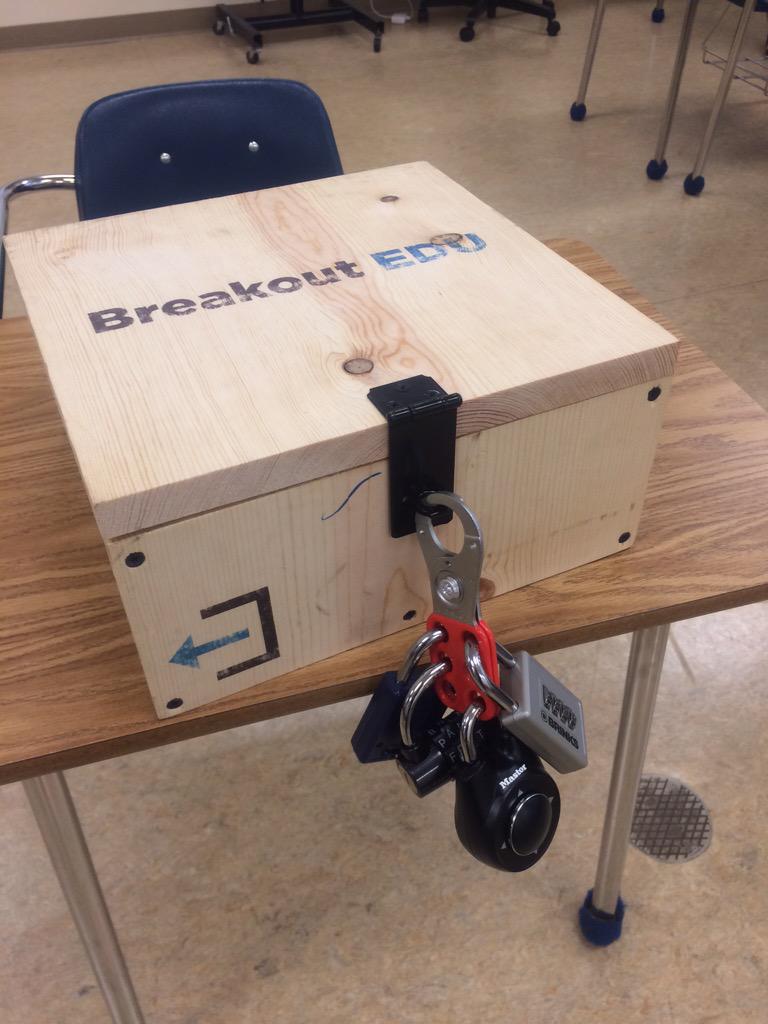
Example of the wooden box option
Now, I've participated in one of these activities at a conference and I must say they are a lot of fun and very challenging. I was in a room full of educators and we were all working tirelessly to come up with solutions to the clues and puzzles. We used our expertise, critical thinking skills, communication skills, teamwork, and our phones. This game incorporates all of these things and more as it is a game that is best played with all members of a group working together. We bounced ideas off each other, debated the merits of ideas, deduced from what we already knew, we used our powers as web sleuths to identify information that may help us, and...we had a lot of fun!

We never did see what was inside the box. We ran out of time. But the experience getting there was exciting and all of us reported that we wanted more time to figure it all out (we had 1 more lock to go!!!!). This activity was engaging, fast paced, intellectually stimulating, and required no one sitting on the sidelines. It was an all hands on deck situation.

Since Breakout Edu started, they have been growing a following. You can purchase their products and classroom-ready games through them. Or you can design the box yourself and create a game on your own or visit the site where teachers have shared what they created.

If you want to go a no-cost route and harness the power of those Chromebooks kids have in their hands, you can create a Digital BreakoutEdu experience for your students. Same concept, no box, all digital tools. The link will take you to a series of links that show you how you can design your own digital box using Google Forms and how you can create a game for your students.

These games are great as an inquiry-based activity at the beginning or middle of a unit. It can be used as a formative assessment tool to find out what your students have learned. They could also be used for reviewing concepts covered in class before a test. The game is great for every subject and every concept. All it takes is a bit of work on the back end to develop the clues, set up the "box," and let your students roll with it.

I'll be hosting a Digital BreakoutEdu PD next month at BR & NU to demonstrate how I created the game. That is, of course, after all participants try to Breakout of my game....if you can. 😜

Wednesday, November 23, 2016

The NEW Google Sites: It's About Time!!

Ok...I'm a bit giddy about this one!! I heard back in July that Google was revamping their Google Sites and letting some early adopters take a look at it in beta. That period of time was a quiet one as early adopters were mum on social media about it all...call it Phase 🤐 Well, that phase is past us now and Google released the product to the public and we all have access now!!

To explain my giddiness, recall, some of you who remember, when we all had district hosted websites.  I spent years altering mine to fit my and my students' needs. It was a daily feature in my curriculum somehow, someway. I was proud of my baby.  She (don't know why she's a she, but just go with it) was amazing. But then she went away. We didn't re-up with the hosting company and... bye bye websites. In the aftermath, I searched for replacements. Sorry Weebly, you weren't ready. No thank you Wordpress. Eventually I settled on Blogger (one of the reasons when I started this new gig I went straight there to build a site). Before I decided on Blogger, I spent a considerable time with Google Sites. Before this massive redesign, Google Sites looked the same 4-5 years ago as it did two days ago. It was confusing to build a site, it was limited in what you could do, I didn't like the way it looked or operated for the user (that was key!!), and I didn't have the time or patience to really get into it.


So the past few years, as Google has become synonymous with education applications, I've been waiting for them to turn their attention to Google Sites for the upgrade. They've delivered! Easy to use, collaborative, with all the integration of other Google products (Docs, Forms, Slides, YouTube, Maps, etc.), the New Google Sites is going to be yuuuuuuge (we have to say that now instead of "huge," right?).

For the Teacher:

  • Easily create a site for your class using their drag and drop tools
  • For those not using Schoology yet, you can push out assignments and instructions to students using this tool for classwork or homework
  • Create sites or pages on your site to publish student work and examples
  • For Club advisers, Coaches, and other Extra-Curricular program leaders, you now can promote thos programs to the community and the world
For the Student:
  • Student Portfolios - because it integrates with their Google Drive and they can upload virtually anything from there, they have a tailor-made student portfolio for their work in your class and all classes - this is great for employers and college recruiters to see
  • Collaborative Student Projects - the sharing/collaborative function works the same as other Google products
  • Presentations - because of it's sleek look it can be used to present research findings as a culminating assessment 
  • Make connections in the real world - students can practice some of their Digital Citizenship norms and skills by creating a site for their own personal interests, publishing, marketing/branding, and adapting it


Like I say...I'm giddy. So much so that I'm going to transition my current site into the New Google Slides in the coming months as my primary mode of communicating with all of ya'll. I'll keep the blog (Blogger being another Google product), but you'll most likely find it on my new site in the future. 

To access the new Google Sites dashboard to build your own, click the link here: The NEW Google Sites!! Have fun getting into it!! 

Update: If you need some assistance setting up your Site, check out the EdTechTeam webinar below for a walk through.


And if you like your tips in written (and slightly visual form), check out the online flyer from EdTechTeam.


Thursday, November 10, 2016

Research Resources: Utilizing EdTech to Work Smarter

Research projects are a cornerstone in any secondary curricula. New standards on Research skills are not merely for ELA or Mathmatics classes. Whatever your subject, we need to teach, model, and allow students to demonstrate mastery of research skills. Educational Technology can assist in this process in numerous ways. Below is a list of various apps, extensions, web services, and resources that you can incorporate into whatever research project you assign next.

Brainstorming & Organization Resources - That all important first phase that puts and keeps students on track
  • Make Checklists in Google Docs
  • Create a concept Map in Google Drawing
  • Google Keep (They already have this) - Create checklists on tasks needed to complete when planning a project, collaborate with other students, and get reminders sent across their devices
  • Mindmup - Mindmaps on your Chromebooks
  • Popplet - Web and iPad app that allows you to create multi-media mindmaps
  • Wunderlist - App & Extension - Create dynamic to-do lists for students to stay on task when planning a project
Note taking Resources - Use to type up ideas and arguments or counter-arguments for tpics raised in the project

  • Google Keep - add notes quickly 
  • Sticky notes - see my previous post on sticky notes
  • Super Simple Highlighter - kinda self explanatory, but students can highlight info on web pages and they stay on the page when they return to them later after closing their tab
  • VideoNot.es - synchronize their note taking with any video they are tasked with watching. Notes are saved in Google Drive
  • Evernote - Evernote is an excellent educational research for keeping organized on projects. It operates like a Digital Notebook where students have the ability to take notes and clip sites and documents on the web related to their research topic. Web-version, Chromebook App, Extension, and mobile apps for all your devices

Information Collection Resources - Locate and save sources for the project

  • Feedly - Curate content from around the web around a single topic or tag. The mobile app allows for syncing with the web account. Students can have the information come to them
  • Google Keep - again...this thing is awesome
  • Padlet - When students would work on research projects, I'd often have them save evidence from a website that was useful for them. Padlet works well for this as an online, collaborative corkboard of sorts. So if there is a group research project, students can be working on the same Padlet together
  • Evernote - Again...powerful tool

Citation Resources - Gotta make sure credit goes to where it belongs

  • Chrome Extensions - Cite This For Me and EasyBib will give the proper citation of websites instantly in different styles 
  • Citation Machine - Books, Magazines, Websites, Journal, Film? No problem...this free web service can do that for your students in thousands of styles (Turabian? Hmmmmm)
  • BibMe - Works like Citation Machine

Presentation Tools - Speaking & Presenting standards need to be met as well

  • We Video App - Students create Digital Stories ...think iMovie or Movie Maker only the Chromebook version
  • Bunkr - Web presentation software where students can embed a ton of content from code, to interactive graphs, social media posts and more! It looks and presents everything nice and clean 
  • Weebly - Students can create their own websites and portfolios in a drag and drop fashion!
  • Infographics - these are great products to create depending on the research project ad purpose of the presentation. This would be an excellent presentation option for Technical Writing research projects. The best web resources for this is Easel.ly, Canva, and Piktochart


Wednesday, October 26, 2016

Google Sheets : Flippity.net Sheet Templates to Mix it Up

Sheets....the often overlooked product in the G Suite line (did ya know GAFE is now G Suite?). There are a tons of amazing uses for Google Sheets in the classroom and one of those is using Flippity.net.

Flippity is a web service that generates interactive products via information you put into one of their Google Sheets templates. Wanna make flashcards? they have a template for that. Need ideas for students to start free-writes or short stories? They have a template for that. Give out certificates or badges for completion of skills? Yarp! Template!

One of the coolest templates (and most useful across all subjects) is their Random Name Generator! You can call on kids randomly during discussions, create groups and teams, and have the ability to make changes. I created a 5 minute screencast below on how, within a few steps, you could have your own random name generator with your entire roster!


Because Flippity houses your unique link on their servers, simply bookmark the website it generates and you can have access to it throughout the year. Its a great way to get around leaning on the same students for classroom discussions or for creating student groups from scratch.

Hope it helps and as always, feel free to contact me if you need help setting it up! 

Monday, October 24, 2016

Hyperdocs: Harnassing Google Docs To Deepen Learning

I often struggled in the classroom, when I sent kids on an online exploration of a given topic, about just how much information to give them. Do I provide all the resources to them? Do I give them merely a sampling of sources they should use and then allow them to seek out the rest? How can I ensure students are actually consuming, thinking about, and understanding those resources when they have them, whether curated by me or discovered by them?

I always erred on the side of the "Goldilocks" version - not too much, but not too little guidance and information. I think I did them a disservice, however, in not modeling the proper methods and skills needed to extract the information I wanted them to grasp. I often sacrificed the important critical thinking skill-building structure for the exploration itself. With all the options of products, services, and places students can go to retrieve information regarding a particular topic, it's important for students to discern proper sourcing of information and a deep understanding of how it connects with the overarching concept and learning goals.

Luckily, innovations in educational technology has provided one method of meeting those demands. Enter Hyperdocs! Hyperdocs is a relatively new method of lesson delivery that hits a number of hot button areas: engagement, inquiry-based, differentiated to the learner, and a reflective process of learning that empowers students to extend their learning.

Sounds wicked, yeah? It does take time to create but this may be a good collaborative task for departments to work on during collaboration.

The best way to describe the Hyperdoc itself, is this: It is a self-contained set of activities and resources linked to one document. The Google Doc you start with is like a map to other areas of the web and sources (carefully selected by you) in order to achieve content and skill-based learning goals you've set. Imagine the power of teaching a concept and setting a virtual path for students to follow. Complete with building on whatever skills you are working with them on.


The trick is to provide avenues of exploration, relevant sources, and multiple methods of content delivery to achieve learning goals. There are 1000s of Hyperdocs on the web and no two are alike. They all, however, guide the learner further down the rabbit hole of exploration while stopping along the way for students to interact with one another, refine their ideas and findings, and be cognizant of the learning process.  

Here are some sites that allow you to see how other teachers are using these in the classroom:
The Hyperdoc Girls - from the creators themselves! They also provide Templates
Hyperdoc Examples - a lot of examples on this site but it takes an age to load!
Karly Moura's Shared Drive Folder filled with examples

The embedded Doc below is an example of a Hyperdoc on the Weaknesses of the Articles of Confederation to give you an example of what one looks like. If anyone is interested in developing these, I would be more than happy to help out!

Here's a link to the doc if it's hard to see it below

Tuesday, October 11, 2016

Shameless Self Promotion: BR Playin' @ the Playground!

Another successful EdTech Playground took place at BR yesterday as a small group of professionals got around a table and worked diligently on building their EdTech skill set! There were inspirational travel quotes recited by Jeff Carrow, the BR Math Department were working together on Desmos, and the great Duane Zauner even walked out of there with some new arrows in the Tech quiver.

Check out the pics below and also their feedback on the embedded Padlet - a great EdTech tool I've used for Formative Assessments, project turn-ins, back-channel chats, and soooo many other uses.

~Don't forget to sign up for the next EdTech Playground!~
~All sites, all abilities/skill levels are welcome and encouraged to attend!!~

Wednesday Oct 26th @ NU - EdTech Playground - all are welcome - Sign up Here

Wednesday Nov 2nd @ BR - EdTech Playground - all are welcome - Sign Up Here


Made with Padlet

Thursday, September 29, 2016

Shameless Self-Promotion: EdTech Playground #1 in the Books!

The first gathering of educators at NU for the EdTech Playground is complete and .... it was successful!! A small (but a motivated and tenacious!) group got together from various sites and curriculum areas and got to work! We worked individually, we collaborated, we talked about life outside of school...we solved world problems!! And...there were cupcakes!! *cupcakes are not guaranteed at future EdTech Playground PDs

In all seriousness, it was an excellent 90 minutes of professionals doing what professionals do: working to solve problems, pushing their skill set to another level, and opening up lines of communication with peers to deal with common problems. Each individual worked diligently on whatever interested them in order to integrate more technology in their curriculum.

I could go on and on...but I'll let your colleagues say it all for me...

"Very helpful to be able to navigate Google Drive so I can teach my students"

"Working with other people was nice! Ready to take things to the next level"


"Learned how to make a test in Schoology and I'm ecstatic! This session was very helpful for me." 

"This session was exactly what I needed for technology and Professional Development....it gave me a chance to work on things I haven't had the time to work on."


"I was able to open up my Chromebook for the first time...and set up classes in Pearson"

"I appreciated the time!"

"This session was tremendously helpful!! I worked on figuring out why my Schoology grades weren't syncing with eSchools."


Don't miss the next one Monday 10/10 @BR - Sign Up Here

Friday, September 16, 2016

Ideas: 20 Google Apps Activities for Classroom Innovation


DitchThatTextbook is a tremendous resource for the 21st Century Educator. Matt Miller has built an EdTech juggernaught with that site and created a go-to spot for those interested in learning more about integrating technology into one's curriculum. When you get a chance, venture over to his site to get some helpful tips and tricks.

He regularly posts helpful articles focusing on different ideas to incorporate into any classroom. One of those articles focuses on 20 different ways to incorporate Google Apps into activities for the classroom.  One of those activities (HYPERDOCS!!) I will focus on in a post in the future.  For now, get inspired by checking out the below link and think about how you can utilize these in your classroom!

20 Google Apps Activities for the Classroom

Wednesday, September 14, 2016

Tips & Tricks: Set up an event in Google Calendar from Gmail

I don't know about you but lately I can't seem to get anything done unless my tasks are written in triplicate in various places with constant reminders to move my behind and get stuff done. Google Calendar has been great for that.

I update it constantly with daily life plans, work meetings and projects I'm working on, social functions (hahahahaha! <enter crying laughter emoji here>), and anything else of importance that I want and need to stay on top of. I check it every morning and evening on my phone (Android & iOS), its open all day long on my Chrome browser, and it sends me reminders of where I need to be at throughout the day.

One of the most effective ways for me to update my Calendar when requests or meetings come through Gmail is by creating an event from the email itself.  It saves me time and keeps me on top of a number of different daily and weekly requests that all come through email.

It's very simple to do and I have a screencast below to show you how if you didn't know about it before - its short!! and I don't talk over it...but I apologize in advance for the annoying stock ukulele track...they didn't have Led Zeppelin tunes to choose from.

You may have already learned this trick, but for those that haven't its a nifty little connection.

And not only is this a great trick to learn yourself, but it's a great one for students as you model and teach them good organizational habits!

Enjoy!


Tuesday, September 13, 2016

Chromebook App: Google Cast for Education

Ok...this one's a good one. Technology brings up some issues as we transition from the traditional classroom to a 1:1 environment. But it also provides opportunities as well. Google (especially) has been at the forefront of both solving issues and creating opportunities.

Issue: How can we maintain a student-centered learning environment where students feel empowered to create, to solve complex problems, and work together to do so?

Solution: Have access to their screens through Google Cast - this will allow the students to display their work to the entire class via your projector, ask for student input on solving common problems and mistakes, allow students to be the experts in the room and explain how they arrived at a solution, or created a wonderful product, or to demonstrate their own mastery.

How it works....well, you download an app from the Chrome Store, your students download an extension from the same store. A few things to type and a few buttons to press and away you all go.  The product syncs all your Google Classroom classes so those using Classroom will find the adding students part very easy.

For all you visual learners, have a gander at this ace bloke from the UK demoing the basic functionality of it:


This tool is extremely powerful, and my mind drifts to other solutions it can provide as well. For instance, can it grant access to multiple screens so you can watch everyone's screen during an activity or, better yet, an assessment? Hmmmmmm <enter thinking emoji here>

Anywho, check it out and if there are any teachers already using it or want to try it out in their classrooms, I'd love to check it out and work with you to see how it plays with the students!

Thanks for reading!!

~~~
Follow Up 9/15/16: The "Google Cast" Extension is blocked for students. Currently looking into solutions for that through the Tech Department.

Follow Up to the Follow Up 9/22/16: Was told that there were issues last year in using this product in class.  Looks like for the time being, students can not download the extension....I'm gonna keep shaking the tree

Monday, September 12, 2016

Chrome Extension: Virtual Sticky Notes!! Leave Post-It Notes on any page

I recently found an old college textbook of mine as I was clearing out my classroom. And I found out that I used to love sticky notes. I would have handwritten notes painstakingly detailing the information I was consuming in a clean(-ish) fashion in the event that I wanted to sell the book back for cash in order to buy...more books. 

Not actual aforementioned textbook, but you get the idea, ya know?

This method of breaking down text into words I could understand helped me learn difficult material and is a time-honored and research-backed method of learning. It is also an essential skill in need of developing in a Common Core, 21st Century learning environment.

Close Reading, research projects, tried and true reading strategies, "talking to the text"... these all require the ability to write in the margins of documents. But how to do it in a 1:1 environment? Oh let me count the ways...or at least two of them.

Two services (both free!!) are Note Anywhere and Stickies. Here's the gist of both: you can activate it on any site and any sticky note you leave on the site stays there until you remove it. Because its a Chrome Extension, it is housed in your browser and with the click of a button, a sticky note appears on the site.

So I've used Note Anywhere in the past with my students. I've used it to jot notes for myself on student work that was turned in virtually and I've taught students how to use it effectively when I have them read internet content. Check out my little screenshot vid of me using the service here (don't judge...I never screencast...gotta work on that).

There are other sticky note products Here Here Here and Here ... its really just which one works best for you and your students.

Chromebook App: Storybird

Looking for different ways for your students to communicate their understanding of concepts covered in class? Want them to get creative with their writing and storytelling? Have some aspiring writers that could use a push in publishing their work? Storybird is a web program that can engage learners in numerous ways and give your students the opportunity to publish their work within the Storybird community.

Often times when asking students that they will write (a story, essay, poetry...whatever it may be), the teenage eye roll isn't too far away. With Storybird, students will enjoy the creation process and develop their literacy abilities while doing so.

For Students: The ability to create and build high-quality and original stories (with images) to demonstrate their knowledge, understanding, literacy skills, creativity, and (for the up and coming writer) develop their publishing and marketing abilities. It also has a collaborator feature which allows students to work with peers or even established writers and artists.

For Teachers: You can develop a classroom and assign projects within Storybird. Track their progress as they create and assess their understanding of concepts delivered in class.

I can think of many uses in ELA and the Social Sciences but it could be utilized in many different subject matters. Give it a shot! Below is Storybird's website and Chrome Web Store link if you're interested.

Storybird Website
Chrome Web Store Link

Thursday, September 1, 2016

Apps You Have: Google Hangouts

Google has an arsenal (Gooners!) of apps and web programs that you can utilize in various ways throughout your day. One of these is Google Hangouts - their Personal Messaging (PM) service.

This service is free, nimble, and accessible to all students and teachers in the district. With text, phone, and video conferencing features, this is a great service to use in a variety ways - in and out of the classroom. And all conversations/activity can be archived to save for a later date to demonstrate performance

Ideas to use for class:

  • Video chat with an expert in a field of study you are covering in your curriculum where your students can "ask the expert" 
  • Group Live Broadcasts as an assessment for group projects
  • Live chatting during a live event (Debates start this month!!)
  • Develop Online Portfolios through past video and text chats
  • Check out this link for more subject-specific ideas
Ideas for you:
  • Remote Professional Development/PLC/Collaboration
  • Video conference with educational and academic professionals during collaboration time/Department Meetings
  • Quick communication with colleagues throughout the workday or in off-hours
There are a wealth of opportunities using this tool and you all have access to it as well as to everyone in the District! Have fun!!

Monday, August 29, 2016

Chrome Extension: One Tab

For those that have been using ChromeBooks for some time now, you know the sheer volume of tabs that open in your Chrome browser.  Seemingly everything you click seems to open a new tab whether you want it to or not.  More times than not, you'll look at your browser and be marveled at just how many tabs open up as you navigate through a myriad of web-based programs, sites, and just randomness...

Well...all those tabs (although essential to you doing your work) can slow down your performance speed significantly. In the world of Google, where there are problems, there are usually solutions...I give you One Tab!

Chrome allows you to "add-on" to it's browser to customize your experiences.  These add-ons are called Extensions (I'm going to be posting about Extensions soon hopefully) and can be downloaded in the Chrome Web Store. Here you have a plethora of different ways you can maximize your (and your students') productivity! One Tab is one of these powerful tools.

One Tab takes all of your open tabs and houses them in one tab with the click of a button, freeing up the memory chewing tabs that stay open on your browser.  They, essentially, go to sleep until you want to wake them up.  You can activate them or delete them right from the "One Tab" tab. This service is a great one for you and your students to utilize today!!

View from my One Tab I have "open" whilst typing this post
Give One Tab (and soooo many more Extensions) a try to maximize your efficiency while working.


Friday, August 26, 2016

Chromebook Trick: Hard Shut Down

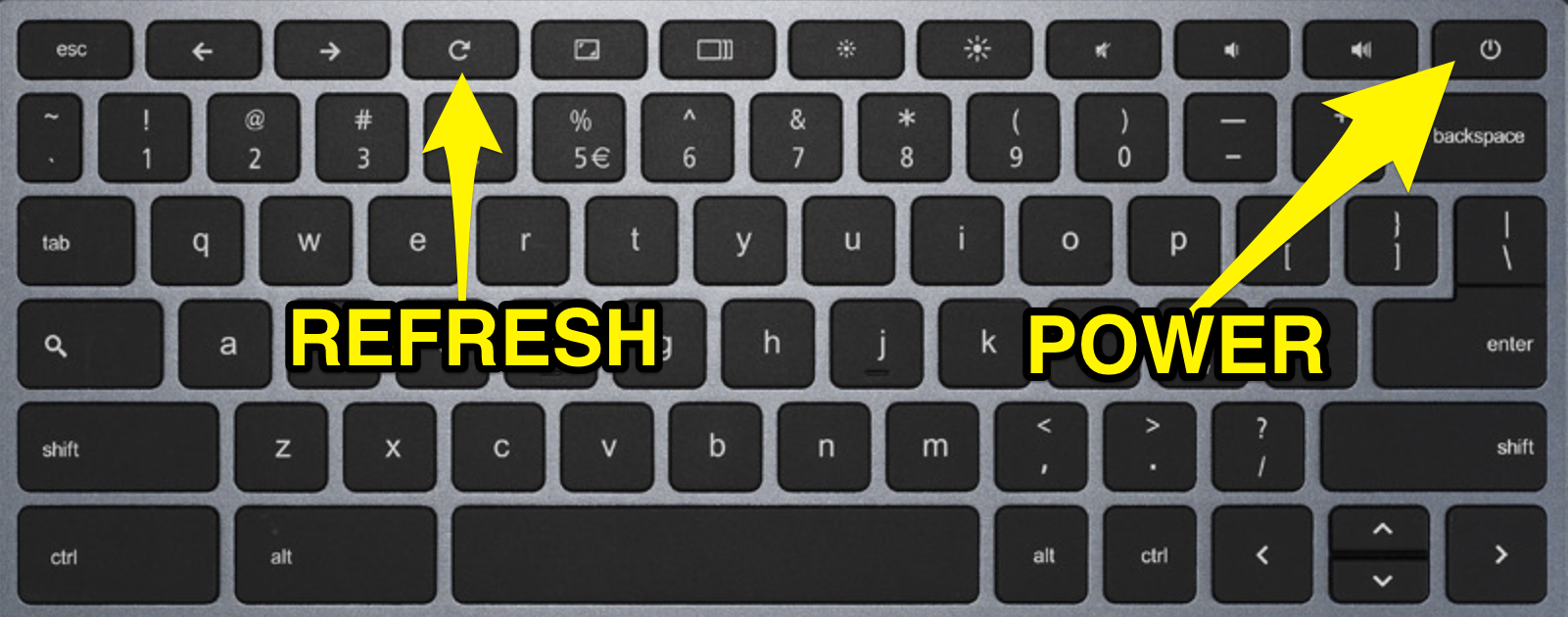
If you, like me 15 minutes before I actually posted this, ever find yourself in the position of needing to do a "hard shut down" of your (or a students' Chromebook) there is a simple solution for you!

Below is a picture of the two buttons you want to get to know on your keyboard for this.  Hold those down for a couple of seconds and it will shut down shortly after.

Refresh and Power buttons...such a marriage!!

Google Slides: 5 Features You Should Get to Know!

Check out the video below from Richard Byrne (Twitter, G+) at FreeTech4Teachers on different Google Slides features you can incorporate into your presentations! Among the features:

  • Add background images to one or all slides 
  • Crop images within a slide
  • Add transitions
  • Add animations
  • The Q&A feature (reeeeeallly cool feature!) 
Enjoy, and check out Byrne's original post where I snagged this vid. He also curated a YouTube playlist of Google Apps Tutorials - check them out if you get a chance.