Showing posts with label Chrome. Show all posts

Thursday, November 10, 2016

Research Resources: Utilizing EdTech to Work Smarter

Research projects are a cornerstone in any secondary curricula. New standards on Research skills are not merely for ELA or Mathmatics classes. Whatever your subject, we need to teach, model, and allow students to demonstrate mastery of research skills. Educational Technology can assist in this process in numerous ways. Below is a list of various apps, extensions, web services, and resources that you can incorporate into whatever research project you assign next.

Brainstorming & Organization Resources - That all important first phase that puts and keeps students on track
  • Make Checklists in Google Docs
  • Create a concept Map in Google Drawing
  • Google Keep (They already have this) - Create checklists on tasks needed to complete when planning a project, collaborate with other students, and get reminders sent across their devices
  • Mindmup - Mindmaps on your Chromebooks
  • Popplet - Web and iPad app that allows you to create multi-media mindmaps
  • Wunderlist - App & Extension - Create dynamic to-do lists for students to stay on task when planning a project
Note taking Resources - Use to type up ideas and arguments or counter-arguments for tpics raised in the project

  • Google Keep - add notes quickly 
  • Sticky notes - see my previous post on sticky notes
  • Super Simple Highlighter - kinda self explanatory, but students can highlight info on web pages and they stay on the page when they return to them later after closing their tab
  • VideoNot.es - synchronize their note taking with any video they are tasked with watching. Notes are saved in Google Drive
  • Evernote - Evernote is an excellent educational research for keeping organized on projects. It operates like a Digital Notebook where students have the ability to take notes and clip sites and documents on the web related to their research topic. Web-version, Chromebook App, Extension, and mobile apps for all your devices

Information Collection Resources - Locate and save sources for the project

  • Feedly - Curate content from around the web around a single topic or tag. The mobile app allows for syncing with the web account. Students can have the information come to them
  • Google Keep - again...this thing is awesome
  • Padlet - When students would work on research projects, I'd often have them save evidence from a website that was useful for them. Padlet works well for this as an online, collaborative corkboard of sorts. So if there is a group research project, students can be working on the same Padlet together
  • Evernote - Again...powerful tool

Citation Resources - Gotta make sure credit goes to where it belongs

  • Chrome Extensions - Cite This For Me and EasyBib will give the proper citation of websites instantly in different styles 
  • Citation Machine - Books, Magazines, Websites, Journal, Film? No problem...this free web service can do that for your students in thousands of styles (Turabian? Hmmmmm)
  • BibMe - Works like Citation Machine

Presentation Tools - Speaking & Presenting standards need to be met as well

  • We Video App - Students create Digital Stories ...think iMovie or Movie Maker only the Chromebook version
  • Bunkr - Web presentation software where students can embed a ton of content from code, to interactive graphs, social media posts and more! It looks and presents everything nice and clean 
  • Weebly - Students can create their own websites and portfolios in a drag and drop fashion!
  • Infographics - these are great products to create depending on the research project ad purpose of the presentation. This would be an excellent presentation option for Technical Writing research projects. The best web resources for this is Easel.ly, Canva, and Piktochart


Tuesday, October 11, 2016

Shameless Self Promotion: BR Playin' @ the Playground!

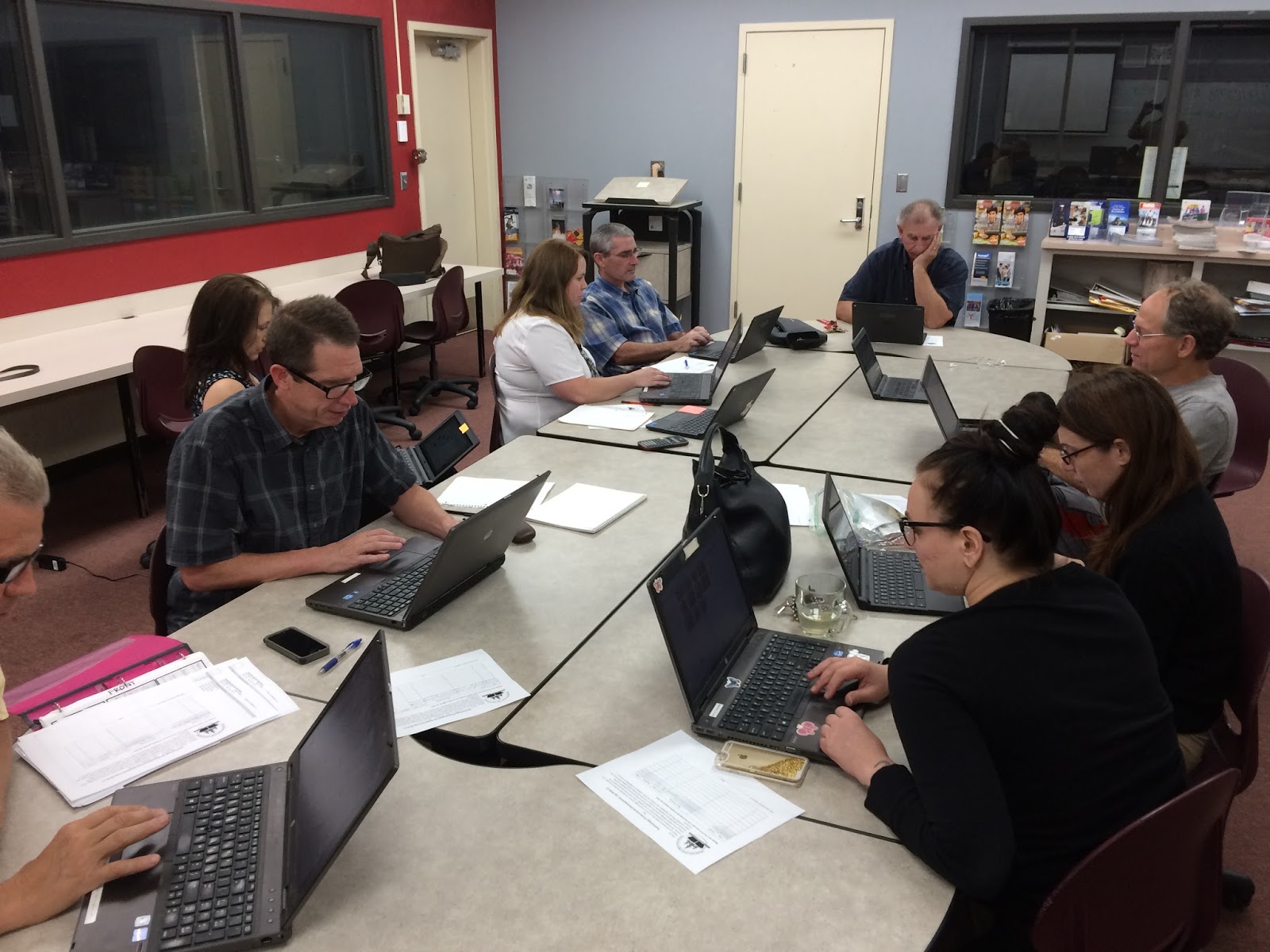
Another successful EdTech Playground took place at BR yesterday as a small group of professionals got around a table and worked diligently on building their EdTech skill set! There were inspirational travel quotes recited by Jeff Carrow, the BR Math Department were working together on Desmos, and the great Duane Zauner even walked out of there with some new arrows in the Tech quiver.

Check out the pics below and also their feedback on the embedded Padlet - a great EdTech tool I've used for Formative Assessments, project turn-ins, back-channel chats, and soooo many other uses.

~Don't forget to sign up for the next EdTech Playground!~
~All sites, all abilities/skill levels are welcome and encouraged to attend!!~

Wednesday Oct 26th @ NU - EdTech Playground - all are welcome - Sign up Here

Wednesday Nov 2nd @ BR - EdTech Playground - all are welcome - Sign Up Here


Made with Padlet

Thursday, September 29, 2016

Shameless Self-Promotion: EdTech Playground #1 in the Books!

The first gathering of educators at NU for the EdTech Playground is complete and .... it was successful!! A small (but a motivated and tenacious!) group got together from various sites and curriculum areas and got to work! We worked individually, we collaborated, we talked about life outside of school...we solved world problems!! And...there were cupcakes!! *cupcakes are not guaranteed at future EdTech Playground PDs

In all seriousness, it was an excellent 90 minutes of professionals doing what professionals do: working to solve problems, pushing their skill set to another level, and opening up lines of communication with peers to deal with common problems. Each individual worked diligently on whatever interested them in order to integrate more technology in their curriculum.

I could go on and on...but I'll let your colleagues say it all for me...

"Very helpful to be able to navigate Google Drive so I can teach my students"

"Working with other people was nice! Ready to take things to the next level"


"Learned how to make a test in Schoology and I'm ecstatic! This session was very helpful for me." 

"This session was exactly what I needed for technology and Professional Development....it gave me a chance to work on things I haven't had the time to work on."


"I was able to open up my Chromebook for the first time...and set up classes in Pearson"

"I appreciated the time!"

"This session was tremendously helpful!! I worked on figuring out why my Schoology grades weren't syncing with eSchools."


Don't miss the next one Monday 10/10 @BR - Sign Up Here

Wednesday, September 14, 2016

Tips & Tricks: Set up an event in Google Calendar from Gmail

I don't know about you but lately I can't seem to get anything done unless my tasks are written in triplicate in various places with constant reminders to move my behind and get stuff done. Google Calendar has been great for that.

I update it constantly with daily life plans, work meetings and projects I'm working on, social functions (hahahahaha! <enter crying laughter emoji here>), and anything else of importance that I want and need to stay on top of. I check it every morning and evening on my phone (Android & iOS), its open all day long on my Chrome browser, and it sends me reminders of where I need to be at throughout the day.

One of the most effective ways for me to update my Calendar when requests or meetings come through Gmail is by creating an event from the email itself.  It saves me time and keeps me on top of a number of different daily and weekly requests that all come through email.

It's very simple to do and I have a screencast below to show you how if you didn't know about it before - its short!! and I don't talk over it...but I apologize in advance for the annoying stock ukulele track...they didn't have Led Zeppelin tunes to choose from.

You may have already learned this trick, but for those that haven't its a nifty little connection.

And not only is this a great trick to learn yourself, but it's a great one for students as you model and teach them good organizational habits!

Enjoy!


Tuesday, September 13, 2016

Chromebook App: Google Cast for Education

Ok...this one's a good one. Technology brings up some issues as we transition from the traditional classroom to a 1:1 environment. But it also provides opportunities as well. Google (especially) has been at the forefront of both solving issues and creating opportunities.

Issue: How can we maintain a student-centered learning environment where students feel empowered to create, to solve complex problems, and work together to do so?

Solution: Have access to their screens through Google Cast - this will allow the students to display their work to the entire class via your projector, ask for student input on solving common problems and mistakes, allow students to be the experts in the room and explain how they arrived at a solution, or created a wonderful product, or to demonstrate their own mastery.

How it works....well, you download an app from the Chrome Store, your students download an extension from the same store. A few things to type and a few buttons to press and away you all go.  The product syncs all your Google Classroom classes so those using Classroom will find the adding students part very easy.

For all you visual learners, have a gander at this ace bloke from the UK demoing the basic functionality of it:


This tool is extremely powerful, and my mind drifts to other solutions it can provide as well. For instance, can it grant access to multiple screens so you can watch everyone's screen during an activity or, better yet, an assessment? Hmmmmmm <enter thinking emoji here>

Anywho, check it out and if there are any teachers already using it or want to try it out in their classrooms, I'd love to check it out and work with you to see how it plays with the students!

Thanks for reading!!

~~~
Follow Up 9/15/16: The "Google Cast" Extension is blocked for students. Currently looking into solutions for that through the Tech Department.

Follow Up to the Follow Up 9/22/16: Was told that there were issues last year in using this product in class.  Looks like for the time being, students can not download the extension....I'm gonna keep shaking the tree

Monday, September 12, 2016

Chrome Extension: Virtual Sticky Notes!! Leave Post-It Notes on any page

I recently found an old college textbook of mine as I was clearing out my classroom. And I found out that I used to love sticky notes. I would have handwritten notes painstakingly detailing the information I was consuming in a clean(-ish) fashion in the event that I wanted to sell the book back for cash in order to buy...more books. 

Not actual aforementioned textbook, but you get the idea, ya know?

This method of breaking down text into words I could understand helped me learn difficult material and is a time-honored and research-backed method of learning. It is also an essential skill in need of developing in a Common Core, 21st Century learning environment.

Close Reading, research projects, tried and true reading strategies, "talking to the text"... these all require the ability to write in the margins of documents. But how to do it in a 1:1 environment? Oh let me count the ways...or at least two of them.

Two services (both free!!) are Note Anywhere and Stickies. Here's the gist of both: you can activate it on any site and any sticky note you leave on the site stays there until you remove it. Because its a Chrome Extension, it is housed in your browser and with the click of a button, a sticky note appears on the site.

So I've used Note Anywhere in the past with my students. I've used it to jot notes for myself on student work that was turned in virtually and I've taught students how to use it effectively when I have them read internet content. Check out my little screenshot vid of me using the service here (don't judge...I never screencast...gotta work on that).

There are other sticky note products Here Here Here and Here ... its really just which one works best for you and your students.

Chromebook App: Storybird

Looking for different ways for your students to communicate their understanding of concepts covered in class? Want them to get creative with their writing and storytelling? Have some aspiring writers that could use a push in publishing their work? Storybird is a web program that can engage learners in numerous ways and give your students the opportunity to publish their work within the Storybird community.

Often times when asking students that they will write (a story, essay, poetry...whatever it may be), the teenage eye roll isn't too far away. With Storybird, students will enjoy the creation process and develop their literacy abilities while doing so.

For Students: The ability to create and build high-quality and original stories (with images) to demonstrate their knowledge, understanding, literacy skills, creativity, and (for the up and coming writer) develop their publishing and marketing abilities. It also has a collaborator feature which allows students to work with peers or even established writers and artists.

For Teachers: You can develop a classroom and assign projects within Storybird. Track their progress as they create and assess their understanding of concepts delivered in class.

I can think of many uses in ELA and the Social Sciences but it could be utilized in many different subject matters. Give it a shot! Below is Storybird's website and Chrome Web Store link if you're interested.

Storybird Website
Chrome Web Store Link

Thursday, September 1, 2016

Apps You Have: Google Hangouts

Google has an arsenal (Gooners!) of apps and web programs that you can utilize in various ways throughout your day. One of these is Google Hangouts - their Personal Messaging (PM) service.

This service is free, nimble, and accessible to all students and teachers in the district. With text, phone, and video conferencing features, this is a great service to use in a variety ways - in and out of the classroom. And all conversations/activity can be archived to save for a later date to demonstrate performance

Ideas to use for class:

  • Video chat with an expert in a field of study you are covering in your curriculum where your students can "ask the expert" 
  • Group Live Broadcasts as an assessment for group projects
  • Live chatting during a live event (Debates start this month!!)
  • Develop Online Portfolios through past video and text chats
  • Check out this link for more subject-specific ideas
Ideas for you:
  • Remote Professional Development/PLC/Collaboration
  • Video conference with educational and academic professionals during collaboration time/Department Meetings
  • Quick communication with colleagues throughout the workday or in off-hours
There are a wealth of opportunities using this tool and you all have access to it as well as to everyone in the District! Have fun!!

Monday, August 29, 2016

Chrome Extension: One Tab

For those that have been using ChromeBooks for some time now, you know the sheer volume of tabs that open in your Chrome browser.  Seemingly everything you click seems to open a new tab whether you want it to or not.  More times than not, you'll look at your browser and be marveled at just how many tabs open up as you navigate through a myriad of web-based programs, sites, and just randomness...

Well...all those tabs (although essential to you doing your work) can slow down your performance speed significantly. In the world of Google, where there are problems, there are usually solutions...I give you One Tab!

Chrome allows you to "add-on" to it's browser to customize your experiences.  These add-ons are called Extensions (I'm going to be posting about Extensions soon hopefully) and can be downloaded in the Chrome Web Store. Here you have a plethora of different ways you can maximize your (and your students') productivity! One Tab is one of these powerful tools.

One Tab takes all of your open tabs and houses them in one tab with the click of a button, freeing up the memory chewing tabs that stay open on your browser.  They, essentially, go to sleep until you want to wake them up.  You can activate them or delete them right from the "One Tab" tab. This service is a great one for you and your students to utilize today!!

View from my One Tab I have "open" whilst typing this post
Give One Tab (and soooo many more Extensions) a try to maximize your efficiency while working.