Showing posts with label Parent Communication. Show all posts

Tuesday, January 24, 2017

Online Agendas: Using Google Slides To Keep Students and Parents Informed

Google Slides is a powerful tool to use in the classroom. From student collaborative activities, to direct instruction by you, to an excellent opportunity to show screencasts of processes, Google Slides is an important tool to use in the classroom throughout the year. The final products are easy to share and between Google Sites and Schoology, teachers in our district have an opportunity to push out content to students and parents with ease.

One other great use of Google Slides is the class Agenda. Agendas are a great tool for students and parents to see what is happening in the classroom. It helps the teacher stay organised as well. Have a student who has been out for some time, no need for them to ask you for the work or what they missed, they can check the class Agenda. In the past, agendas are only as visible as they were left on the whiteboard or chalkboard. Technology allows for those Agendas to be permanent, and interactive. Google Slides is an excellent tool for this as well!!

A friend of mine, Tech-guru, podcast host, and all-around good guy working as a TOSA in the Roseville district, Ryan O'Donnell shared with me how he uses Google Slides for this purpose a while ago. Much like I use the same Google Slide deck for my weekly Tuesday Tech Tips, the agenda is used in this manner. You will always put the most recent week's agenda as "Slide 1" so any student or parent accessing the file will see that week's agenda first. The previous ones will be in descending order as they click the next slide on the slide deck. Below is the TTT Slide deck for you to see how it flows.


I made some Agendas for each site based on his example. The templates I have made give you an idea of things you can do on your agenda. After you have access to the templates and make a copy of your own, you can customize it however you'd like.

Here's how:
  1. Access the Agenda Templates
  2. "Make a Copy" of the Agenda from your school
  3. Open the file and make any changes you would like - this file is now owned by you and you can tailor it to your needs
  4. Delete elements I created in the file and fill in the necessary information you would like to pass along to students and parents
    • Add images, video, text, links to assignments and outside resources, etc.
  5. Google saves your last keystroke when you have online access so no need to save
  6. When you want to make the next week's agenda, all you need to do is make a "Duplicate Slide" and then make changes to the one in the top position
To Add to Google Sites:
Google Sites embeds Google Docs, Slides, Sheets, Forms, Maps and other products seamlessly on your site

To Add to Schoology:


If you need some assistance with this process or anything else, please let me know and I'll walk you through it.

Wednesday, October 5, 2016

Seesaw: Web Student Portfolio/ for an Entire Class!

Digital Portfolios are the rage these days as educators are trying to harness emerging technologies to try to engage students and have them build a historical record of products demonstrating progress. There are many products that can do this job out there (Google Slides and Docs are one of them). One product I had a lot of fun demoing recently is a luscious looking one called Seesaw (Chrome Store App).

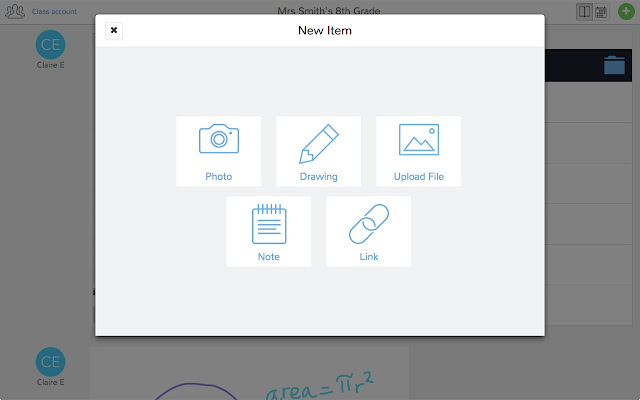
With Seesaw you give students and authentic audience for their work (students, teachers, parents) with immediate feedback that is controlled by you! Students have the ability to post a number of different pieces of media (images, videos, audio, links, documents, drawings) to demonstrate work produced. You as the teacher control the flow of products so students can't just post something without some moderation.

The tools at your students' disposal to create a working portfolio. 
There's a social component to this as well. The interface works a lot like Instagram with the ability for students to "Like" and "Comment" on other students' work - again with your approval. Parents are also plugged into your class and can see the class feed and have the ability to like and comment on student work. So parents get a real time look at what their student is doing in your class.


And students get a chance to choose what goes into their portfolio to represent their best work to show student progress. Check out the video below of a (very precocious and future President of the United States) 10 year old student talk about how Seesaw works.


This tool isn't just for elementary students (although much more Primary schools utilize it more than Secondary schools do)...this is a powerful Freemium service that has the ability to really engage High School students and give parents a look at what their student is doing in your class.

If anyone wants to give it a try, I can help with the setup and implementation. There are a slew of tools you can use to identify your student's progress that I haven't got into on this post. And if there are any teachers using Seesaw already, I wanna hear about it! Below are some links that may be helpful to those that are interested in checking it out!

Seesaw Teacher Overview
5 Great Features of Seesaw