Showing posts with label Student Engagement. Show all posts

Monday, April 24, 2017

Video Use in the Classroom: EdPuzzle & Playposit

Video in the classroom is nothing new. Videos are engaging and spark interest and learning in our students and have a distinct advantage of not being our voice (😝)! The way in which video is delivered however has changed. Gone are the days in which the only was was to wheel in the big TV strapped to the media cart to a place where most can see. Popping in the VCR (remember those?? Whoever has one still....you're amazing!) that documentary you recorded 7 summers ago. Not anymore. Technology has progressed where we can deliver self-paced, engaging video-based curriculum that allows us to assess our students' understanding in real time.

Two resources I love to talk about to achieve these ends are EdPuzzle and Playposit. Both are constructed similarly, have benefits over the other, and are excellent tools to utilize in the 21st century classroom. If you use video in the classroom (whether for classwork or homework) it's not enough to say "watch this video and take notes" - students need direction in order to get the most out of your curated resource.

Check out more after the jump!

Friday, April 21, 2017

Life-Skill Activity: Building a Resume with Visualize Me

I was called a fascist once in my life. When I would teach the Rise of Totalitarianism unit in World History, I would teach the defining characteristics of Fascism. I would then have students answer a fictitious job ad written from the perspective of a country in need of a Fascist Dictator. I'd teach students the skills of making a resume (all the different elements they needed, formatting, tips for creating an appealing resume, etc.) and they would create a character that was the perfect fit for the job ad. I took it a step further. I had all students type theirs up in class and turn them in, I split them up in three big groups, and I distributed the resumes to each group. The students had to decide who had the best resume without knowing where the resume derived from - can't vote for your friends' if you din't know who's who. They identified their top 3 candidates. Then I took it a step further. I interviewed each one in front of the class - total performance mode...very serious - and the students had to choose the best candidate from the interview.

I mentioned I was called a fascist once. One year, after doing this series of real-world activities while teaching content, a parent, clearly upset and offended by a complete misunderstanding of the nature of the activity, thought I was glorifying fascism and indoctrinating my students with my propaganda. All because I was teaching a lesson on something bad (fascism) through a vehicle of something good (applying for a job). I was then called a fascist. And I understood their position. I'm sure the dinner table conversation went something like this:

Parent: What are you doing in History class little Timmy?
Little Timmy: Oh Crossen is making us be fascists by creating a resume for the "perfect" fascist.
Parent: Errm...ok. Did he give you any feedback on yours?
Little Timmy: Yeah....he said I need to include more experience suppressing the human rights of others.

Like, I get it. That sounds horrible. That, however, is not what I was doing. And I am in no way shape or form a fascist.

What I was doing was giving my eager 15-16 year old audience a glimpse into their future. Hunting for a job and going through the process is something students are curious about. We need to prepare them for what happens in that area of life they have yet to enter. Teaching how to build a resume is an excellent activity that can be applied in all subjects. It doesn't need to be their resume - in fact it's better that it's not. Use it as an assessment. Problem is there are so many types of resume formats out there, it's difficult to identify the proper mechanism in which to roll with. Enter Visualize Me.

Visualize Me is a free, virtual resume that creates an infographic resume with all the traditional aspects an employer would want to see in a traditional resume. The resulting product is a portfolio like view of a person's accomplishments that can be shared or embedded on a website just like most content these days. This method is great for the student who is building a web portfolio of their best work to show potential colleges and employers. It will also demonstrate to all interested parties that they have technical skills.

To run this activity I would recommend talking about resumes first - what it's used for, how it is used by an employer, how it is usually an employer's first impression of you, what goes into a resume and what does not (sorry bud, but having 300 likes on an Instagram post is not resume worthy), etc. I would show them good print resume examples and bad ones. I would also encourage students to start thinking about their own job searches in the coming months if they haven't already.

If you utilize Visualize Me (and I highly recommend you do), here are the steps:

  • The students would sign up for a free account
  • They would plug in the requisite information in the different sections (images on
  • the right)
  • And that's it! Visualize Me does the rest and creates a slick and professional looking infographic on the information provided. 
  • The students can play around and customize the theme and style of the infographic and personalize it based on their set templates 
Your students will be impressed with the result, will learn new life/job related skills, and, depending how you use the activity, will be able to show you what they know about the topic you are studying. Below is an example of what the top part of the infographic looks like.


Our students need to learn these skills in order to build confidence for when they need to use them. Visualize Me is a great EdTech tool to develop those skills in our students. So give it a try. I don't recommend using the activity to teach the defining characteristics of fascism though. 😉


Wednesday, April 19, 2017

Flipgrid: Cool App to Amplify Student Voice

I'm always coming across really innovative #EdTech resources in my role. Always thinking of ways I'd use this app or that program in the classroom. Vetting these products is difficult without a traditional classroom to test them out with students on, but sometimes some products are seamless and I can see instantly how useful and easy they could be to implement. Flipgrid is one of those those resources.

Flipgrid is a web application that works on any device and all browsers. It's a discussion platform that can be used as back channel chats, in-class discussions, and definitely should be a necessity for those flipping the classroom! You issue the topic on which the students are to discuss, and they record their response via video message. Now I know not everyone likes to be on video, but our students are somewhat comfortable with the idea in their social lives. And that's their pitch: Flipgrid argues that students are using video to project their voice with their peers and social media followers, so we should leverage that for educational purposes!

What my "Grid" looks like 

With a free account, you have the ability to set up one "grid" with an unlimited number of topics you can create for your students to respond to. You set the settings for your topic (moderating responses, privacy, etc.) and can include text and video as a stimulus for the topic. You can push out your entire grid to students, just the topic url, or a topic code that they can plug in on any device. Their response is then recorded by them on a webcam (either on their mobile device or laptop) and posted as a response for the topic. All responses are able to be seen with those that have responded or have access to your topic. Each response also has a transcript associated with their post. The premium version allows for you to assess the students' responses and students to respond and comment on video responses which I think are really cool features. That upgrade is $65/year if you can swing it.

You as a teacher can share it via link, QR code, or embed it on any site (mine is below). When you and others go to view the responses by others (on a laptop) a window pops up and you're able to play the response and read the transcript if need be. On a mobile device, the response opens up as it's own screen view. The topic I created would be one if I were teaching a Government class and we were looking at current events. I recorded my response to my topic (as if I were a student) on my iPhone after I downloaded the free app. It all was quite easy on both ends (creation of the topic and recording a response) and didn't take long to go from idea to it being live.

If you'd like to see a grid that has a number of responses, check out the KQED Do Now Flipgrid.

Give Flipgrid a go if you're interested. If you're on the fence, respond to my topic below (just click the link on the top right corner) and leave a video response to the question to see how it all works. It's a handy little tool that I think could get students to express their ideas in a user-friendly and familiar way.

Alternative to the Poster & Brochure Project

How many times do we ask students to make posters and brochures in class? How many times have you been asked to make them in real life? Maybe your class rules or reminders posted around the room were created on poster paper a while ago, but your prinicpal rarely asks you to create a poster to demonstrate your knowledge of the California State Standards or a brochure on what your classroom management philosophy is. Or a hand-drawn visual assessment of our favorite students (we all have them, admit it 😜). Unless you're marketing an event or creating a hand out for people at some function, chances are the poster and brochure making skills max out as a Senior in high school.

We can do better. We need to build design skills and have students visualize their learning, yes. But there are many alternatives to this process. Alice Keeler has put together a handy little collaborative, crowd-sourced document to identify different ways of accomplishing the same task. Check the list below (there's a tab at the bottom to see the Poster alternatives) for inspiration and ideas!

Have a great idea you use in the classroom that isn't present on the list? To add to the list, click here: Add to Project List


Link to a larger version of this file


Friday, March 31, 2017

The Pedagogy of Blended Learning: Change is a Comin'

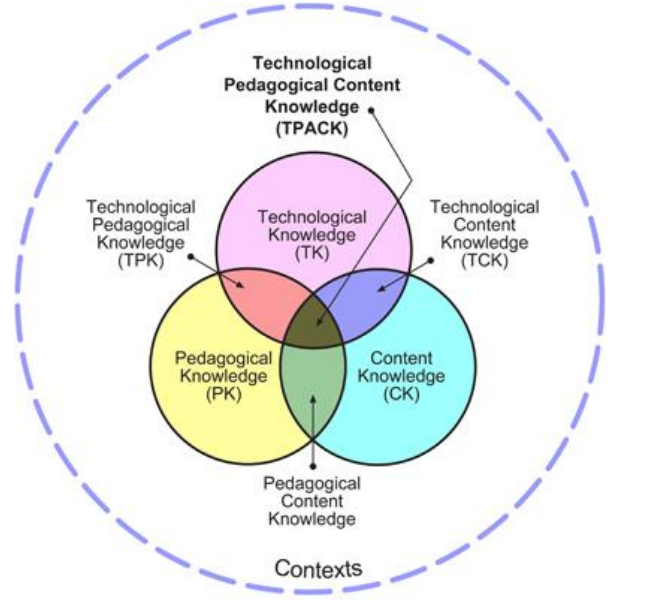
Pedagogy first. Technology second.

You are the expert in your subject matter. Times are changing. Learners are changing. If you're teaching something kids can google, your time and their time is wasted.

We need to be building their skills sets. Preparing them for a world where basic info is in their pockets. What to do with that info however is critical. How to use that info to derive an understanding of the world around them is essential.

The sit-and-take method is a dying model. As is the one-size-fits all method of teaching. Think about one of your classes. You have groups of students that have varying needs. I'm not just talking about those with 504s and IEPs. Reading comprehension issues, learning disabilities, apathy, advanced learners, students with social-emotional needs to name just a few. The list is long and lengthy. The challenges immense. With each set of group needs, there are different strategies that need to be employed. Lesson design needs to accommodate and provide students with the tools to be successful. The learning environment (physical and intellectual) you create needs to be one where all students can learn, develop their skill set, achieve, and be successful.

Tuesday, March 14, 2017

District Shift in Blended Learning: The Case for Full Schoology Implementation from a Skeptic

Being out of the classroom this past year has been an interesting venture. I've worked with so many dedicated, thirsty educators looking to improve their craft and in turn their students' experiences. I'm always asked if I miss teaching. I always correct them, quick to say I'm still teaching. My classroom has changed however. And I miss the traditional classroom experience. Immensely. I look at, dissect, play with, and analyse all sorts of different EdTech tools all the time. I send out tips and updates twice a week to you on things I would love to use in the classroom!! Actively Learn? Man I would love to use that!! Digital BreakoutEDU? I would use that all the time! Google Sites? All my students would have their own! But these things flow with my style in the classroom and I feel comfortable using them....which with anything takes time. But this is an era of booming educational technology that I would take advantage of for classroom efficiency, student agency, student engagement, and to help give our students an authentic voice. We all have one bit of technology at our fingertips that is grossly underused in our district that can help in these areas. It's high time we commit to it.

The purpose of this post is to persuade, not to teach. I believe all teachers should have a Schoology presence in their classroom curriculum starting next year. This may be scary for some. Those that know me well, know I was a Schoology resister. I believe it would benefit our student population, our interactions with parents, and help get students "College and Career Ready." Future posts on Schoology will be more geared towards teaching.

Student Engagement
Our students need to be engaged in their learning. This takes on many forms in the context of a given year, unit, or even lesson. There isn't one way to truly engage all learners. The only way we can drive towards near full engagement is through innovative and inspired lesson design. It's you as an expert in your subject and craft developing lessons that challenge and push your students' understanding of the material. Shifting towards a Schoology delivery system will not instantly make your lessons more engaging but it will get you creating and sharing new ideas on how to innovate your curriculum. Once comfortable in a Blended Learning environment, the educator, ever the big picture thinker, starts to see possibilities of innovation. They start to ask "what can I do with this?" That is when students become engaged. When we as educators continually keep things fresh. When we inspire our students to be innovative thinkers through our own.

Interactions with Parents
Study after study shows a growing need for parents to be connected to the classroom to encourage student success. Schoology automates this process as they have access to student performance, they're able to see what goes on a daily basis, and individual or group communication becomes a snap. Because parents "sign in" as a parent to your class their information is there and at the ready for you to easily connect with them. A number of parents have told me they like how easy it is for them to know what is happening in the classroom and that it cuts down on the "How's my kid doing?" emails and phone calls. We have a problem with "system overload" for parents. Teachers have various  avenues of reporting information to parents (websites, eSchools, Schoology, other apps and services, etc ). All are excellent means of communication but for a parent, sometimes even for the tech savviest of them all, this proves both a challenge and a frustration to get a clear picture of how their student is doing. Through uniformity of processes, we can solve this problem if we commit to using Schoology as our chief source of communication with parents through curriculum delivery, parent communication, and timely grade updates.

College and Career Ready
College and Career readiness is not just about content preparation and academic skill development. We've been told for years that we are preparing students for jobs that don't exist yet. I'd say we're doing quite well considering that's like trying to unlock a door in a room full of doors in darkness. However, that's not an apt metaphor. We do know that the world economy is trending towards greater automation and using systems (no matter the career) to manipulate or use data to solve problems. In order to prepare our students we must model this through the delivery of curriculum via a system that allows them to organize and track data, to manage their workflow, and to learn how to solve problems efficiently and collaboratively. This was one of the reasons for the 1:1 initiative - for students to become familiar and proficient in a 21st century environment. I'm not sure the worksheet system is one that prepares our students for future careers. Using an LMS in the classroom will get them familiar with systems they will find themselves learning in as they extend their formal education and when they enter into their chosen careers. The LMS you have at your disposal is Schoology. And it's a pretty good one.

Is Schoology perfect? No way. Teachers have legitimate problems with the system with respect to its integration with 3rd party services (namely eSchools and TurnItIn). Some teachers haven't had enough experience in the environment to understand how it can benefit them and their students - I was certainly that teacher when we purchased the product years ago. I also know that a number of teachers need a lot of tech training in general to feel comfortable to take the leap. I sympathize with those concerns. I also believe that those fears and concerns could dissipate through time with a full commitment to make it work better for teachers, better for students, and better for parents. Take time looking into Schoology this summer (only a few months away) if not sooner and think about what is possible. I'm here to assist those that want to make that shift. I'm hoping everyone will if you haven't already.


Monday, March 6, 2017

Apps I'm Into: Blended Learning, Guided Reading, & Student Organization

Just a quick rundown of some apps I've been looking at in the past few weeks. I get very Google-centric here because of their vast array of resources and the availability of them, but it's important to remember there are amazing #EdTech resources outside of the Google realm. All three of these resources are designed to be for any curriculum. They are tools every class can use as apart of their repertoire.

TES Teach with Blend Space

This is a favorite of a lot of people in the EdTech world. For Blended Learning purposes (think flipped but not completely), this resource is a big one. You can house a series of steps for your students all in one easy to navigate, and use, hub for a self-contained lesson. Add content (documents, video, images, etc.) from your computer or the web, and provide guidance for students. The resource is shareable and embed-able (as you can see below) and makes complex tasks with numerous steps easy for students to grasp.


A link to the above file if you'd like to see it in a new tab:
https://www.tes.com/lessons/C9C0J3u6cp4OPQ/rise-of-fascism-dbq-prep 


Actively Learn

I'm a huge fan of EdPuzzle for videos (forces students to answer questions about the video before proceeding) and Actively Learn works very similarly but with articles and primary source documents. Have students answer questions as they read as part of their check for understanding. Want them to discuss items while they are reading (What? Thinking...while they are reading?), create the space for them. Want them to take a poll within the document at any place to gauge their opinions or understanding? Well....lets' do that!! It's one of those products that asks you to create a classroom and have students sign into it. But it is well worth it. Ken Buck at NU has been giving it a go as of late and he reports its an excellent resource for Primary Source documents and his students' understanding of them. There are a ton of features and options and Actively Learn walks you through the process in an easy to understand way.

With Actively Learn, you set the pace with students, get them to answer all the questions in a rich manner, and allow for a deeper understanding of course material. After clicking, "Read More" check out the pic and gifs on how this looks for the student.

Tuesday, February 28, 2017

Resources for Subjects: Tech Resources to Check out

I know this post won't cover every subject, but I'm hoping that it will have a little something for everyone. You may even find some use in some resources geared towards other subjects. Let me know if there is something specific that you need in your classroom. I'd love to work with you and help in any way I can.

Across Curriculum
  • Peer Grade - Peer feedback on assignments has never been easier. Collect work and redistribute to students for peer review. Complete with backend data for the teacher to analyze peer feedback
  • mysimpleslideshow - Create a script for a story and let the resource find images automatically that flow with your script. Narrate the story or have a computer-generated voice do it for you
  • ELink - Curate any type of resource into a slick looking website or embed-able resource for students. Students could also use it to collect resources on a given topic 
ELA
  • CommonLit - Library of informational texts with questions to gauge understanding and media to facilitate deeper learning
SAT/ACT Prep
  • PrepFactory: Helps students identify what types of questions will be asked on the SAT & ACT using interactive and engaging activities and games
Social Science
  • Hexagonal Thinking Approach - The idea with this tool/activity is to get students to categorize events and concepts related to an overall subject (Think "Causes of WWII" as the subject and political events like the "Munich Agreement" could be an event), you can push your students to identify links between events, and also establish priority over other events. An excellent explanation of this process can be found here. Creating Visual Hexagons is a visual twist on this concept as well that can be done in Google Drawing or Slides. 

Maths
  • g(Math) add on - easily create graphs, equations and other needs for the Maths class with this add on for Docs & Sheets. g(Math) also has a Google Forms add-on for your formative assessment needs! See the gif below to get yours

Science/STEM
  • The Concord Consortium - a collection of classroom activities and simulations that can be filtered by grade level and subject
Physical Education
Performing Arts
  • Soundtrap - Originally created for music industry artists, this web-based music producing service is user-friendly and allows students in many different performing arts get to use their voice to produce their works
Visual Arts

  • Google Arts & Culture - a repository of artistic work from around the world spanning thousands of years of history 


Wednesday, February 22, 2017

Presentation Activity: Ignite Talks with Students

Ever see an Ignite Talk or Pecha Kucha? Ever heard of one? The concept is straight forward. 20 slides playing on the screen switching every 20 seconds. In the end, you have a presentation on any topic done in just under 7 minutes. The slides are minimal - images, gifs, light text if any, no videos - and accompany the story the speaker is telling. There is a ton of practice needed obviously but what emerges is a crisp, concise presentation on the topic of choice.

This would be excellent practice for our students at any level in any subject. For years, teachers have had a difficult time incorporating speeches (whether formal or informal) into their curriculum for obvious reasons: they take a lot of time, require a lot of guidance and monitoring, student fears of getting in front of their peers detracts from effort, teachers, although public speakers on a daily basis, aren't trained to coach the skills, and with content standards to meet they are difficult to justify. Well...standards have changed to include Speaking and Listening skills to get them College & Career ready. And it shouldn't be just ELAs job to meet the standards.

This activity could be used as an assessment, a mid-unit check in, or as an introductory activity related to a theme of the unit. I loved doing formal and informal presentations in class as it gave students an opportunity to learn from each other and work out those fears of speaking in front of others. I'd give students time in class to build their speeches and practice with one another and myself. I'd have them film themselves so they can see what others see in order to analyze their practice performances. In the end, students realized the speech was an important venture because they know they need practice in the skill. They wanted to do their best...right down to the shyest person in the room.

Now, I wish I could tell you each speech incurred a standing ovation. But what I can tell you is that students learned what made a winning speech, what constituted as good techniques for them to borrow from others, and most reported after initial jitters their nerves faded as they had to focus on the speech itself. The process is lengthy but worthy if we're committed to preparing our students for a world that values presentation skills.

~~~~
To run this process in your class, follow these steps:

  1. Introduce the topic (can be anything related to your curriculum or on a topic of their choice) and the assignment - 20 Slides/20 seconds (of course you can adjust the slides and time based on your needs)
  2. Give students time to brainstorm and build the framework of their speech - lots of hands-on help here
  3. Introduce the Rubric (see below)
  4. Show them videos of other Ignite Talks to give them an idea of what they look like - YouTube is full of them
  5. Get your students to write their speeches in class so you can ensure they are writing something of substance
  6. Introduce the Visual Component - Let them know that they need to create "X" amount of slides for their speech
  7. Have students practice their speeches with peers complete with video so they can see and analyze their performance 
  8. Commence with the speeches

The Rubric
I've found Google Forms works best for this as I can sit in the back and assess the student as they're giving their speech without missing much if at all. I fill out the Form and after submitting I click the link that allows me to submit another entry on the Form. I then create a spreadsheet with all the data and share that with the class for immediate feedback. Below is a generic Form I created for this purpose. You can get a copy below it.


If you want this Speech Rubric, click that link and make your own Copy as anyone with this file can edit it. Once yours, you can alter the Form ti suit your needs. If you need help with this, let me know.

Peer to Peer Feedback
I've also found for any speech, it's important to include the audience in a certain task. This keeps students focused on a part of the speech. The discussion that takes place after is actually more helpful for the audience than the speaker themselves. The most effective way that works for me is to break the class into 4 groups (number them off 1-4). The picture below are the four tasks the class completes collectively for every speech.


So the same group doesn't continue doing the same thing, after each speech, I rotate the roles to the next group. So if Group 1 was "A" for the first speech, they will be group "B" for the next.

After each speech I select a student or two, in each group, to report out what they observed (the speaker standing in the front of the room simultaneously relieved and feeling awkward standing in front listening to their peers talk about them). I then give some brief verbal feedback of my own and ask the class to give the speaker an enthusiastic round of applause - despite how they did up there.

~~~
We need to make time for learning experiences like these in the classroom. Not just because there are standards now. They need the chance to practice these essential skills, get feedback from peers and professionals, in a safe environment. Public speaking is a necessary skill in many aspects of life. Our kids deserve these opportunities.

Tuesday, February 14, 2017

Google Drawing: Students Create Memes

Memes...MeeMees...whatevs you call em, students are using them. Ms. Keri Kemble at NU incorporates some great lessons using micro-writing and having students create memes is a great critical thinking activity for students to whittle down a story or concept into a singular image with limited text.

Google Drawing is a G Suite App than can help with this and the great Alice Keeler a heavy weight in the EdTech world, has a great template and step by step process on how to let students create memes to demonstrate their understanding. You set the topic/subject and push out the template and get them to create.

A great wrap up to this activity is to create a Padlet and have students post their work and comment on other's work. You can host the Padlet (through embedding) on your Schoology course or website.

Great for visual learners and those that are having trouble understanding difficult concepts covered in the class.

Check out Alice Keeler's other templates when you get an opportunity, check out her other great resources, and give her a follow on Twitter for great ideas in real time!

If you need help incorporating this into your curriculum, do not hesitate to get in touch with me!

Voice & Choice Activity: Show Me What You Know!

Student engagement is key in the 21st century classroom. Technology can help engage students but nothing beats sound lesson design and flow that piques and quenches a student's thirst for understanding the world around them.

Students invariably want greater control of their learning experiences. It's a lot more than just "What" they learn. Providing opportunities for students to express their voice and choose the method in which they express it is just one of the ways students get engaged in any classroom.

One easy-to-implement strategy that addresses this need for engagement and allows students to take control of their learning is through the old "menu option" assignment. Although not a new idea, its a powerful one and with technology the opportunities for student creativity goes beyond the traditional paper-and-pen method.

An example of this is the document embedded below from a group of teachers in the UK who literally took the "menu option" idea and used a popular restaurant amongst British teenagers as the basis for their choices.


If you'd like a copy of this doc, grab it here: Cheeky Nandos Copy

Utilizing the menu options giving students 'voice" and "choice" is an easy way to substitute assessment ideas using technology. The students will feel empowered to produce their best work if they feel they had some control over their choice. Especially when they publish their work for you and their peers to see....the focus of this post.

Show Me What You Know!
This idea comes from one of the creators of the Hyperdoc movement, Lisa Highfill. The idea is pretty straight forward - when appropriate in the curriculum, allow students to choose how they showcase their knowledge and understanding of what they have learned in order to demonstrate mastery.

If you would like to see other examples of this idea, visit her site here and while you're there poke around some of the other areas where she provides rich ideas for the classroom.

I've created one below as a Google Slides template for you all to have copies of. You will have to edit it to change elements on the file including: how students turn in their work to you, some of the resources you want to give them a choice to explore, or anything you'd like to add to personalize the assignment. After you edit it, simply copy and paste it into an already existing Slide deck, publish it to the web, or embed it in your Schoology course or on your website.

Get your copy of the above file HERE.

Give this a go and see what you get from students. Encourage them to explain themselves in a rich manner. Push them to produce their best and most creative work. Publish their work to the class, to other classes, to parents, to the world. Don't be scared you might not be an expert in any of these technologies. In fact, its best you aren't. Encourage your kids to be the experts. Learn with them. They may surprise you how much ownership they take on knowing you can help them only so far.

If you need help implementing this (or similar ideas like it) please do not hesitate to get in touch with me.

Thursday, January 12, 2017

Reading Comprehension Task: Black Out Text

Going through Twitter # searches for EdTech ideas is a daunting but exciting task. Exciting because there are countless innovative and inspiring teachers in the world harnessing and leveraging technology to help students become better humans. Daunting because there is so much content out there that sometimes I go numb just looking at it. I have however found a number of educators and organizations that I lean on to get some amazing ideas and resources.

A view of my Tweetdeck - feel like a day trader sometimes watching this thing
Eric Curts, of Control Alt Achieve is one of my favourite go-to resources for new trends, tips, and resources. A while ago he posted on his blog a reading comprehension technique geared towards the use of Google Docs and a 1:1 environment. It was a techno-twist on an existing strategy called "Text Reduction Strategy" where students would identify the main ideas and points of articles or a given text and "black out" the irrelevant information using the highlighting or paint rolling format tools in Google Docs. Students use their critical thinking skills individually or collaboratively to identify what is essential versus non-essential information. Instead of having to summarize the text, they have virtually created one with the text's own words. The full detailed blog post is here but I will give you a snapshot of how it works.

Black Out Text Reading Comprehension Activity:
Step 1: Locate and copy text you would like your students to use on the Internet or other web resources
Step 2: Paste the text in a Google Document and set up the activity with directions at the top
Step 3: Push the assignment out to students via Schoology, your website, or other means
Step 4: Model the process for them - show them how they can access the highlighter or paint rolling tools in Google Docs and demonstrate how they are used.
Step 5: Allow time for students to complete the activity
Step 6: Analysis and Debrief - depending on your style, you can hold a discussion, a competition, have them create a visual or auditory product, run a Kahoot, Quizizz, or Quizlet Live activity

This method can be employed in any class that asks students to make sense of complex text sets. I like the idea of allowing students to collaborate as well - whether they are working on the same document simultaneously or they are comparing and contrasting and building consensus at the end.

If you give this strategy a shot in your classroom, let me know how it works out for you and your students. If you need some assistance with implementing this strategy or any others related to EdTech, hit me up and I'll help you out!

Breakout EDU: An Educational Experience Worth Trying

For those that have had the pleasure of participating in a Breakout/Escape Room game in Sac or other cities around the United States, you know how exciting these experiences are. You and a group of strangers locked in a room with only clues and puzzles to help you breakout. For some, that seems like a nightmare. For others, especially the clever ones who love puzzles, well...this sounds downright exciting.

There are some brilliant innovators that took the idea and applied it to an educational experience a while back have been making their mark in education circles. Thus, Breakout Edu was born.

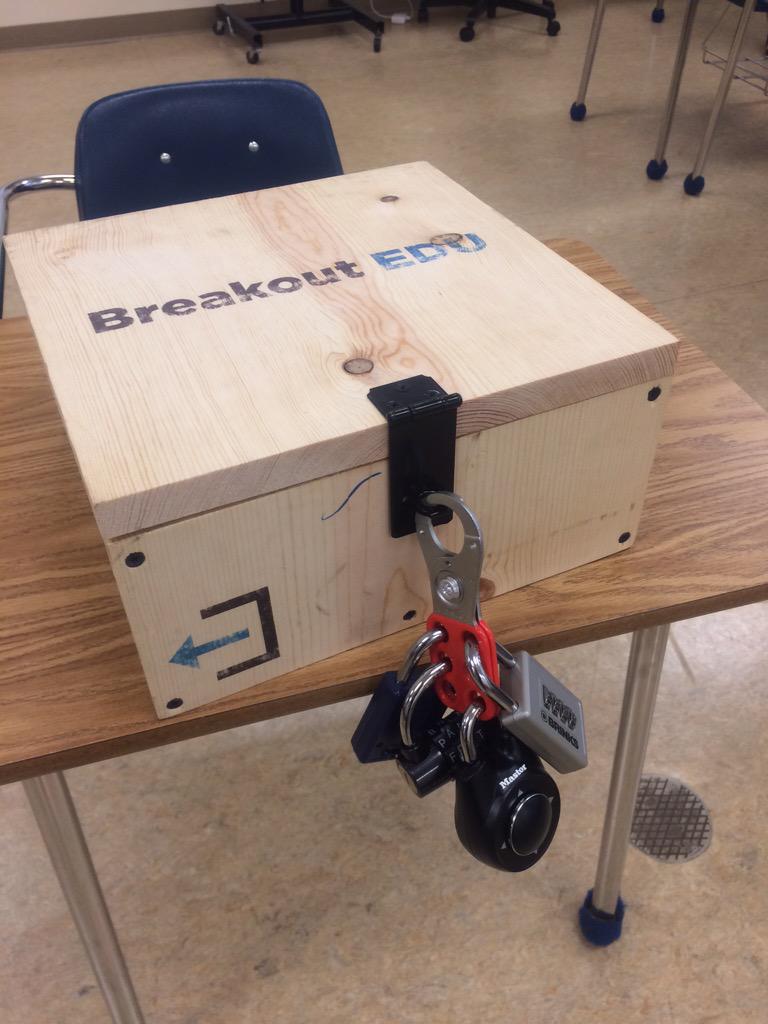
The concept remains the same, however, you don't lock students in a room.  Instead, you use a simple plastic or wooden box locked with a series of different types of locks. What you place inside the box is up to you. How the kids get the box open is the fun part. You as a teacher would leave a series of content-specific clues for them to analyze and as a class they would set to work getting that box open. However, they must understand....they only have a limited time. As these games are timed and if they don't get inside the box, well...they don't get to see what's inside.

Example of the wooden box option
Now, I've participated in one of these activities at a conference and I must say they are a lot of fun and very challenging. I was in a room full of educators and we were all working tirelessly to come up with solutions to the clues and puzzles. We used our expertise, critical thinking skills, communication skills, teamwork, and our phones. This game incorporates all of these things and more as it is a game that is best played with all members of a group working together. We bounced ideas off each other, debated the merits of ideas, deduced from what we already knew, we used our powers as web sleuths to identify information that may help us, and...we had a lot of fun!

We never did see what was inside the box. We ran out of time. But the experience getting there was exciting and all of us reported that we wanted more time to figure it all out (we had 1 more lock to go!!!!). This activity was engaging, fast paced, intellectually stimulating, and required no one sitting on the sidelines. It was an all hands on deck situation.

Since Breakout Edu started, they have been growing a following. You can purchase their products and classroom-ready games through them. Or you can design the box yourself and create a game on your own or visit the site where teachers have shared what they created.

If you want to go a no-cost route and harness the power of those Chromebooks kids have in their hands, you can create a Digital BreakoutEdu experience for your students. Same concept, no box, all digital tools. The link will take you to a series of links that show you how you can design your own digital box using Google Forms and how you can create a game for your students.

These games are great as an inquiry-based activity at the beginning or middle of a unit. It can be used as a formative assessment tool to find out what your students have learned. They could also be used for reviewing concepts covered in class before a test. The game is great for every subject and every concept. All it takes is a bit of work on the back end to develop the clues, set up the "box," and let your students roll with it.

I'll be hosting a Digital BreakoutEdu PD next month at BR & NU to demonstrate how I created the game. That is, of course, after all participants try to Breakout of my game....if you can. 😜

Thursday, January 5, 2017

Twitter: Not Crazy Twitter...Only The Good Stuff

I've been on Twitter since 2009. It was my first way to communicate with students outside of the classroom. For those that use Remind this was my Remind before Remind came along. I didn't really know what to do at first.  I really didn't know how to use it.  Back then, there weren't a ton of students using Twitter - it was all about Facebook...until we all killed that for them.  I used this tool sparingly at first and then as I became more comfortable (and more students began to follow me), I started using it much more.

I went beyond using it as a mere communication tool when I realized the power of it and the game changer that was the use of hashtags. I would have my Government students live tweet their reactions from a Presidential Debate. I had my History students try to raise awareness of a social issue that was important to them. I would get my students to do some wild things and they ate it up (not all of them of course...but, ya know).

Twitter helped me realize the power of "flipping the classroom" and publishing to a "global audience" ... long before I realized I was doing any of that in my classroom. Further down the rabbit hole I went as I sought out new technologies to help me engage students and be efficient the delivery of my curriculum.

I stopped using Twitter as my "student communication" tool when I discovered Remind, but Twitter then became something else for me. It became a Professional Learning Network. Again, before I could put a name to it. I was learning from other educators on what they were doing in the classroom, how they incorporated new technologies, how they curated History and Psychology resources in the classroom, how they were harnessing and leveraging the power of EdTech to expose students to new heights. I was impressed and awed and humbled to see what others around the world were doing with new technologies. And I got thirsty.

It was around 2013 I started to notice how social media was changing and growing rapidly. I still had my old students following me on Twitter (long gone into the sunset en route to their new post-Bear River lives) but now I was gaining new ones. Fast. Even though I wasn't using it in the classroom. Even students I didn't have in my physical classroom. Students at the school I'd never met.

Instagram got big, Facebook wasn't cool anymore, Ask FM became a place kids could cyber bully each other, Vine happened, and then other social media apps and sites were popping in and out of the awareness of students. All the while, Twitter was growing along with these changes....faster than others in some cases. More and more students were using Twitter and I found my role on it change once again to "father-ish figure" - posting random things that I was interested in while also chiming in on conversations my students were involved in where they may need some advice on or guidance with.

It was about student connection. Letting them know that in that vast world of online content and virtual connections with others, they still had someone physical in their lives that they could trust and lean on when things are rough. The latest example of this was just before break when, sadly, Bear River lost two amazing young men in a car accident. I really felt the disconnect with my former students since I left the classroom back in August. I'm there, but not "there." A couple tweets and replies later on Twitter and I like to think I may have helped them (even for a minute) deal with the emotional toll they were experiencing. If I did, the few seconds I took out of my day was more than worth it.

So this post...this post is about advocating for trying something new. If you're not on Twitter yet, go sign up. Make your account. Go find some other educators like you around the country that you can learn from (a simple search of "biology high school teacher educator" will get you loads of search results). Tell your students you're on there and see if they are brave enough to follow you.

If you are on Twitter already, push yourself to try something new. Join a Twitter Chat, start posting really cool things you're doing in the classroom, encourage your students to publish their work for more eyes than just yourselves and for a greater purpose than just a grade, or start a class hashtag and have all your students use it to publish their work on a given assignment or topic.

The uses of Twitter will benefit you and your students in the long run. It will help bridge the technology divide between educators and students. Incorporating publishing on social media in the classroom is engaging to large swaths of students, garnering more student buy-in to your activity, curriculum, and classroom. You can connect with other peers and educators around the globe to learn new things, processes, strategies, and open opportunities for yourself as a professional and your curriculum as a whole. I'm not saying Twitter will make you a better teacher, or it will fundamentally shift your relationship with your students. But you may find travelling down that rabbit's hole can be rewarding for your craft and your students. Go ahead...give it a shot.


Wednesday, December 14, 2016

Infographics: Great Product for Students to Create

I love infographics!! There's info!! And graphics!! What's not to love? They can be an instructional tool for you and a creative outlet for your students. Literacy standards dictate we need to teach reading, writing, researching, and critical analysis skills across the curriculum. There is also a greater emphasis on technical writing as well.

Having students create infographics allows them to not only develop, practice, and hone these skills, but they are creative ventures for them to produce their ideas in a different form and you'll also get more participation in revision and peer editing activities. These types of products certainly should not replace formal essay writing. However, they can be used to help practice skills related to formal essay writing.

And did I mention revision? It is a critical practice in any profession and should be promoted in the classroom. Because of the visual and graphic design component of the activity, students will take great care to ensure their infographic is ready for their peers to get a gander at it. You can even scaffold the peer editing and revision process by having peers focus on a certain aspect of the assignment - supporting data, argumentation, clear and concise statements, visually appealing - to be returned for constant and continuous revision.

Oh yeah...and because they are a graphic, they can easily be published on the web. Students love to publish all sorts of media on a daily basis. This component will give you an opportunity to focus on Digital Citizenship in your classroom. These graphics are great for student portfolios, social media posts, student created websites...drive them to publish to a global audience and they will put their best foot forward. A large number of students already know what this means....they never post their first selfie.

Below are a couple of templates done in Google Drawing of different infographics that you can push out to your students in order for them to make a copy of and own. Once they have their copy, they can adjust everything on the template they see fit to.

Template I created in Google Drawing
Template in Google Drawing from Ryan O'Donnell out of Rocklin Unified

Google Drawing Templates Here, Here, & Here

Infographic Toolbox - Change and use elements for Infographics

Step-by-step instructions on how to create one in Google Slides

AND, you can empower your students to create beautiful infographics using these services:
Canva
Picktochart
Venngage
Easel.ly


***All linked infographics in the blog post come from the amazing Alex Corbitt, English teacher from New York working in the Bronx. Give him a follow on Twitter

Wednesday, November 23, 2016

The NEW Google Sites: It's About Time!!

Ok...I'm a bit giddy about this one!! I heard back in July that Google was revamping their Google Sites and letting some early adopters take a look at it in beta. That period of time was a quiet one as early adopters were mum on social media about it all...call it Phase 🤐 Well, that phase is past us now and Google released the product to the public and we all have access now!!

To explain my giddiness, recall, some of you who remember, when we all had district hosted websites.  I spent years altering mine to fit my and my students' needs. It was a daily feature in my curriculum somehow, someway. I was proud of my baby.  She (don't know why she's a she, but just go with it) was amazing. But then she went away. We didn't re-up with the hosting company and... bye bye websites. In the aftermath, I searched for replacements. Sorry Weebly, you weren't ready. No thank you Wordpress. Eventually I settled on Blogger (one of the reasons when I started this new gig I went straight there to build a site). Before I decided on Blogger, I spent a considerable time with Google Sites. Before this massive redesign, Google Sites looked the same 4-5 years ago as it did two days ago. It was confusing to build a site, it was limited in what you could do, I didn't like the way it looked or operated for the user (that was key!!), and I didn't have the time or patience to really get into it.


So the past few years, as Google has become synonymous with education applications, I've been waiting for them to turn their attention to Google Sites for the upgrade. They've delivered! Easy to use, collaborative, with all the integration of other Google products (Docs, Forms, Slides, YouTube, Maps, etc.), the New Google Sites is going to be yuuuuuuge (we have to say that now instead of "huge," right?).

For the Teacher:

  • Easily create a site for your class using their drag and drop tools
  • For those not using Schoology yet, you can push out assignments and instructions to students using this tool for classwork or homework
  • Create sites or pages on your site to publish student work and examples
  • For Club advisers, Coaches, and other Extra-Curricular program leaders, you now can promote thos programs to the community and the world
For the Student:
  • Student Portfolios - because it integrates with their Google Drive and they can upload virtually anything from there, they have a tailor-made student portfolio for their work in your class and all classes - this is great for employers and college recruiters to see
  • Collaborative Student Projects - the sharing/collaborative function works the same as other Google products
  • Presentations - because of it's sleek look it can be used to present research findings as a culminating assessment 
  • Make connections in the real world - students can practice some of their Digital Citizenship norms and skills by creating a site for their own personal interests, publishing, marketing/branding, and adapting it


Like I say...I'm giddy. So much so that I'm going to transition my current site into the New Google Slides in the coming months as my primary mode of communicating with all of ya'll. I'll keep the blog (Blogger being another Google product), but you'll most likely find it on my new site in the future. 

To access the new Google Sites dashboard to build your own, click the link here: The NEW Google Sites!! Have fun getting into it!! 

Update: If you need some assistance setting up your Site, check out the EdTechTeam webinar below for a walk through.


And if you like your tips in written (and slightly visual form), check out the online flyer from EdTechTeam.


Thursday, November 10, 2016

Research Resources: Utilizing EdTech to Work Smarter

Research projects are a cornerstone in any secondary curricula. New standards on Research skills are not merely for ELA or Mathmatics classes. Whatever your subject, we need to teach, model, and allow students to demonstrate mastery of research skills. Educational Technology can assist in this process in numerous ways. Below is a list of various apps, extensions, web services, and resources that you can incorporate into whatever research project you assign next.

Brainstorming & Organization Resources - That all important first phase that puts and keeps students on track
  • Make Checklists in Google Docs
  • Create a concept Map in Google Drawing
  • Google Keep (They already have this) - Create checklists on tasks needed to complete when planning a project, collaborate with other students, and get reminders sent across their devices
  • Mindmup - Mindmaps on your Chromebooks
  • Popplet - Web and iPad app that allows you to create multi-media mindmaps
  • Wunderlist - App & Extension - Create dynamic to-do lists for students to stay on task when planning a project
Note taking Resources - Use to type up ideas and arguments or counter-arguments for tpics raised in the project

  • Google Keep - add notes quickly 
  • Sticky notes - see my previous post on sticky notes
  • Super Simple Highlighter - kinda self explanatory, but students can highlight info on web pages and they stay on the page when they return to them later after closing their tab
  • VideoNot.es - synchronize their note taking with any video they are tasked with watching. Notes are saved in Google Drive
  • Evernote - Evernote is an excellent educational research for keeping organized on projects. It operates like a Digital Notebook where students have the ability to take notes and clip sites and documents on the web related to their research topic. Web-version, Chromebook App, Extension, and mobile apps for all your devices

Information Collection Resources - Locate and save sources for the project

  • Feedly - Curate content from around the web around a single topic or tag. The mobile app allows for syncing with the web account. Students can have the information come to them
  • Google Keep - again...this thing is awesome
  • Padlet - When students would work on research projects, I'd often have them save evidence from a website that was useful for them. Padlet works well for this as an online, collaborative corkboard of sorts. So if there is a group research project, students can be working on the same Padlet together
  • Evernote - Again...powerful tool

Citation Resources - Gotta make sure credit goes to where it belongs

  • Chrome Extensions - Cite This For Me and EasyBib will give the proper citation of websites instantly in different styles 
  • Citation Machine - Books, Magazines, Websites, Journal, Film? No problem...this free web service can do that for your students in thousands of styles (Turabian? Hmmmmm)
  • BibMe - Works like Citation Machine

Presentation Tools - Speaking & Presenting standards need to be met as well

  • We Video App - Students create Digital Stories ...think iMovie or Movie Maker only the Chromebook version
  • Bunkr - Web presentation software where students can embed a ton of content from code, to interactive graphs, social media posts and more! It looks and presents everything nice and clean 
  • Weebly - Students can create their own websites and portfolios in a drag and drop fashion!
  • Infographics - these are great products to create depending on the research project ad purpose of the presentation. This would be an excellent presentation option for Technical Writing research projects. The best web resources for this is Easel.ly, Canva, and Piktochart


ELL EdTech PD Resources

After school yesterday at NU I ran a PD session on resources to help with teaching ELL populations. It was a good group of educators from different departments all looking to increasing their toolkit. As I will do with all of my PD sessions I passed along and previewed some tools and resources you can use in the classroom. Below are my materials from the session. I'll be offering the session again in the future as well as others in different areas. For now, poke around the Slidedeck and see if there is anything of interest to you.  If you have any questions, about the technology or want some help in incorporating it into your curriculum, feel free to contact me.

Don't forget to sign up for future PD sessions with me!! Google for Beginners and Formative Assessments this month at both NU & BR! Check out the calendar under the "EdTech Professional Development" tab above. 


Wednesday, October 26, 2016

Google Sheets : Flippity.net Sheet Templates to Mix it Up

Sheets....the often overlooked product in the G Suite line (did ya know GAFE is now G Suite?). There are a tons of amazing uses for Google Sheets in the classroom and one of those is using Flippity.net.

Flippity is a web service that generates interactive products via information you put into one of their Google Sheets templates. Wanna make flashcards? they have a template for that. Need ideas for students to start free-writes or short stories? They have a template for that. Give out certificates or badges for completion of skills? Yarp! Template!

One of the coolest templates (and most useful across all subjects) is their Random Name Generator! You can call on kids randomly during discussions, create groups and teams, and have the ability to make changes. I created a 5 minute screencast below on how, within a few steps, you could have your own random name generator with your entire roster!


Because Flippity houses your unique link on their servers, simply bookmark the website it generates and you can have access to it throughout the year. Its a great way to get around leaning on the same students for classroom discussions or for creating student groups from scratch.

Hope it helps and as always, feel free to contact me if you need help setting it up! 

Monday, October 24, 2016

Hyperdocs: Harnassing Google Docs To Deepen Learning

I often struggled in the classroom, when I sent kids on an online exploration of a given topic, about just how much information to give them. Do I provide all the resources to them? Do I give them merely a sampling of sources they should use and then allow them to seek out the rest? How can I ensure students are actually consuming, thinking about, and understanding those resources when they have them, whether curated by me or discovered by them?

I always erred on the side of the "Goldilocks" version - not too much, but not too little guidance and information. I think I did them a disservice, however, in not modeling the proper methods and skills needed to extract the information I wanted them to grasp. I often sacrificed the important critical thinking skill-building structure for the exploration itself. With all the options of products, services, and places students can go to retrieve information regarding a particular topic, it's important for students to discern proper sourcing of information and a deep understanding of how it connects with the overarching concept and learning goals.

Luckily, innovations in educational technology has provided one method of meeting those demands. Enter Hyperdocs! Hyperdocs is a relatively new method of lesson delivery that hits a number of hot button areas: engagement, inquiry-based, differentiated to the learner, and a reflective process of learning that empowers students to extend their learning.

Sounds wicked, yeah? It does take time to create but this may be a good collaborative task for departments to work on during collaboration.

The best way to describe the Hyperdoc itself, is this: It is a self-contained set of activities and resources linked to one document. The Google Doc you start with is like a map to other areas of the web and sources (carefully selected by you) in order to achieve content and skill-based learning goals you've set. Imagine the power of teaching a concept and setting a virtual path for students to follow. Complete with building on whatever skills you are working with them on.


The trick is to provide avenues of exploration, relevant sources, and multiple methods of content delivery to achieve learning goals. There are 1000s of Hyperdocs on the web and no two are alike. They all, however, guide the learner further down the rabbit hole of exploration while stopping along the way for students to interact with one another, refine their ideas and findings, and be cognizant of the learning process.  

Here are some sites that allow you to see how other teachers are using these in the classroom:
The Hyperdoc Girls - from the creators themselves! They also provide Templates
Hyperdoc Examples - a lot of examples on this site but it takes an age to load!
Karly Moura's Shared Drive Folder filled with examples

The embedded Doc below is an example of a Hyperdoc on the Weaknesses of the Articles of Confederation to give you an example of what one looks like. If anyone is interested in developing these, I would be more than happy to help out!

Here's a link to the doc if it's hard to see it below