Showing posts with label Efficiency. Show all posts

Tuesday, May 2, 2017

Writing Practice: Revision Gameboard

We all know writing in the classroom is essential to building communication skills in students. But teaching students to revise their work is critical to that development and effectively understanding content.

We may be strong at teaching the thesis, or the introductory paragraph, or how to use and explain evidence in the body of an essay. Where most of us need work is with helping our students revise their work in an effort to make it (almost) perfect. The problem with revision and revising tactics (aside from the time it takes) is that students need guidance and structure in order to effectively address the issues within their essay. You can't tell a developing student to merely "look it over and make some edits."

Lisa Guardino, EdTech TOSA in El Dorado County created the below file to make it easier for students to cover the vast ground of effectively revising an essay.

She's created a Google Doc "gameboard" in which students one by one complete "squares" on their board as they complete the tasks embedded within. Each square focuses on a different aspect (grammar, strong thesis statement, focusing on the audience, etc.) suggesting various tools for students to use in revising their work. You can alter the tools they use as you see fit. As each student completes the various tasks they fill the cell of the table in with a color. If done correctly, the student has fully revised their paper in a meaningful way focusing on different aspects of the writing and editing process. The more we can embed these skills in our students' practice, the stronger writers they will become.

Guardino's work is embedded below for you to view, and I've provided a link to your own copy. With your own copy you can make as many alterations as you see fit! When ready to roll these out to your students, have them make a copy of the document themselves so it becomes theirs.

With this tool, the revising part of the writing process will seem less daunting, the students get to visually identify areas of their essay they need to revise, and they can work at their own pace and pick areas to revise before others. In short, they will be given a path to success and be responsible for how effectively they use their voice.

Link to the file below


Wednesday, February 22, 2017

Google Drive Cheat Sheet: Learn How to Survive in Drive

The great Ben Cogswell of Salinas shared this on Twitter not too long ago and I thought some here could use the resource.

Click the link below to access the file and share the link address whith anyone you think could use the help!


He also has cheat sheets on Google Docs & Slides. Give him a follow on Twitter when you get a chance. And if you're not on Twitter yet, here's an InfoGraphic that gives you reasons why you should be. A Visual reinforcement on my posts about Twitter and building or joining a #PLN


Tuesday, October 11, 2016

Shameless Self Promotion: BR Playin' @ the Playground!

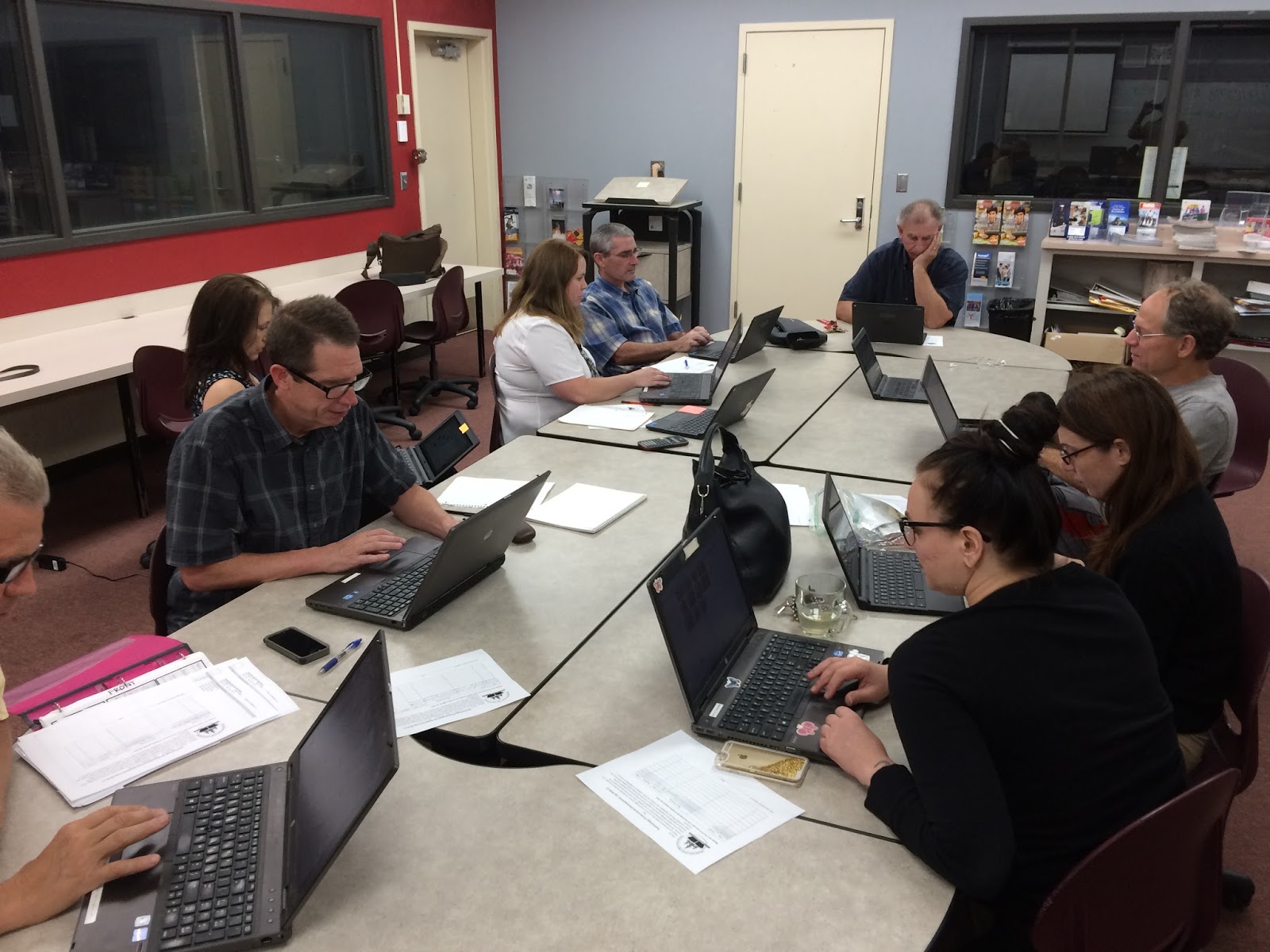
Another successful EdTech Playground took place at BR yesterday as a small group of professionals got around a table and worked diligently on building their EdTech skill set! There were inspirational travel quotes recited by Jeff Carrow, the BR Math Department were working together on Desmos, and the great Duane Zauner even walked out of there with some new arrows in the Tech quiver.

Check out the pics below and also their feedback on the embedded Padlet - a great EdTech tool I've used for Formative Assessments, project turn-ins, back-channel chats, and soooo many other uses.

~Don't forget to sign up for the next EdTech Playground!~
~All sites, all abilities/skill levels are welcome and encouraged to attend!!~

Wednesday Oct 26th @ NU - EdTech Playground - all are welcome - Sign up Here

Wednesday Nov 2nd @ BR - EdTech Playground - all are welcome - Sign Up Here


Made with Padlet

Wednesday, October 5, 2016

Seesaw: Web Student Portfolio/ for an Entire Class!

Digital Portfolios are the rage these days as educators are trying to harness emerging technologies to try to engage students and have them build a historical record of products demonstrating progress. There are many products that can do this job out there (Google Slides and Docs are one of them). One product I had a lot of fun demoing recently is a luscious looking one called Seesaw (Chrome Store App).

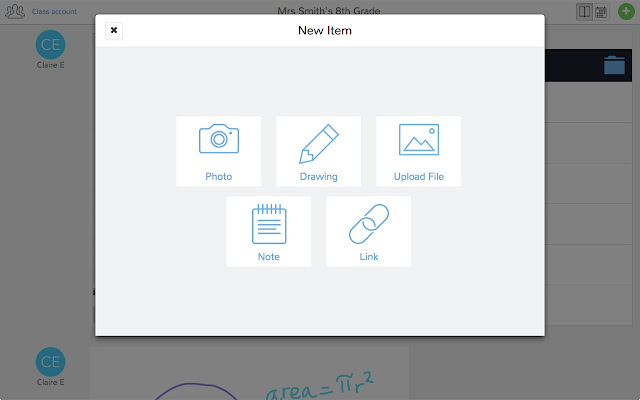
With Seesaw you give students and authentic audience for their work (students, teachers, parents) with immediate feedback that is controlled by you! Students have the ability to post a number of different pieces of media (images, videos, audio, links, documents, drawings) to demonstrate work produced. You as the teacher control the flow of products so students can't just post something without some moderation.

The tools at your students' disposal to create a working portfolio. 
There's a social component to this as well. The interface works a lot like Instagram with the ability for students to "Like" and "Comment" on other students' work - again with your approval. Parents are also plugged into your class and can see the class feed and have the ability to like and comment on student work. So parents get a real time look at what their student is doing in your class.


And students get a chance to choose what goes into their portfolio to represent their best work to show student progress. Check out the video below of a (very precocious and future President of the United States) 10 year old student talk about how Seesaw works.


This tool isn't just for elementary students (although much more Primary schools utilize it more than Secondary schools do)...this is a powerful Freemium service that has the ability to really engage High School students and give parents a look at what their student is doing in your class.

If anyone wants to give it a try, I can help with the setup and implementation. There are a slew of tools you can use to identify your student's progress that I haven't got into on this post. And if there are any teachers using Seesaw already, I wanna hear about it! Below are some links that may be helpful to those that are interested in checking it out!

Seesaw Teacher Overview
5 Great Features of Seesaw


Wednesday, September 14, 2016

Tips & Tricks: Set up an event in Google Calendar from Gmail

I don't know about you but lately I can't seem to get anything done unless my tasks are written in triplicate in various places with constant reminders to move my behind and get stuff done. Google Calendar has been great for that.

I update it constantly with daily life plans, work meetings and projects I'm working on, social functions (hahahahaha! <enter crying laughter emoji here>), and anything else of importance that I want and need to stay on top of. I check it every morning and evening on my phone (Android & iOS), its open all day long on my Chrome browser, and it sends me reminders of where I need to be at throughout the day.

One of the most effective ways for me to update my Calendar when requests or meetings come through Gmail is by creating an event from the email itself.  It saves me time and keeps me on top of a number of different daily and weekly requests that all come through email.

It's very simple to do and I have a screencast below to show you how if you didn't know about it before - its short!! and I don't talk over it...but I apologize in advance for the annoying stock ukulele track...they didn't have Led Zeppelin tunes to choose from.

You may have already learned this trick, but for those that haven't its a nifty little connection.

And not only is this a great trick to learn yourself, but it's a great one for students as you model and teach them good organizational habits!

Enjoy!