Showing posts with label Tricks. Show all posts

Wednesday, February 22, 2017

Google Drive Cheat Sheet: Learn How to Survive in Drive

The great Ben Cogswell of Salinas shared this on Twitter not too long ago and I thought some here could use the resource.

Click the link below to access the file and share the link address whith anyone you think could use the help!


He also has cheat sheets on Google Docs & Slides. Give him a follow on Twitter when you get a chance. And if you're not on Twitter yet, here's an InfoGraphic that gives you reasons why you should be. A Visual reinforcement on my posts about Twitter and building or joining a #PLN


Friday, November 18, 2016

Google Doc Add-On: Wolfram Alpha

Add-ons!! One of the cool features of Google Docs is the ability to add on features to make it work for your needs. Want an easy citation tool? There's an Add-On for that. Want to create rubrics within Google Docs...yup, got ya covered there too.

One of the more powerful add-ons I've seen in some time is Wolfram Alpha. For those that don't know Wolfram Alpha or haven't used it before, its a computational program that aims to collect and curate any knowledge, idea, problem, equation, and provide solutions to it backed by data. The program is excellent across many subject matters and a quick viewing of their website will give you a sense for the sheer vastness of their content reach.

Where it really gets interesting is merging this powerful tool within Google Docs. Students will have the ability to type in research terms and have data returned to them that is accurate and usable by the student. Below is a gif of how to access the add-on store. With a Google Doc open, follow the visual steps, and type "Wolfram Alpha" in the search field. It will be the only on that pops up.


This add-on follows all your documents and your student will have access to it on any Doc they create. Below is a brief screencast of what it looks like in action. Please excuse the lame music...at least ya don't have to listen to my voice though...so....win/win.


Maths, Social Science, Science, ELA, CTE students and more can all benefit from this free easy to use feature.  I did a post last week on Research resources and I would certainly add this to the list!! 

Wednesday, October 26, 2016

Google Sheets : Flippity.net Sheet Templates to Mix it Up

Sheets....the often overlooked product in the G Suite line (did ya know GAFE is now G Suite?). There are a tons of amazing uses for Google Sheets in the classroom and one of those is using Flippity.net.

Flippity is a web service that generates interactive products via information you put into one of their Google Sheets templates. Wanna make flashcards? they have a template for that. Need ideas for students to start free-writes or short stories? They have a template for that. Give out certificates or badges for completion of skills? Yarp! Template!

One of the coolest templates (and most useful across all subjects) is their Random Name Generator! You can call on kids randomly during discussions, create groups and teams, and have the ability to make changes. I created a 5 minute screencast below on how, within a few steps, you could have your own random name generator with your entire roster!


Because Flippity houses your unique link on their servers, simply bookmark the website it generates and you can have access to it throughout the year. Its a great way to get around leaning on the same students for classroom discussions or for creating student groups from scratch.

Hope it helps and as always, feel free to contact me if you need help setting it up! 

Tuesday, October 11, 2016

Shameless Self Promotion: BR Playin' @ the Playground!

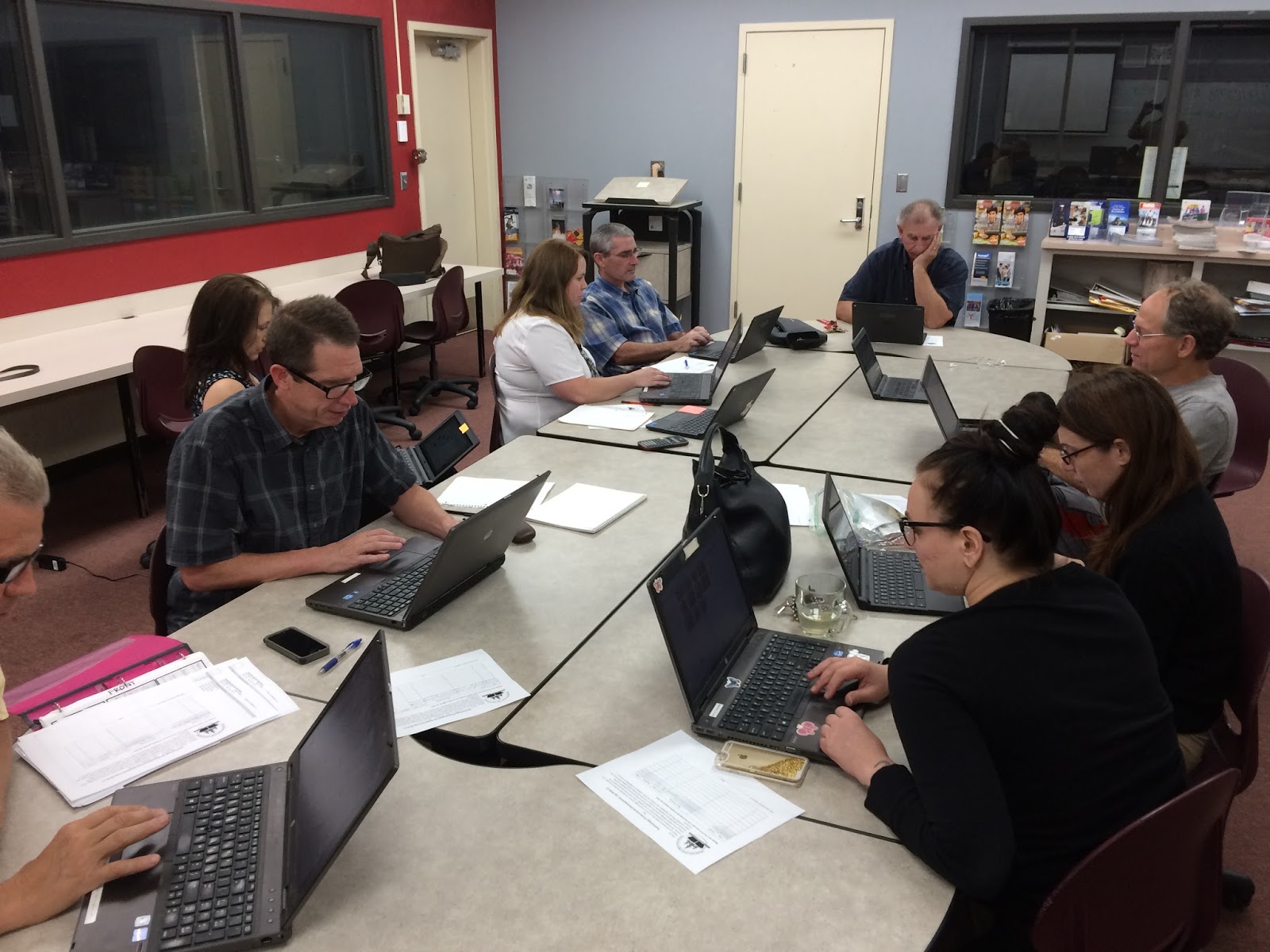
Another successful EdTech Playground took place at BR yesterday as a small group of professionals got around a table and worked diligently on building their EdTech skill set! There were inspirational travel quotes recited by Jeff Carrow, the BR Math Department were working together on Desmos, and the great Duane Zauner even walked out of there with some new arrows in the Tech quiver.

Check out the pics below and also their feedback on the embedded Padlet - a great EdTech tool I've used for Formative Assessments, project turn-ins, back-channel chats, and soooo many other uses.

~Don't forget to sign up for the next EdTech Playground!~
~All sites, all abilities/skill levels are welcome and encouraged to attend!!~

Wednesday Oct 26th @ NU - EdTech Playground - all are welcome - Sign up Here

Wednesday Nov 2nd @ BR - EdTech Playground - all are welcome - Sign Up Here


Made with Padlet

Friday, September 16, 2016

Ideas: 20 Google Apps Activities for Classroom Innovation


DitchThatTextbook is a tremendous resource for the 21st Century Educator. Matt Miller has built an EdTech juggernaught with that site and created a go-to spot for those interested in learning more about integrating technology into one's curriculum. When you get a chance, venture over to his site to get some helpful tips and tricks.

He regularly posts helpful articles focusing on different ideas to incorporate into any classroom. One of those articles focuses on 20 different ways to incorporate Google Apps into activities for the classroom.  One of those activities (HYPERDOCS!!) I will focus on in a post in the future.  For now, get inspired by checking out the below link and think about how you can utilize these in your classroom!

20 Google Apps Activities for the Classroom

Wednesday, September 14, 2016

Tips & Tricks: Set up an event in Google Calendar from Gmail

I don't know about you but lately I can't seem to get anything done unless my tasks are written in triplicate in various places with constant reminders to move my behind and get stuff done. Google Calendar has been great for that.

I update it constantly with daily life plans, work meetings and projects I'm working on, social functions (hahahahaha! <enter crying laughter emoji here>), and anything else of importance that I want and need to stay on top of. I check it every morning and evening on my phone (Android & iOS), its open all day long on my Chrome browser, and it sends me reminders of where I need to be at throughout the day.

One of the most effective ways for me to update my Calendar when requests or meetings come through Gmail is by creating an event from the email itself.  It saves me time and keeps me on top of a number of different daily and weekly requests that all come through email.

It's very simple to do and I have a screencast below to show you how if you didn't know about it before - its short!! and I don't talk over it...but I apologize in advance for the annoying stock ukulele track...they didn't have Led Zeppelin tunes to choose from.

You may have already learned this trick, but for those that haven't its a nifty little connection.

And not only is this a great trick to learn yourself, but it's a great one for students as you model and teach them good organizational habits!

Enjoy!


Monday, September 12, 2016

Chrome Extension: Virtual Sticky Notes!! Leave Post-It Notes on any page

I recently found an old college textbook of mine as I was clearing out my classroom. And I found out that I used to love sticky notes. I would have handwritten notes painstakingly detailing the information I was consuming in a clean(-ish) fashion in the event that I wanted to sell the book back for cash in order to buy...more books. 

Not actual aforementioned textbook, but you get the idea, ya know?

This method of breaking down text into words I could understand helped me learn difficult material and is a time-honored and research-backed method of learning. It is also an essential skill in need of developing in a Common Core, 21st Century learning environment.

Close Reading, research projects, tried and true reading strategies, "talking to the text"... these all require the ability to write in the margins of documents. But how to do it in a 1:1 environment? Oh let me count the ways...or at least two of them.

Two services (both free!!) are Note Anywhere and Stickies. Here's the gist of both: you can activate it on any site and any sticky note you leave on the site stays there until you remove it. Because its a Chrome Extension, it is housed in your browser and with the click of a button, a sticky note appears on the site.

So I've used Note Anywhere in the past with my students. I've used it to jot notes for myself on student work that was turned in virtually and I've taught students how to use it effectively when I have them read internet content. Check out my little screenshot vid of me using the service here (don't judge...I never screencast...gotta work on that).

There are other sticky note products Here Here Here and Here ... its really just which one works best for you and your students.

Friday, August 26, 2016

Chromebook Trick: Hard Shut Down

If you, like me 15 minutes before I actually posted this, ever find yourself in the position of needing to do a "hard shut down" of your (or a students' Chromebook) there is a simple solution for you!

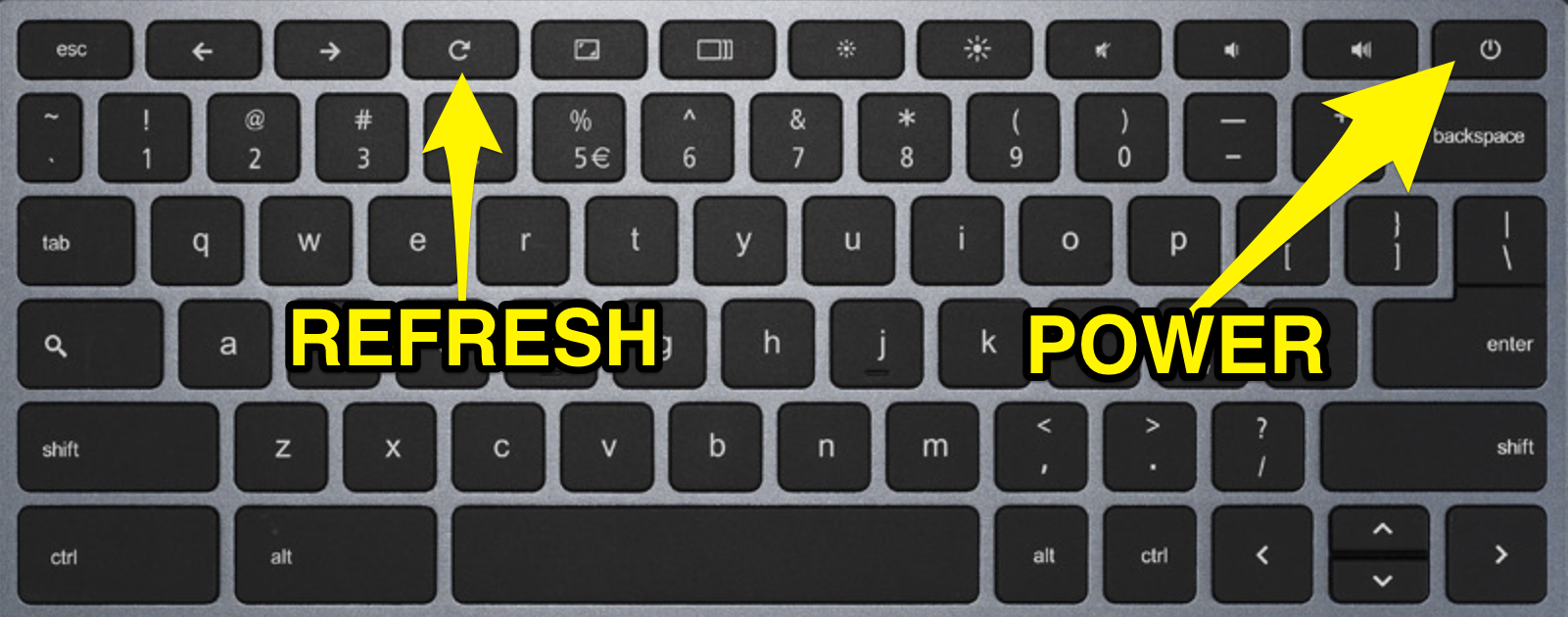
Below is a picture of the two buttons you want to get to know on your keyboard for this.  Hold those down for a couple of seconds and it will shut down shortly after.

Refresh and Power buttons...such a marriage!!