Showing posts with label Student Presentations. Show all posts

Wednesday, February 22, 2017

Presentation Activity: Ignite Talks with Students

Ever see an Ignite Talk or Pecha Kucha? Ever heard of one? The concept is straight forward. 20 slides playing on the screen switching every 20 seconds. In the end, you have a presentation on any topic done in just under 7 minutes. The slides are minimal - images, gifs, light text if any, no videos - and accompany the story the speaker is telling. There is a ton of practice needed obviously but what emerges is a crisp, concise presentation on the topic of choice.

This would be excellent practice for our students at any level in any subject. For years, teachers have had a difficult time incorporating speeches (whether formal or informal) into their curriculum for obvious reasons: they take a lot of time, require a lot of guidance and monitoring, student fears of getting in front of their peers detracts from effort, teachers, although public speakers on a daily basis, aren't trained to coach the skills, and with content standards to meet they are difficult to justify. Well...standards have changed to include Speaking and Listening skills to get them College & Career ready. And it shouldn't be just ELAs job to meet the standards.

This activity could be used as an assessment, a mid-unit check in, or as an introductory activity related to a theme of the unit. I loved doing formal and informal presentations in class as it gave students an opportunity to learn from each other and work out those fears of speaking in front of others. I'd give students time in class to build their speeches and practice with one another and myself. I'd have them film themselves so they can see what others see in order to analyze their practice performances. In the end, students realized the speech was an important venture because they know they need practice in the skill. They wanted to do their best...right down to the shyest person in the room.

Now, I wish I could tell you each speech incurred a standing ovation. But what I can tell you is that students learned what made a winning speech, what constituted as good techniques for them to borrow from others, and most reported after initial jitters their nerves faded as they had to focus on the speech itself. The process is lengthy but worthy if we're committed to preparing our students for a world that values presentation skills.

~~~~
To run this process in your class, follow these steps:

  1. Introduce the topic (can be anything related to your curriculum or on a topic of their choice) and the assignment - 20 Slides/20 seconds (of course you can adjust the slides and time based on your needs)
  2. Give students time to brainstorm and build the framework of their speech - lots of hands-on help here
  3. Introduce the Rubric (see below)
  4. Show them videos of other Ignite Talks to give them an idea of what they look like - YouTube is full of them
  5. Get your students to write their speeches in class so you can ensure they are writing something of substance
  6. Introduce the Visual Component - Let them know that they need to create "X" amount of slides for their speech
  7. Have students practice their speeches with peers complete with video so they can see and analyze their performance 
  8. Commence with the speeches

The Rubric
I've found Google Forms works best for this as I can sit in the back and assess the student as they're giving their speech without missing much if at all. I fill out the Form and after submitting I click the link that allows me to submit another entry on the Form. I then create a spreadsheet with all the data and share that with the class for immediate feedback. Below is a generic Form I created for this purpose. You can get a copy below it.


If you want this Speech Rubric, click that link and make your own Copy as anyone with this file can edit it. Once yours, you can alter the Form ti suit your needs. If you need help with this, let me know.

Peer to Peer Feedback
I've also found for any speech, it's important to include the audience in a certain task. This keeps students focused on a part of the speech. The discussion that takes place after is actually more helpful for the audience than the speaker themselves. The most effective way that works for me is to break the class into 4 groups (number them off 1-4). The picture below are the four tasks the class completes collectively for every speech.


So the same group doesn't continue doing the same thing, after each speech, I rotate the roles to the next group. So if Group 1 was "A" for the first speech, they will be group "B" for the next.

After each speech I select a student or two, in each group, to report out what they observed (the speaker standing in the front of the room simultaneously relieved and feeling awkward standing in front listening to their peers talk about them). I then give some brief verbal feedback of my own and ask the class to give the speaker an enthusiastic round of applause - despite how they did up there.

~~~
We need to make time for learning experiences like these in the classroom. Not just because there are standards now. They need the chance to practice these essential skills, get feedback from peers and professionals, in a safe environment. Public speaking is a necessary skill in many aspects of life. Our kids deserve these opportunities.

Wednesday, November 23, 2016

The NEW Google Sites: It's About Time!!

Ok...I'm a bit giddy about this one!! I heard back in July that Google was revamping their Google Sites and letting some early adopters take a look at it in beta. That period of time was a quiet one as early adopters were mum on social media about it all...call it Phase 🤐 Well, that phase is past us now and Google released the product to the public and we all have access now!!

To explain my giddiness, recall, some of you who remember, when we all had district hosted websites.  I spent years altering mine to fit my and my students' needs. It was a daily feature in my curriculum somehow, someway. I was proud of my baby.  She (don't know why she's a she, but just go with it) was amazing. But then she went away. We didn't re-up with the hosting company and... bye bye websites. In the aftermath, I searched for replacements. Sorry Weebly, you weren't ready. No thank you Wordpress. Eventually I settled on Blogger (one of the reasons when I started this new gig I went straight there to build a site). Before I decided on Blogger, I spent a considerable time with Google Sites. Before this massive redesign, Google Sites looked the same 4-5 years ago as it did two days ago. It was confusing to build a site, it was limited in what you could do, I didn't like the way it looked or operated for the user (that was key!!), and I didn't have the time or patience to really get into it.


So the past few years, as Google has become synonymous with education applications, I've been waiting for them to turn their attention to Google Sites for the upgrade. They've delivered! Easy to use, collaborative, with all the integration of other Google products (Docs, Forms, Slides, YouTube, Maps, etc.), the New Google Sites is going to be yuuuuuuge (we have to say that now instead of "huge," right?).

For the Teacher:

  • Easily create a site for your class using their drag and drop tools
  • For those not using Schoology yet, you can push out assignments and instructions to students using this tool for classwork or homework
  • Create sites or pages on your site to publish student work and examples
  • For Club advisers, Coaches, and other Extra-Curricular program leaders, you now can promote thos programs to the community and the world
For the Student:
  • Student Portfolios - because it integrates with their Google Drive and they can upload virtually anything from there, they have a tailor-made student portfolio for their work in your class and all classes - this is great for employers and college recruiters to see
  • Collaborative Student Projects - the sharing/collaborative function works the same as other Google products
  • Presentations - because of it's sleek look it can be used to present research findings as a culminating assessment 
  • Make connections in the real world - students can practice some of their Digital Citizenship norms and skills by creating a site for their own personal interests, publishing, marketing/branding, and adapting it


Like I say...I'm giddy. So much so that I'm going to transition my current site into the New Google Slides in the coming months as my primary mode of communicating with all of ya'll. I'll keep the blog (Blogger being another Google product), but you'll most likely find it on my new site in the future. 

To access the new Google Sites dashboard to build your own, click the link here: The NEW Google Sites!! Have fun getting into it!! 

Update: If you need some assistance setting up your Site, check out the EdTechTeam webinar below for a walk through.


And if you like your tips in written (and slightly visual form), check out the online flyer from EdTechTeam.


Thursday, November 10, 2016

Research Resources: Utilizing EdTech to Work Smarter

Research projects are a cornerstone in any secondary curricula. New standards on Research skills are not merely for ELA or Mathmatics classes. Whatever your subject, we need to teach, model, and allow students to demonstrate mastery of research skills. Educational Technology can assist in this process in numerous ways. Below is a list of various apps, extensions, web services, and resources that you can incorporate into whatever research project you assign next.

Brainstorming & Organization Resources - That all important first phase that puts and keeps students on track
  • Make Checklists in Google Docs
  • Create a concept Map in Google Drawing
  • Google Keep (They already have this) - Create checklists on tasks needed to complete when planning a project, collaborate with other students, and get reminders sent across their devices
  • Mindmup - Mindmaps on your Chromebooks
  • Popplet - Web and iPad app that allows you to create multi-media mindmaps
  • Wunderlist - App & Extension - Create dynamic to-do lists for students to stay on task when planning a project
Note taking Resources - Use to type up ideas and arguments or counter-arguments for tpics raised in the project

  • Google Keep - add notes quickly 
  • Sticky notes - see my previous post on sticky notes
  • Super Simple Highlighter - kinda self explanatory, but students can highlight info on web pages and they stay on the page when they return to them later after closing their tab
  • VideoNot.es - synchronize their note taking with any video they are tasked with watching. Notes are saved in Google Drive
  • Evernote - Evernote is an excellent educational research for keeping organized on projects. It operates like a Digital Notebook where students have the ability to take notes and clip sites and documents on the web related to their research topic. Web-version, Chromebook App, Extension, and mobile apps for all your devices

Information Collection Resources - Locate and save sources for the project

  • Feedly - Curate content from around the web around a single topic or tag. The mobile app allows for syncing with the web account. Students can have the information come to them
  • Google Keep - again...this thing is awesome
  • Padlet - When students would work on research projects, I'd often have them save evidence from a website that was useful for them. Padlet works well for this as an online, collaborative corkboard of sorts. So if there is a group research project, students can be working on the same Padlet together
  • Evernote - Again...powerful tool

Citation Resources - Gotta make sure credit goes to where it belongs

  • Chrome Extensions - Cite This For Me and EasyBib will give the proper citation of websites instantly in different styles 
  • Citation Machine - Books, Magazines, Websites, Journal, Film? No problem...this free web service can do that for your students in thousands of styles (Turabian? Hmmmmm)
  • BibMe - Works like Citation Machine

Presentation Tools - Speaking & Presenting standards need to be met as well

  • We Video App - Students create Digital Stories ...think iMovie or Movie Maker only the Chromebook version
  • Bunkr - Web presentation software where students can embed a ton of content from code, to interactive graphs, social media posts and more! It looks and presents everything nice and clean 
  • Weebly - Students can create their own websites and portfolios in a drag and drop fashion!
  • Infographics - these are great products to create depending on the research project ad purpose of the presentation. This would be an excellent presentation option for Technical Writing research projects. The best web resources for this is Easel.ly, Canva, and Piktochart


Wednesday, October 5, 2016

Seesaw: Web Student Portfolio/ for an Entire Class!

Digital Portfolios are the rage these days as educators are trying to harness emerging technologies to try to engage students and have them build a historical record of products demonstrating progress. There are many products that can do this job out there (Google Slides and Docs are one of them). One product I had a lot of fun demoing recently is a luscious looking one called Seesaw (Chrome Store App).

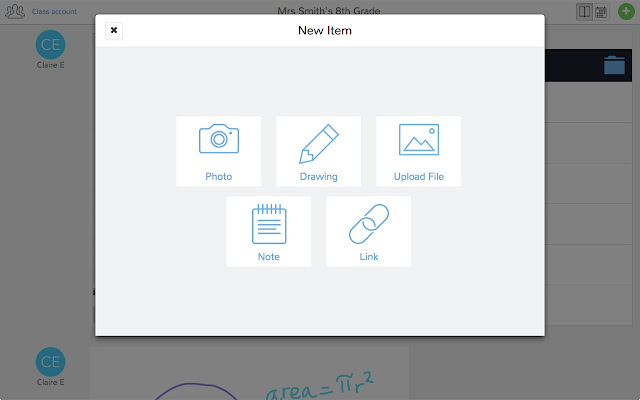
With Seesaw you give students and authentic audience for their work (students, teachers, parents) with immediate feedback that is controlled by you! Students have the ability to post a number of different pieces of media (images, videos, audio, links, documents, drawings) to demonstrate work produced. You as the teacher control the flow of products so students can't just post something without some moderation.

The tools at your students' disposal to create a working portfolio. 
There's a social component to this as well. The interface works a lot like Instagram with the ability for students to "Like" and "Comment" on other students' work - again with your approval. Parents are also plugged into your class and can see the class feed and have the ability to like and comment on student work. So parents get a real time look at what their student is doing in your class.


And students get a chance to choose what goes into their portfolio to represent their best work to show student progress. Check out the video below of a (very precocious and future President of the United States) 10 year old student talk about how Seesaw works.


This tool isn't just for elementary students (although much more Primary schools utilize it more than Secondary schools do)...this is a powerful Freemium service that has the ability to really engage High School students and give parents a look at what their student is doing in your class.

If anyone wants to give it a try, I can help with the setup and implementation. There are a slew of tools you can use to identify your student's progress that I haven't got into on this post. And if there are any teachers using Seesaw already, I wanna hear about it! Below are some links that may be helpful to those that are interested in checking it out!

Seesaw Teacher Overview
5 Great Features of Seesaw


Wednesday, September 21, 2016

Great PBL Site: StoryMap

As a History teacher, I was always looking to incorporate more maps into my curriculum. Google Maps & Earth have come a long way throughout the years, but I always wanted students to create visual products that were relevant to them and the concepts we were covering in class, were engaging throughout the creation phase, were easy to use, and looked sharp when complete. I've looked for and utilized products that did a fraction of these requirements. Never really satisfied....until now! Enter StoryMap!

StoryMap, built out of the Northwestern Knightlab, is an easy to use Project Based Learning tool that can be utilized in a slew of different disciplines to develop geography skills in students and allow them to create something they could be proud of and have fun doing it!! It's easy to use, you use your Google Account to sign up for it, it's free, and did I mention it's easy to use??

Everything starts with a map of the world and a search bar. The search feature uses Google Maps and typing the name of a city, country, physical boundary will pin that spot. From there, it acts like Slides or PowerPoint in that you add slides for the order of "flow" and the student can add text, include links, and media to each slide. The media supported are web url & uploaded pictures, gifs, Youtube videos, content from Vine, Twitter, Instagram, and a few others.

Click the pic below to see what one looks like. The following example comes right from the StoryMap website.
Click the pic to see one of the greatest BAs on that show!!!
This opens up opportunities for students to compare and contrast life in the same location at various time periods, built around a concept you are teaching in class, using media native to them. For instance:
  • The Visual Arts teacher may want students to research influential Middle Age artists and document their their journey through their life and career - documenting their physical movement, influential works, and a modern day connection (Tweets! Grams! Vids! Vines!) to the area and artist 
  • The Physical Education Teacher may want to track the developments of various weight training and exercise programs (CrossFit, Yoga, The Scandinavian Squat...I made that last one up, but it sounds cool) and show media of individuals using it throughout the journey
  • The History Teacher may....well....I'm sure if you're a History Teacher you've already left this post and are checking it out on your own
  • The ELA Teacher can plot the various aspects of a character's journey through a novel tracking the arch as well as media that is related to their physical and fictional journey
And as with any great story created, it needs to be told!! Presentation skills are essential to be taught and practiced across the curriculum and this product is made for student presentations in mind! It looks slick on a big screen and you can have students create an informal or formal presentation based on their creative product!

Some drawbacks:
  • Network issues and access! Building one at home is much easier than at school and they will have access to the media more readily at home
    • Work Around: Have them plot each "slide" at school after the research phase, add the titles and text at school, and have them build the media aspects of the project at home
  • When presenting, the students will need to present off of your laptop or Chromebook - they'll get stuck as the network here will iBoss them to death having Tweets, Instagram and Vine media on their projects
The possibilities and uses for this product are immense! Give it a shot and if you're interested in working with it but need some help, I'd be happy to sit down with you to show you the nuts and bolts or even conduct a mini-lesson and teach your students how to use it.

Below is an example I created last night with some minor edits today. I've included the link to view it in your browser and also how it looks and functions when embedded on a website.

Link to view it in your browser (Looks better there anyway and you can swipe on your screen if your Chromebook has that ability): Where I've Lived