Video in the classroom is nothing new. Videos are engaging and spark interest and learning in our students and have a distinct advantage of not being our voice (😝)! The way in which video is delivered however has changed. Gone are the days in which the only was was to wheel in the big TV strapped to the media cart to a place where most can see. Popping in the VCR (remember those?? Whoever has one still....you're amazing!) that documentary you recorded 7 summers ago. Not anymore. Technology has progressed where we can deliver self-paced, engaging video-based curriculum that allows us to assess our students' understanding in real time.
Two resources I love to talk about to achieve these ends are EdPuzzle and Playposit. Both are constructed similarly, have benefits over the other, and are excellent tools to utilize in the 21st century classroom. If you use video in the classroom (whether for classwork or homework) it's not enough to say "watch this video and take notes" - students need direction in order to get the most out of your curated resource.
I'm always coming across really innovative #EdTech resources in my role. Always thinking of ways I'd use this app or that program in the classroom. Vetting these products is difficult without a traditional classroom to test them out with students on, but sometimes some products are seamless and I can see instantly how useful and easy they could be to implement. Flipgrid is one of those those resources.
Flipgrid is a web application that works on any device and all browsers. It's a discussion platform that can be used as back channel chats, in-class discussions, and definitely should be a necessity for those flipping the classroom! You issue the topic on which the students are to discuss, and they record their response via video message. Now I know not everyone likes to be on video, but our students are somewhat comfortable with the idea in their social lives. And that's their pitch: Flipgrid argues that students are using video to project their voice with their peers and social media followers, so we should leverage that for educational purposes!
With a free account, you have the ability to set up one "grid" with an unlimited number of topics you can create for your students to respond to. You set the settings for your topic (moderating responses, privacy, etc.) and can include text and video as a stimulus for the topic. You can push out your entire grid to students, just the topic url, or a topic code that they can plug in on any device. Their response is then recorded by them on a webcam (either on their mobile device or laptop) and posted as a response for the topic. All responses are able to be seen with those that have responded or have access to your topic. Each response also has a transcript associated with their post. The premium version allows for you to assess the students' responses and students to respond and comment on video responses which I think are really cool features. That upgrade is $65/year if you can swing it.
You as a teacher can share it via link, QR code, or embed it on any site (mine is below). When you and others go to view the responses by others (on a laptop) a window pops up and you're able to play the response and read the transcript if need be. On a mobile device, the response opens up as it's own screen view. The topic I created would be one if I were teaching a Government class and we were looking at current events. I recorded my response to my topic (as if I were a student) on my iPhone after I downloaded the free app. It all was quite easy on both ends (creation of the topic and recording a response) and didn't take long to go from idea to it being live.
If you'd like to see a grid that has a number of responses, check out the KQED Do Now Flipgrid.
Give Flipgrid a go if you're interested. If you're on the fence, respond to my topic below (just click the link on the top right corner) and leave a video response to the question to see how it all works. It's a handy little tool that I think could get students to express their ideas in a user-friendly and familiar way.
You are the expert in your subject matter. Times are changing. Learners are changing. If you're teaching something kids can google, your time and their time is wasted.
We need to be building their skills sets. Preparing them for a world where basic info is in their pockets. What to do with that info however is critical. How to use that info to derive an understanding of the world around them is essential.
The sit-and-take method is a dying model. As is the one-size-fits all method of teaching. Think about one of your classes. You have groups of students that have varying needs. I'm not just talking about those with 504s and IEPs. Reading comprehension issues, learning disabilities, apathy, advanced learners, students with social-emotional needs to name just a few. The list is long and lengthy. The challenges immense. With each set of group needs, there are different strategies that need to be employed. Lesson design needs to accommodate and provide students with the tools to be successful. The learning environment (physical and intellectual) you create needs to be one where all students can learn, develop their skill set, achieve, and be successful.
Just a quick rundown of some apps I've been looking at in the past few weeks. I get very Google-centric here because of their vast array of resources and the availability of them, but it's important to remember there are amazing #EdTech resources outside of the Google realm. All three of these resources are designed to be for any curriculum. They are tools every class can use as apart of their repertoire.
This is a favorite of a lot of people in the EdTech world. For Blended Learning purposes (think flipped but not completely), this resource is a big one. You can house a series of steps for your students all in one easy to navigate, and use, hub for a self-contained lesson. Add content (documents, video, images, etc.) from your computer or the web, and provide guidance for students. The resource is shareable and embed-able (as you can see below) and makes complex tasks with numerous steps easy for students to grasp.
A link to the above file if you'd like to see it in a new tab:
https://www.tes.com/lessons/C9C0J3u6cp4OPQ/rise-of-fascism-dbq-prep
I'm a huge fan of EdPuzzle for videos (forces students to answer questions about the video before proceeding) and Actively Learn works very similarly but with articles and primary source documents. Have students answer questions as they read as part of their check for understanding. Want them to discuss items while they are reading (What? Thinking...while they are reading?), create the space for them. Want them to take a poll within the document at any place to gauge their opinions or understanding? Well....lets' do that!! It's one of those products that asks you to create a classroom and have students sign into it. But it is well worth it. Ken Buck at NU has been giving it a go as of late and he reports its an excellent resource for Primary Source documents and his students' understanding of them. There are a ton of features and options and Actively Learn walks you through the process in an easy to understand way.
With Actively Learn, you set the pace with students, get them to answer all the questions in a rich manner, and allow for a deeper understanding of course material. After clicking, "Read More" check out the pic and gifs on how this looks for the student.
Digital Portfolios are the rage these days as educators are trying to harness emerging technologies to try to engage students and have them build a historical record of products demonstrating progress. There are many products that can do this job out there (Google Slides and Docs are one of them). One product I had a lot of fun demoing recently is a luscious looking one called Seesaw (Chrome Store App).
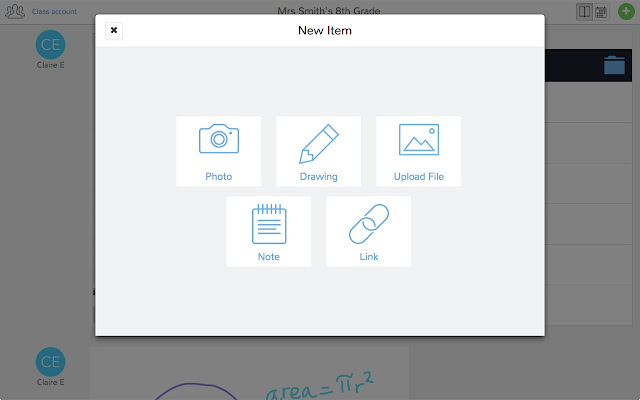
With Seesaw you give students and authentic audience for their work (students, teachers, parents) with immediate feedback that is controlled by you! Students have the ability to post a number of different pieces of media (images, videos, audio, links, documents, drawings) to demonstrate work produced. You as the teacher control the flow of products so students can't just post something without some moderation.
The tools at your students' disposal to create a working portfolio.
There's a social component to this as well. The interface works a lot like Instagram with the ability for students to "Like" and "Comment" on other students' work - again with your approval. Parents are also plugged into your class and can see the class feed and have the ability to like and comment on student work. So parents get a real time look at what their student is doing in your class.
And students get a chance to choose what goes into their portfolio to represent their best work to show student progress. Check out the video below of a (very precocious and future President of the United States) 10 year old student talk about how Seesaw works.
This tool isn't just for elementary students (although much more Primary schools utilize it more than Secondary schools do)...this is a powerful Freemium service that has the ability to really engage High School students and give parents a look at what their student is doing in your class.
If anyone wants to give it a try, I can help with the setup and implementation. There are a slew of tools you can use to identify your student's progress that I haven't got into on this post. And if there are any teachers using Seesaw already, I wanna hear about it! Below are some links that may be helpful to those that are interested in checking it out!
Ok...this one's a good one. Technology brings up some issues as we transition from the traditional classroom to a 1:1 environment. But it also provides opportunities as well. Google (especially) has been at the forefront of both solving issues and creating opportunities.
Issue: How can we maintain a student-centered learning environment where students feel empowered to create, to solve complex problems, and work together to do so?
Solution: Have access to their screens through Google Cast - this will allow the students to display their work to the entire class via your projector, ask for student input on solving common problems and mistakes, allow students to be the experts in the room and explain how they arrived at a solution, or created a wonderful product, or to demonstrate their own mastery.
How it works....well, you download an app from the Chrome Store, your students download an extension from the same store. A few things to type and a few buttons to press and away you all go. The product syncs all your Google Classroom classes so those using Classroom will find the adding students part very easy.
For all you visual learners, have a gander at this ace bloke from the UK demoing the basic functionality of it:
This tool is extremely powerful, and my mind drifts to other solutions it can provide as well. For instance, can it grant access to multiple screens so you can watch everyone's screen during an activity or, better yet, an assessment? Hmmmmmm <enter thinking emoji here>
Anywho, check it out and if there are any teachers already using it or want to try it out in their classrooms, I'd love to check it out and work with you to see how it plays with the students!
Thanks for reading!! ~~~ Follow Up 9/15/16: The "Google Cast" Extension is blocked for students. Currently looking into solutions for that through the Tech Department.
Follow Up to the Follow Up 9/22/16: Was told that there were issues last year in using this product in class. Looks like for the time being, students can not download the extension....I'm gonna keep shaking the tree