Showing posts with label Assessment. Show all posts

Wednesday, February 22, 2017

Presentation Activity: Ignite Talks with Students

Ever see an Ignite Talk or Pecha Kucha? Ever heard of one? The concept is straight forward. 20 slides playing on the screen switching every 20 seconds. In the end, you have a presentation on any topic done in just under 7 minutes. The slides are minimal - images, gifs, light text if any, no videos - and accompany the story the speaker is telling. There is a ton of practice needed obviously but what emerges is a crisp, concise presentation on the topic of choice.

This would be excellent practice for our students at any level in any subject. For years, teachers have had a difficult time incorporating speeches (whether formal or informal) into their curriculum for obvious reasons: they take a lot of time, require a lot of guidance and monitoring, student fears of getting in front of their peers detracts from effort, teachers, although public speakers on a daily basis, aren't trained to coach the skills, and with content standards to meet they are difficult to justify. Well...standards have changed to include Speaking and Listening skills to get them College & Career ready. And it shouldn't be just ELAs job to meet the standards.

This activity could be used as an assessment, a mid-unit check in, or as an introductory activity related to a theme of the unit. I loved doing formal and informal presentations in class as it gave students an opportunity to learn from each other and work out those fears of speaking in front of others. I'd give students time in class to build their speeches and practice with one another and myself. I'd have them film themselves so they can see what others see in order to analyze their practice performances. In the end, students realized the speech was an important venture because they know they need practice in the skill. They wanted to do their best...right down to the shyest person in the room.

Now, I wish I could tell you each speech incurred a standing ovation. But what I can tell you is that students learned what made a winning speech, what constituted as good techniques for them to borrow from others, and most reported after initial jitters their nerves faded as they had to focus on the speech itself. The process is lengthy but worthy if we're committed to preparing our students for a world that values presentation skills.

~~~~
To run this process in your class, follow these steps:

  1. Introduce the topic (can be anything related to your curriculum or on a topic of their choice) and the assignment - 20 Slides/20 seconds (of course you can adjust the slides and time based on your needs)
  2. Give students time to brainstorm and build the framework of their speech - lots of hands-on help here
  3. Introduce the Rubric (see below)
  4. Show them videos of other Ignite Talks to give them an idea of what they look like - YouTube is full of them
  5. Get your students to write their speeches in class so you can ensure they are writing something of substance
  6. Introduce the Visual Component - Let them know that they need to create "X" amount of slides for their speech
  7. Have students practice their speeches with peers complete with video so they can see and analyze their performance 
  8. Commence with the speeches

The Rubric
I've found Google Forms works best for this as I can sit in the back and assess the student as they're giving their speech without missing much if at all. I fill out the Form and after submitting I click the link that allows me to submit another entry on the Form. I then create a spreadsheet with all the data and share that with the class for immediate feedback. Below is a generic Form I created for this purpose. You can get a copy below it.


If you want this Speech Rubric, click that link and make your own Copy as anyone with this file can edit it. Once yours, you can alter the Form ti suit your needs. If you need help with this, let me know.

Peer to Peer Feedback
I've also found for any speech, it's important to include the audience in a certain task. This keeps students focused on a part of the speech. The discussion that takes place after is actually more helpful for the audience than the speaker themselves. The most effective way that works for me is to break the class into 4 groups (number them off 1-4). The picture below are the four tasks the class completes collectively for every speech.


So the same group doesn't continue doing the same thing, after each speech, I rotate the roles to the next group. So if Group 1 was "A" for the first speech, they will be group "B" for the next.

After each speech I select a student or two, in each group, to report out what they observed (the speaker standing in the front of the room simultaneously relieved and feeling awkward standing in front listening to their peers talk about them). I then give some brief verbal feedback of my own and ask the class to give the speaker an enthusiastic round of applause - despite how they did up there.

~~~
We need to make time for learning experiences like these in the classroom. Not just because there are standards now. They need the chance to practice these essential skills, get feedback from peers and professionals, in a safe environment. Public speaking is a necessary skill in many aspects of life. Our kids deserve these opportunities.

Tuesday, February 14, 2017

Voice & Choice Activity: Show Me What You Know!

Student engagement is key in the 21st century classroom. Technology can help engage students but nothing beats sound lesson design and flow that piques and quenches a student's thirst for understanding the world around them.

Students invariably want greater control of their learning experiences. It's a lot more than just "What" they learn. Providing opportunities for students to express their voice and choose the method in which they express it is just one of the ways students get engaged in any classroom.

One easy-to-implement strategy that addresses this need for engagement and allows students to take control of their learning is through the old "menu option" assignment. Although not a new idea, its a powerful one and with technology the opportunities for student creativity goes beyond the traditional paper-and-pen method.

An example of this is the document embedded below from a group of teachers in the UK who literally took the "menu option" idea and used a popular restaurant amongst British teenagers as the basis for their choices.


If you'd like a copy of this doc, grab it here: Cheeky Nandos Copy

Utilizing the menu options giving students 'voice" and "choice" is an easy way to substitute assessment ideas using technology. The students will feel empowered to produce their best work if they feel they had some control over their choice. Especially when they publish their work for you and their peers to see....the focus of this post.

Show Me What You Know!
This idea comes from one of the creators of the Hyperdoc movement, Lisa Highfill. The idea is pretty straight forward - when appropriate in the curriculum, allow students to choose how they showcase their knowledge and understanding of what they have learned in order to demonstrate mastery.

If you would like to see other examples of this idea, visit her site here and while you're there poke around some of the other areas where she provides rich ideas for the classroom.

I've created one below as a Google Slides template for you all to have copies of. You will have to edit it to change elements on the file including: how students turn in their work to you, some of the resources you want to give them a choice to explore, or anything you'd like to add to personalize the assignment. After you edit it, simply copy and paste it into an already existing Slide deck, publish it to the web, or embed it in your Schoology course or on your website.

Get your copy of the above file HERE.

Give this a go and see what you get from students. Encourage them to explain themselves in a rich manner. Push them to produce their best and most creative work. Publish their work to the class, to other classes, to parents, to the world. Don't be scared you might not be an expert in any of these technologies. In fact, its best you aren't. Encourage your kids to be the experts. Learn with them. They may surprise you how much ownership they take on knowing you can help them only so far.

If you need help implementing this (or similar ideas like it) please do not hesitate to get in touch with me.

Tuesday, October 25, 2016

Assessments: Performance Assessment Resource Bank

New State Standards have changed the game in recent years. Teachers and schools are struggling to transition from one paradigm to another. Students are noticing the shift and have been exhibiting a wide range of emotions. Teachers are still unpacking all the standards they must meet. Not to mention some subjects do not have updated standards ready to implement.

One of the biggest concerns for teachers is the assessment their Juniors must take in the Spring and how best to prepare them for the tasks. Coming from an environment in which the test was "THE TEST," this is understandable. For those that have administered the CAASPP tests in Math or ELA, you know its a beast! For years we modeled our assessments around the standardized tests of yesterday. We need a new model for assessment. Now that things have changed, how will we assess our students in a manner that assesses their knowledge, understanding, and application of skills taught in the classroom in an authentic way that also prepares them for CAASPP?


Enter the Performance Assessment Resource Bank out of Stanford University! And its all free!

23 performance task modules when searching "Mathematics" and "11th Grade"

This is an exciting collaborative project between Stanford Center for Assessment, Learning and Equity (SCALE), Stanford Center for Opportunity Policy in Education (SCOPE), and the Council of Chief State School Officers (CCSSO) and was just released to the public. You can browse resources by subject, course of study, type of assessment task, or grade level. The resources provided are stand alone units or can be incorporated into already existing units. Each unit focuses on developing the skills laid out by Common Core and assessed on CAASPP.

Other resources include explanations on how other school districts have implemented the resources to have students create portfolios, resources to help you build your own Performance Tasks, and something called "Learning Progressions and Frameworks" - advice from leading education policy organizations on how to create frameworks for implementation.


Take some time with this site...there's a lot to unpack and explore.  But I think it goes without saying that with CAASPP creeping up as the days get shorter, this is serendipitous timing!!

Monday, October 24, 2016

Hyperdocs: Harnassing Google Docs To Deepen Learning

I often struggled in the classroom, when I sent kids on an online exploration of a given topic, about just how much information to give them. Do I provide all the resources to them? Do I give them merely a sampling of sources they should use and then allow them to seek out the rest? How can I ensure students are actually consuming, thinking about, and understanding those resources when they have them, whether curated by me or discovered by them?

I always erred on the side of the "Goldilocks" version - not too much, but not too little guidance and information. I think I did them a disservice, however, in not modeling the proper methods and skills needed to extract the information I wanted them to grasp. I often sacrificed the important critical thinking skill-building structure for the exploration itself. With all the options of products, services, and places students can go to retrieve information regarding a particular topic, it's important for students to discern proper sourcing of information and a deep understanding of how it connects with the overarching concept and learning goals.

Luckily, innovations in educational technology has provided one method of meeting those demands. Enter Hyperdocs! Hyperdocs is a relatively new method of lesson delivery that hits a number of hot button areas: engagement, inquiry-based, differentiated to the learner, and a reflective process of learning that empowers students to extend their learning.

Sounds wicked, yeah? It does take time to create but this may be a good collaborative task for departments to work on during collaboration.

The best way to describe the Hyperdoc itself, is this: It is a self-contained set of activities and resources linked to one document. The Google Doc you start with is like a map to other areas of the web and sources (carefully selected by you) in order to achieve content and skill-based learning goals you've set. Imagine the power of teaching a concept and setting a virtual path for students to follow. Complete with building on whatever skills you are working with them on.


The trick is to provide avenues of exploration, relevant sources, and multiple methods of content delivery to achieve learning goals. There are 1000s of Hyperdocs on the web and no two are alike. They all, however, guide the learner further down the rabbit hole of exploration while stopping along the way for students to interact with one another, refine their ideas and findings, and be cognizant of the learning process.  

Here are some sites that allow you to see how other teachers are using these in the classroom:
The Hyperdoc Girls - from the creators themselves! They also provide Templates
Hyperdoc Examples - a lot of examples on this site but it takes an age to load!
Karly Moura's Shared Drive Folder filled with examples

The embedded Doc below is an example of a Hyperdoc on the Weaknesses of the Articles of Confederation to give you an example of what one looks like. If anyone is interested in developing these, I would be more than happy to help out!

Here's a link to the doc if it's hard to see it below

Upcoming PD Offerings Through November!

You can always check the EdTech Professional Development Calendar on this site by clicking the tab up top. I update it weekly (these days)

Upcoming EdTech Playgrounds!!
Come join us for what some people are calling "the most amazing experience of my adult life..." Ok, I may have paid some to say that, but it's a Playground people!! Time to play!!

Wednesday 10/26 @NU 4pm Library Conference Room - Sign Up Here

Wednesday 11/2​ @ BR 4pm Career Center - Sign Up Here

ELL EdTech Resources
This will be a traditional PD Session where I will present EdTech resources to assist you in differentiating instruction for ELL populations. The resources I cover is also beneficial for other populations outside of just ELLs. There will be time embedded in the session for you to explore some or all of the products discussed. All are welcome to attend whether you have ELLs or not.

Wednesday 11/9 @ NU 4pm Venue TBD - Sign Up Here

Google For Beginners
This will be a traditional PD Session where I will present tips and tricks on a number of G Suite Apps (Docs, Slides, Forms, Drawing). There will be time in the sessions for you to develop products and explore the features covered. All skill levels welcomed.

Monday 11/14 @ NU 4pm Venue TBD - Sign Up Here

Wednesday 11/16 @ BR 4pm Venue TBD - Sign Up Here

Formative Assessments
This will be a traditional PD Session where I will present EDTech answers to assessing your students. Shoot some life into your assessments so you can get an authentic understanding where your students are in their development! There will be time in the session for you to build your own assessment to administer the next day if need be! All skill levels are welcome.

Monday 11/21 @ NU 4pm Venue TBD - Sign Up Here

Wednesday 11/30 @ BR 4pm Venue TBD - Sign Up Here

Wednesday, October 5, 2016

Seesaw: Web Student Portfolio/ for an Entire Class!

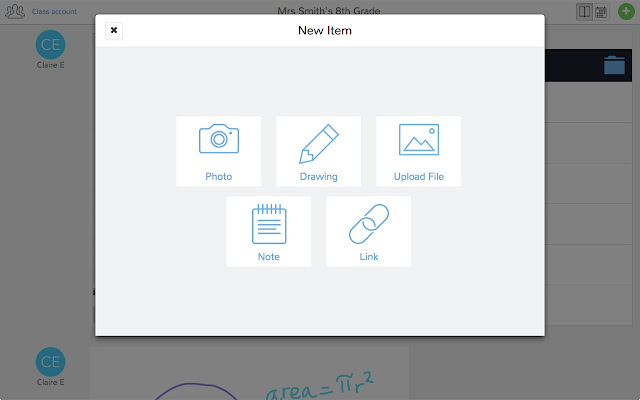
Digital Portfolios are the rage these days as educators are trying to harness emerging technologies to try to engage students and have them build a historical record of products demonstrating progress. There are many products that can do this job out there (Google Slides and Docs are one of them). One product I had a lot of fun demoing recently is a luscious looking one called Seesaw (Chrome Store App).

With Seesaw you give students and authentic audience for their work (students, teachers, parents) with immediate feedback that is controlled by you! Students have the ability to post a number of different pieces of media (images, videos, audio, links, documents, drawings) to demonstrate work produced. You as the teacher control the flow of products so students can't just post something without some moderation.

The tools at your students' disposal to create a working portfolio. 
There's a social component to this as well. The interface works a lot like Instagram with the ability for students to "Like" and "Comment" on other students' work - again with your approval. Parents are also plugged into your class and can see the class feed and have the ability to like and comment on student work. So parents get a real time look at what their student is doing in your class.


And students get a chance to choose what goes into their portfolio to represent their best work to show student progress. Check out the video below of a (very precocious and future President of the United States) 10 year old student talk about how Seesaw works.


This tool isn't just for elementary students (although much more Primary schools utilize it more than Secondary schools do)...this is a powerful Freemium service that has the ability to really engage High School students and give parents a look at what their student is doing in your class.

If anyone wants to give it a try, I can help with the setup and implementation. There are a slew of tools you can use to identify your student's progress that I haven't got into on this post. And if there are any teachers using Seesaw already, I wanna hear about it! Below are some links that may be helpful to those that are interested in checking it out!

Seesaw Teacher Overview
5 Great Features of Seesaw


Thursday, September 29, 2016

Shameless Self-Promotion: EdTech Playground #1 in the Books!

The first gathering of educators at NU for the EdTech Playground is complete and .... it was successful!! A small (but a motivated and tenacious!) group got together from various sites and curriculum areas and got to work! We worked individually, we collaborated, we talked about life outside of school...we solved world problems!! And...there were cupcakes!! *cupcakes are not guaranteed at future EdTech Playground PDs

In all seriousness, it was an excellent 90 minutes of professionals doing what professionals do: working to solve problems, pushing their skill set to another level, and opening up lines of communication with peers to deal with common problems. Each individual worked diligently on whatever interested them in order to integrate more technology in their curriculum.

I could go on and on...but I'll let your colleagues say it all for me...

"Very helpful to be able to navigate Google Drive so I can teach my students"

"Working with other people was nice! Ready to take things to the next level"


"Learned how to make a test in Schoology and I'm ecstatic! This session was very helpful for me." 

"This session was exactly what I needed for technology and Professional Development....it gave me a chance to work on things I haven't had the time to work on."


"I was able to open up my Chromebook for the first time...and set up classes in Pearson"

"I appreciated the time!"

"This session was tremendously helpful!! I worked on figuring out why my Schoology grades weren't syncing with eSchools."


Don't miss the next one Monday 10/10 @BR - Sign Up Here

Tuesday, September 13, 2016

Chromebook App: Google Cast for Education

Ok...this one's a good one. Technology brings up some issues as we transition from the traditional classroom to a 1:1 environment. But it also provides opportunities as well. Google (especially) has been at the forefront of both solving issues and creating opportunities.

Issue: How can we maintain a student-centered learning environment where students feel empowered to create, to solve complex problems, and work together to do so?

Solution: Have access to their screens through Google Cast - this will allow the students to display their work to the entire class via your projector, ask for student input on solving common problems and mistakes, allow students to be the experts in the room and explain how they arrived at a solution, or created a wonderful product, or to demonstrate their own mastery.

How it works....well, you download an app from the Chrome Store, your students download an extension from the same store. A few things to type and a few buttons to press and away you all go.  The product syncs all your Google Classroom classes so those using Classroom will find the adding students part very easy.

For all you visual learners, have a gander at this ace bloke from the UK demoing the basic functionality of it:


This tool is extremely powerful, and my mind drifts to other solutions it can provide as well. For instance, can it grant access to multiple screens so you can watch everyone's screen during an activity or, better yet, an assessment? Hmmmmmm <enter thinking emoji here>

Anywho, check it out and if there are any teachers already using it or want to try it out in their classrooms, I'd love to check it out and work with you to see how it plays with the students!

Thanks for reading!!

~~~
Follow Up 9/15/16: The "Google Cast" Extension is blocked for students. Currently looking into solutions for that through the Tech Department.

Follow Up to the Follow Up 9/22/16: Was told that there were issues last year in using this product in class.  Looks like for the time being, students can not download the extension....I'm gonna keep shaking the tree

Monday, September 12, 2016

Chromebook App: Storybird

Looking for different ways for your students to communicate their understanding of concepts covered in class? Want them to get creative with their writing and storytelling? Have some aspiring writers that could use a push in publishing their work? Storybird is a web program that can engage learners in numerous ways and give your students the opportunity to publish their work within the Storybird community.

Often times when asking students that they will write (a story, essay, poetry...whatever it may be), the teenage eye roll isn't too far away. With Storybird, students will enjoy the creation process and develop their literacy abilities while doing so.

For Students: The ability to create and build high-quality and original stories (with images) to demonstrate their knowledge, understanding, literacy skills, creativity, and (for the up and coming writer) develop their publishing and marketing abilities. It also has a collaborator feature which allows students to work with peers or even established writers and artists.

For Teachers: You can develop a classroom and assign projects within Storybird. Track their progress as they create and assess their understanding of concepts delivered in class.

I can think of many uses in ELA and the Social Sciences but it could be utilized in many different subject matters. Give it a shot! Below is Storybird's website and Chrome Web Store link if you're interested.

Storybird Website
Chrome Web Store Link