I love infographics!! There's info!! And graphics!! What's not to love? They can be an instructional tool for you and a creative outlet for your students. Literacy standards dictate we need to teach reading, writing, researching, and critical analysis skills across the curriculum. There is also a greater emphasis on technical writing as well.
Having students create infographics allows them to not only develop, practice, and hone these skills, but they are creative ventures for them to produce their ideas in a different form and you'll also get more participation in revision and peer editing activities. These types of products certainly should not replace formal essay writing. However, they can be used to help practice skills related to formal essay writing.
And did I mention revision? It is a critical practice in any profession and should be promoted in the classroom. Because of the visual and graphic design component of the activity, students will take great care to ensure their infographic is ready for their peers to get a gander at it. You can even scaffold the peer editing and revision process by having peers focus on a certain aspect of the assignment - supporting data, argumentation, clear and concise statements, visually appealing - to be returned for constant and continuous revision.
Oh yeah...and because they are a graphic, they can easily be published on the web. Students love to publish all sorts of media on a daily basis. This component will give you an opportunity to focus on Digital Citizenship in your classroom. These graphics are great for student portfolios, social media posts, student created websites...drive them to publish to a global audience and they will put their best foot forward. A large number of students already know what this means....they never post their first selfie.
Below are a couple of templates done in Google Drawing of different infographics that you can push out to your students in order for them to make a copy of and own. Once they have their copy, they can adjust everything on the template they see fit to.
Template I created in Google Drawing
Template in Google Drawing from Ryan O'Donnell out of Rocklin Unified
Google Drawing Templates Here, Here, & Here
Infographic Toolbox - Change and use elements for Infographics
Step-by-step instructions on how to create one in Google Slides
AND, you can empower your students to create beautiful infographics using these services:
Canva
Picktochart
Venngage
Easel.ly
***All linked infographics in the blog post come from the amazing Alex Corbitt, English teacher from New York working in the Bronx. Give him a follow on Twitter
I look for new trends and interesting changes in EdTech so you don't have to. Any requests for anything EdTech related, email me: dcrossen@njuhsd.com
Showing posts with label Portfolios. Show all posts
Wednesday, December 14, 2016
Wednesday, November 23, 2016
The NEW Google Sites: It's About Time!!
Ok...I'm a bit giddy about this one!! I heard back in July that Google was revamping their Google Sites and letting some early adopters take a look at it in beta. That period of time was a quiet one as early adopters were mum on social media about it all...call it Phase 🤐 Well, that phase is past us now and Google released the product to the public and we all have access now!!
To explain my giddiness, recall, some of you who remember, when we all had district hosted websites. I spent years altering mine to fit my and my students' needs. It was a daily feature in my curriculum somehow, someway. I was proud of my baby. She (don't know why she's a she, but just go with it) was amazing. But then she went away. We didn't re-up with the hosting company and... bye bye websites. In the aftermath, I searched for replacements. Sorry Weebly, you weren't ready. No thank you Wordpress. Eventually I settled on Blogger (one of the reasons when I started this new gig I went straight there to build a site). Before I decided on Blogger, I spent a considerable time with Google Sites. Before this massive redesign, Google Sites looked the same 4-5 years ago as it did two days ago. It was confusing to build a site, it was limited in what you could do, I didn't like the way it looked or operated for the user (that was key!!), and I didn't have the time or patience to really get into it.
So the past few years, as Google has become synonymous with education applications, I've been waiting for them to turn their attention to Google Sites for the upgrade. They've delivered! Easy to use, collaborative, with all the integration of other Google products (Docs, Forms, Slides, YouTube, Maps, etc.), the New Google Sites is going to be yuuuuuuge (we have to say that now instead of "huge," right?).
For the Teacher:
To explain my giddiness, recall, some of you who remember, when we all had district hosted websites. I spent years altering mine to fit my and my students' needs. It was a daily feature in my curriculum somehow, someway. I was proud of my baby. She (don't know why she's a she, but just go with it) was amazing. But then she went away. We didn't re-up with the hosting company and... bye bye websites. In the aftermath, I searched for replacements. Sorry Weebly, you weren't ready. No thank you Wordpress. Eventually I settled on Blogger (one of the reasons when I started this new gig I went straight there to build a site). Before I decided on Blogger, I spent a considerable time with Google Sites. Before this massive redesign, Google Sites looked the same 4-5 years ago as it did two days ago. It was confusing to build a site, it was limited in what you could do, I didn't like the way it looked or operated for the user (that was key!!), and I didn't have the time or patience to really get into it.
So the past few years, as Google has become synonymous with education applications, I've been waiting for them to turn their attention to Google Sites for the upgrade. They've delivered! Easy to use, collaborative, with all the integration of other Google products (Docs, Forms, Slides, YouTube, Maps, etc.), the New Google Sites is going to be yuuuuuuge (we have to say that now instead of "huge," right?).
For the Teacher:
- Easily create a site for your class using their drag and drop tools
- For those not using Schoology yet, you can push out assignments and instructions to students using this tool for classwork or homework
- Create sites or pages on your site to publish student work and examples
- For Club advisers, Coaches, and other Extra-Curricular program leaders, you now can promote thos programs to the community and the world
For the Student:
- Student Portfolios - because it integrates with their Google Drive and they can upload virtually anything from there, they have a tailor-made student portfolio for their work in your class and all classes - this is great for employers and college recruiters to see
- Collaborative Student Projects - the sharing/collaborative function works the same as other Google products
- Presentations - because of it's sleek look it can be used to present research findings as a culminating assessment
- Make connections in the real world - students can practice some of their Digital Citizenship norms and skills by creating a site for their own personal interests, publishing, marketing/branding, and adapting it
Like I say...I'm giddy. So much so that I'm going to transition my current site into the New Google Slides in the coming months as my primary mode of communicating with all of ya'll. I'll keep the blog (Blogger being another Google product), but you'll most likely find it on my new site in the future.
To access the new Google Sites dashboard to build your own, click the link here: The NEW Google Sites!! Have fun getting into it!!
Update: If you need some assistance setting up your Site, check out the EdTechTeam webinar below for a walk through.
And if you like your tips in written (and slightly visual form), check out the online flyer from EdTechTeam.
Wednesday, October 5, 2016
Seesaw: Web Student Portfolio/ for an Entire Class!
Digital Portfolios are the rage these days as educators are trying to harness emerging technologies to try to engage students and have them build a historical record of products demonstrating progress. There are many products that can do this job out there (Google Slides and Docs are one of them). One product I had a lot of fun demoing recently is a luscious looking one called Seesaw (Chrome Store App).
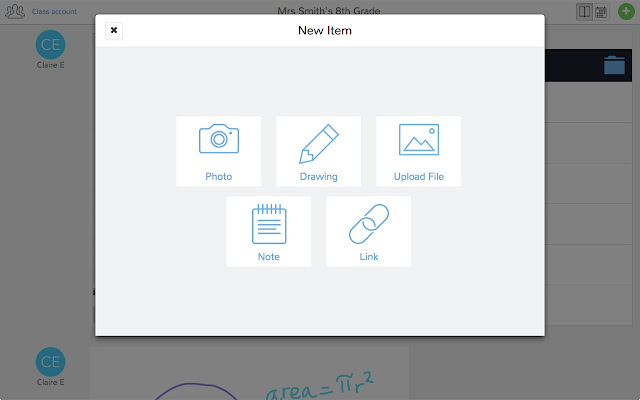
With Seesaw you give students and authentic audience for their work (students, teachers, parents) with immediate feedback that is controlled by you! Students have the ability to post a number of different pieces of media (images, videos, audio, links, documents, drawings) to demonstrate work produced. You as the teacher control the flow of products so students can't just post something without some moderation.
There's a social component to this as well. The interface works a lot like Instagram with the ability for students to "Like" and "Comment" on other students' work - again with your approval. Parents are also plugged into your class and can see the class feed and have the ability to like and comment on student work. So parents get a real time look at what their student is doing in your class.
And students get a chance to choose what goes into their portfolio to represent their best work to show student progress. Check out the video below of a (very precocious and future President of the United States) 10 year old student talk about how Seesaw works.
This tool isn't just for elementary students (although much more Primary schools utilize it more than Secondary schools do)...this is a powerful Freemium service that has the ability to really engage High School students and give parents a look at what their student is doing in your class.
If anyone wants to give it a try, I can help with the setup and implementation. There are a slew of tools you can use to identify your student's progress that I haven't got into on this post. And if there are any teachers using Seesaw already, I wanna hear about it! Below are some links that may be helpful to those that are interested in checking it out!
Seesaw Teacher Overview
5 Great Features of Seesaw
With Seesaw you give students and authentic audience for their work (students, teachers, parents) with immediate feedback that is controlled by you! Students have the ability to post a number of different pieces of media (images, videos, audio, links, documents, drawings) to demonstrate work produced. You as the teacher control the flow of products so students can't just post something without some moderation.
| The tools at your students' disposal to create a working portfolio. |
And students get a chance to choose what goes into their portfolio to represent their best work to show student progress. Check out the video below of a (very precocious and future President of the United States) 10 year old student talk about how Seesaw works.
This tool isn't just for elementary students (although much more Primary schools utilize it more than Secondary schools do)...this is a powerful Freemium service that has the ability to really engage High School students and give parents a look at what their student is doing in your class.
If anyone wants to give it a try, I can help with the setup and implementation. There are a slew of tools you can use to identify your student's progress that I haven't got into on this post. And if there are any teachers using Seesaw already, I wanna hear about it! Below are some links that may be helpful to those that are interested in checking it out!
Seesaw Teacher Overview
5 Great Features of Seesaw
Subscribe to:
Posts (Atom)