Collaboration has changed in education as the mechanisms to allow this process to occur have opened up. Sure, you, as an Educator, have always had the ability to walk down the hall to tap the shoulder of a colleague and work on common assessments or co-plan a series of lessons. But with the roll out of some truly fascinating technology and a shifting school model that institutionalizes the practice, this is the golden age of working together to give students a rich and relevant educational experience.
And this greater connection with other professionals isn't limited to those that you see in the staff lounge at lunch or talk with on the way out to the parking lot after a long day. The availability of thousands of excellent, risk-taking, eager, supportive, and collaborative educators is as easy to find as turning on your phone. Not only are there swaths of teachers around the world willing to work with others, but they can also problem solve issues rather quickly.
Case in point. Not long ago I was asked by a colleague to help them access resources and programs specific to their subject matter. Their subject matter is in an area I am sorely limited in so one of the first things I did was "reach out" to a PLN of local TOSAs and Instructional Coaches I am apart of. We communicate with one another through a "walkie-talkie" service called Voxer. I opened up my phone, pulled up the app, and left a voice message for the group of about 20 educators from the Sacramento region describing my problem and asking them for help and guidance. Within the hour, I had a number of responses as many had been in a similar position once or twice in their time. Already I had many avenues to explore and I had barely begun my research on my own. To have answers so readily available and quickly was invaluable. To lean on others' expertise saved me time and energy.
We are all experts in our worlds. But there are limitations in that expertise as there are a number of areas we all can improve on. Maybe you're the Science teacher that can wax poetic on numerous topics, but you're having trouble unlocking a passion in your students for your subject. Maybe you're the History teacher that has been trying new things here and there but have pretty much been doing the same thing for the past 10 years because of the challenges of wholesale changes. The colleague who approached me for help is brilliant but understands their limitations and wants to grow professionally. I have a lot of respect for that.
We don't need to come up with everything on our own. We shouldn't shy away from risk-taking because of the unknown. We shouldn't use our expertise in our subject matter as some excuse not to grow and adapt to a changing learning environment.
As we brave this long winter of ours, the comfortable thing to do is to retreat to warm and cozy climes. Let's do the opposite in our professional lives. Below are some easy ways for you to get connected with other like-minded educators.
💁🏽♂️ Great Resource for learning how to set up a PLN
📰 Feedly - Great RSS tool to have all your blogs in one place. A lot of amazing educators you could contact to establish and develop your PLN use blogging as a means to communicate what they do in the classroom and discuss experiences
🎤 Voxer - start a local group with your peers so when you are not able to all get together you can still access their expertise. Supports text, images, gifs, but it's main function is to allow you to leave audio messages to the group for them to access on demand
☕️ Meetup - local groups meet up at a designated time to collaborate on projects and issues important to the group
🗯 Twitter - I've blogged about the virtues of Twitter. I'm a fan and using it to connect with like-minded professionals has been a game-changer. Search hashtags based on your subject matter or check out and participate in a Twitter chat
🙂📘Facebook - as if I needed to provide the link to this site. There a large number of educator groups on Facebook and with hashtag searches they're easily identifiable.
There are other platforms and resources out there that can get you connected to others. And the connection is key this day and age. Whatever your platform it will benefit your craft, it will expose you to new ideas, and it will help you grow as a professional. Ultimately, it will benefit your students. And that's what matters most.
I look for new trends and interesting changes in EdTech so you don't have to. Any requests for anything EdTech related, email me: dcrossen@njuhsd.com
Tuesday, February 7, 2017
Tuesday, January 24, 2017
Online Agendas: Using Google Slides To Keep Students and Parents Informed
Google Slides is a powerful tool to use in the classroom. From student collaborative activities, to direct instruction by you, to an excellent opportunity to show screencasts of processes, Google Slides is an important tool to use in the classroom throughout the year. The final products are easy to share and between Google Sites and Schoology, teachers in our district have an opportunity to push out content to students and parents with ease.
One other great use of Google Slides is the class Agenda. Agendas are a great tool for students and parents to see what is happening in the classroom. It helps the teacher stay organised as well. Have a student who has been out for some time, no need for them to ask you for the work or what they missed, they can check the class Agenda. In the past, agendas are only as visible as they were left on the whiteboard or chalkboard. Technology allows for those Agendas to be permanent, and interactive. Google Slides is an excellent tool for this as well!!
A friend of mine, Tech-guru, podcast host, and all-around good guy working as a TOSA in the Roseville district, Ryan O'Donnell shared with me how he uses Google Slides for this purpose a while ago. Much like I use the same Google Slide deck for my weekly Tuesday Tech Tips, the agenda is used in this manner. You will always put the most recent week's agenda as "Slide 1" so any student or parent accessing the file will see that week's agenda first. The previous ones will be in descending order as they click the next slide on the slide deck. Below is the TTT Slide deck for you to see how it flows.
I made some Agendas for each site based on his example. The templates I have made give you an idea of things you can do on your agenda. After you have access to the templates and make a copy of your own, you can customize it however you'd like.
Here's how:
One other great use of Google Slides is the class Agenda. Agendas are a great tool for students and parents to see what is happening in the classroom. It helps the teacher stay organised as well. Have a student who has been out for some time, no need for them to ask you for the work or what they missed, they can check the class Agenda. In the past, agendas are only as visible as they were left on the whiteboard or chalkboard. Technology allows for those Agendas to be permanent, and interactive. Google Slides is an excellent tool for this as well!!
A friend of mine, Tech-guru, podcast host, and all-around good guy working as a TOSA in the Roseville district, Ryan O'Donnell shared with me how he uses Google Slides for this purpose a while ago. Much like I use the same Google Slide deck for my weekly Tuesday Tech Tips, the agenda is used in this manner. You will always put the most recent week's agenda as "Slide 1" so any student or parent accessing the file will see that week's agenda first. The previous ones will be in descending order as they click the next slide on the slide deck. Below is the TTT Slide deck for you to see how it flows.
I made some Agendas for each site based on his example. The templates I have made give you an idea of things you can do on your agenda. After you have access to the templates and make a copy of your own, you can customize it however you'd like.
Here's how:
- Access the Agenda Templates
- "Make a Copy" of the Agenda from your school
- Open the file and make any changes you would like - this file is now owned by you and you can tailor it to your needs
- Delete elements I created in the file and fill in the necessary information you would like to pass along to students and parents
- Add images, video, text, links to assignments and outside resources, etc.
- Google saves your last keystroke when you have online access so no need to save
- When you want to make the next week's agenda, all you need to do is make a "Duplicate Slide" and then make changes to the one in the top position
To Add to Google Sites:
![]() |
| Google Sites embeds Google Docs, Slides, Sheets, Forms, Maps and other products seamlessly on your site |
To Add to Schoology:
If you need some assistance with this process or anything else, please let me know and I'll walk you through it.
Friday, January 13, 2017
Saturday Cafe? Do You Want PD on Saturdays?
Folks, if you would please let me know if there's any interest out there for holding PDs on Saturday. This would be a multi-time slot situation where you can come and go when it's best for you, but I need to know if there's any interest before I pull the trigger.
Cheers,
D
Cheers,
D
Thursday, January 12, 2017
Reading Comprehension Task: Black Out Text
![]() |
| A view of my Tweetdeck - feel like a day trader sometimes watching this thing |
Black Out Text Reading Comprehension Activity:
Step 1: Locate and copy text you would like your students to use on the Internet or other web resources
Step 2: Paste the text in a Google Document and set up the activity with directions at the top
Step 3: Push the assignment out to students via Schoology, your website, or other means
Step 4: Model the process for them - show them how they can access the highlighter or paint rolling tools in Google Docs and demonstrate how they are used.
Step 5: Allow time for students to complete the activity
Step 6: Analysis and Debrief - depending on your style, you can hold a discussion, a competition, have them create a visual or auditory product, run a Kahoot, Quizizz, or Quizlet Live activity
This method can be employed in any class that asks students to make sense of complex text sets. I like the idea of allowing students to collaborate as well - whether they are working on the same document simultaneously or they are comparing and contrasting and building consensus at the end.
If you give this strategy a shot in your classroom, let me know how it works out for you and your students. If you need some assistance with implementing this strategy or any others related to EdTech, hit me up and I'll help you out!
Breakout EDU: An Educational Experience Worth Trying
There are some brilliant innovators that took the idea and applied it to an educational experience a while back have been making their mark in education circles. Thus, Breakout Edu was born.
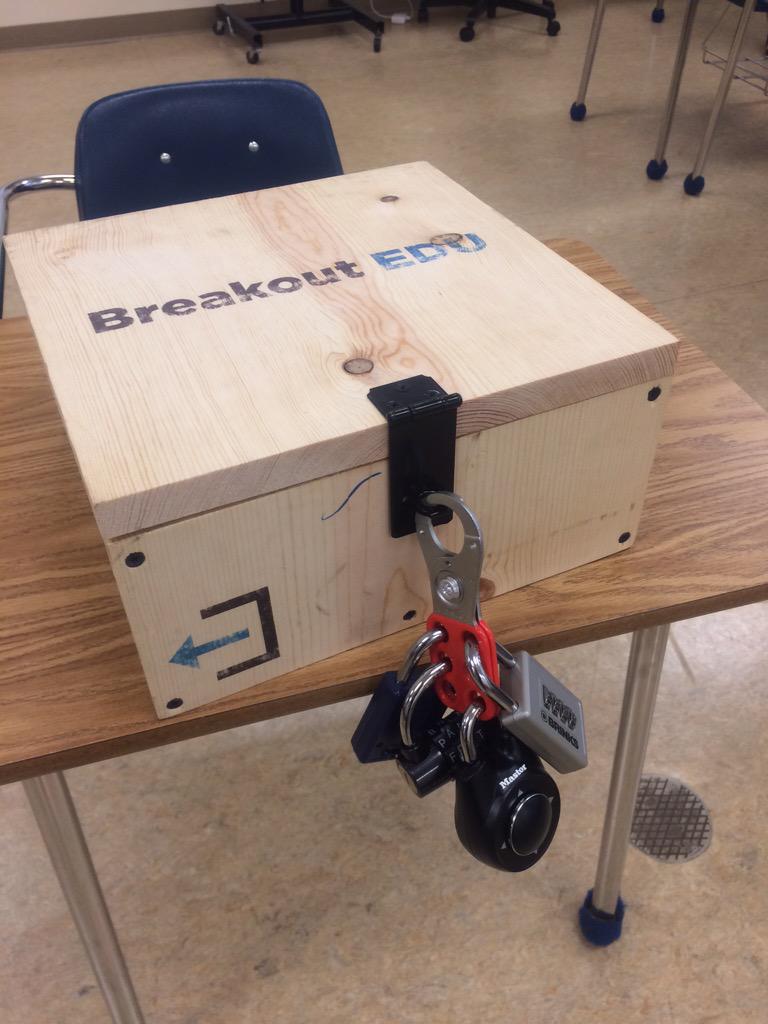
The concept remains the same, however, you don't lock students in a room. Instead, you use a simple plastic or wooden box locked with a series of different types of locks. What you place inside the box is up to you. How the kids get the box open is the fun part. You as a teacher would leave a series of content-specific clues for them to analyze and as a class they would set to work getting that box open. However, they must understand....they only have a limited time. As these games are timed and if they don't get inside the box, well...they don't get to see what's inside.
![]() |
| Example of the wooden box option |
We never did see what was inside the box. We ran out of time. But the experience getting there was exciting and all of us reported that we wanted more time to figure it all out (we had 1 more lock to go!!!!). This activity was engaging, fast paced, intellectually stimulating, and required no one sitting on the sidelines. It was an all hands on deck situation.
Since Breakout Edu started, they have been growing a following. You can purchase their products and classroom-ready games through them. Or you can design the box yourself and create a game on your own or visit the site where teachers have shared what they created.
If you want to go a no-cost route and harness the power of those Chromebooks kids have in their hands, you can create a Digital BreakoutEdu experience for your students. Same concept, no box, all digital tools. The link will take you to a series of links that show you how you can design your own digital box using Google Forms and how you can create a game for your students.
These games are great as an inquiry-based activity at the beginning or middle of a unit. It can be used as a formative assessment tool to find out what your students have learned. They could also be used for reviewing concepts covered in class before a test. The game is great for every subject and every concept. All it takes is a bit of work on the back end to develop the clues, set up the "box," and let your students roll with it.
I'll be hosting a Digital BreakoutEdu PD next month at BR & NU to demonstrate how I created the game. That is, of course, after all participants try to Breakout of my game....if you can. 😜
Thursday, January 5, 2017
Twitter: Not Crazy Twitter...Only The Good Stuff
I've been on Twitter since 2009. It was my first way to communicate with students outside of the classroom. For those that use Remind this was my Remind before Remind came along. I didn't really know what to do at first. I really didn't know how to use it. Back then, there weren't a ton of students using Twitter - it was all about Facebook...until we all killed that for them. I used this tool sparingly at first and then as I became more comfortable (and more students began to follow me), I started using it much more.
I went beyond using it as a mere communication tool when I realized the power of it and the game changer that was the use of hashtags. I would have my Government students live tweet their reactions from a Presidential Debate. I had my History students try to raise awareness of a social issue that was important to them. I would get my students to do some wild things and they ate it up (not all of them of course...but, ya know).
Twitter helped me realize the power of "flipping the classroom" and publishing to a "global audience" ... long before I realized I was doing any of that in my classroom. Further down the rabbit hole I went as I sought out new technologies to help me engage students and be efficient the delivery of my curriculum.
I stopped using Twitter as my "student communication" tool when I discovered Remind, but Twitter then became something else for me. It became a Professional Learning Network. Again, before I could put a name to it. I was learning from other educators on what they were doing in the classroom, how they incorporated new technologies, how they curated History and Psychology resources in the classroom, how they were harnessing and leveraging the power of EdTech to expose students to new heights. I was impressed and awed and humbled to see what others around the world were doing with new technologies. And I got thirsty.
It was around 2013 I started to notice how social media was changing and growing rapidly. I still had my old students following me on Twitter (long gone into the sunset en route to their new post-Bear River lives) but now I was gaining new ones. Fast. Even though I wasn't using it in the classroom. Even students I didn't have in my physical classroom. Students at the school I'd never met.
Instagram got big, Facebook wasn't cool anymore, Ask FM became a place kids could cyber bully each other, Vine happened, and then other social media apps and sites were popping in and out of the awareness of students. All the while, Twitter was growing along with these changes....faster than others in some cases. More and more students were using Twitter and I found my role on it change once again to "father-ish figure" - posting random things that I was interested in while also chiming in on conversations my students were involved in where they may need some advice on or guidance with.
It was about student connection. Letting them know that in that vast world of online content and virtual connections with others, they still had someone physical in their lives that they could trust and lean on when things are rough. The latest example of this was just before break when, sadly, Bear River lost two amazing young men in a car accident. I really felt the disconnect with my former students since I left the classroom back in August. I'm there, but not "there." A couple tweets and replies later on Twitter and I like to think I may have helped them (even for a minute) deal with the emotional toll they were experiencing. If I did, the few seconds I took out of my day was more than worth it.
So this post...this post is about advocating for trying something new. If you're not on Twitter yet, go sign up. Make your account. Go find some other educators like you around the country that you can learn from (a simple search of "biology high school teacher educator" will get you loads of search results). Tell your students you're on there and see if they are brave enough to follow you.
If you are on Twitter already, push yourself to try something new. Join a Twitter Chat, start posting really cool things you're doing in the classroom, encourage your students to publish their work for more eyes than just yourselves and for a greater purpose than just a grade, or start a class hashtag and have all your students use it to publish their work on a given assignment or topic.
The uses of Twitter will benefit you and your students in the long run. It will help bridge the technology divide between educators and students. Incorporating publishing on social media in the classroom is engaging to large swaths of students, garnering more student buy-in to your activity, curriculum, and classroom. You can connect with other peers and educators around the globe to learn new things, processes, strategies, and open opportunities for yourself as a professional and your curriculum as a whole. I'm not saying Twitter will make you a better teacher, or it will fundamentally shift your relationship with your students. But you may find travelling down that rabbit's hole can be rewarding for your craft and your students. Go ahead...give it a shot.
I went beyond using it as a mere communication tool when I realized the power of it and the game changer that was the use of hashtags. I would have my Government students live tweet their reactions from a Presidential Debate. I had my History students try to raise awareness of a social issue that was important to them. I would get my students to do some wild things and they ate it up (not all of them of course...but, ya know).
Twitter helped me realize the power of "flipping the classroom" and publishing to a "global audience" ... long before I realized I was doing any of that in my classroom. Further down the rabbit hole I went as I sought out new technologies to help me engage students and be efficient the delivery of my curriculum.
I stopped using Twitter as my "student communication" tool when I discovered Remind, but Twitter then became something else for me. It became a Professional Learning Network. Again, before I could put a name to it. I was learning from other educators on what they were doing in the classroom, how they incorporated new technologies, how they curated History and Psychology resources in the classroom, how they were harnessing and leveraging the power of EdTech to expose students to new heights. I was impressed and awed and humbled to see what others around the world were doing with new technologies. And I got thirsty.
It was around 2013 I started to notice how social media was changing and growing rapidly. I still had my old students following me on Twitter (long gone into the sunset en route to their new post-Bear River lives) but now I was gaining new ones. Fast. Even though I wasn't using it in the classroom. Even students I didn't have in my physical classroom. Students at the school I'd never met.
Instagram got big, Facebook wasn't cool anymore, Ask FM became a place kids could cyber bully each other, Vine happened, and then other social media apps and sites were popping in and out of the awareness of students. All the while, Twitter was growing along with these changes....faster than others in some cases. More and more students were using Twitter and I found my role on it change once again to "father-ish figure" - posting random things that I was interested in while also chiming in on conversations my students were involved in where they may need some advice on or guidance with.
It was about student connection. Letting them know that in that vast world of online content and virtual connections with others, they still had someone physical in their lives that they could trust and lean on when things are rough. The latest example of this was just before break when, sadly, Bear River lost two amazing young men in a car accident. I really felt the disconnect with my former students since I left the classroom back in August. I'm there, but not "there." A couple tweets and replies later on Twitter and I like to think I may have helped them (even for a minute) deal with the emotional toll they were experiencing. If I did, the few seconds I took out of my day was more than worth it.
So this post...this post is about advocating for trying something new. If you're not on Twitter yet, go sign up. Make your account. Go find some other educators like you around the country that you can learn from (a simple search of "biology high school teacher educator" will get you loads of search results). Tell your students you're on there and see if they are brave enough to follow you.
If you are on Twitter already, push yourself to try something new. Join a Twitter Chat, start posting really cool things you're doing in the classroom, encourage your students to publish their work for more eyes than just yourselves and for a greater purpose than just a grade, or start a class hashtag and have all your students use it to publish their work on a given assignment or topic.
The uses of Twitter will benefit you and your students in the long run. It will help bridge the technology divide between educators and students. Incorporating publishing on social media in the classroom is engaging to large swaths of students, garnering more student buy-in to your activity, curriculum, and classroom. You can connect with other peers and educators around the globe to learn new things, processes, strategies, and open opportunities for yourself as a professional and your curriculum as a whole. I'm not saying Twitter will make you a better teacher, or it will fundamentally shift your relationship with your students. But you may find travelling down that rabbit's hole can be rewarding for your craft and your students. Go ahead...give it a shot.
Wednesday, December 14, 2016
Infographics: Great Product for Students to Create
I love infographics!! There's info!! And graphics!! What's not to love? They can be an instructional tool for you and a creative outlet for your students. Literacy standards dictate we need to teach reading, writing, researching, and critical analysis skills across the curriculum. There is also a greater emphasis on technical writing as well.
Having students create infographics allows them to not only develop, practice, and hone these skills, but they are creative ventures for them to produce their ideas in a different form and you'll also get more participation in revision and peer editing activities. These types of products certainly should not replace formal essay writing. However, they can be used to help practice skills related to formal essay writing.
And did I mention revision? It is a critical practice in any profession and should be promoted in the classroom. Because of the visual and graphic design component of the activity, students will take great care to ensure their infographic is ready for their peers to get a gander at it. You can even scaffold the peer editing and revision process by having peers focus on a certain aspect of the assignment - supporting data, argumentation, clear and concise statements, visually appealing - to be returned for constant and continuous revision.
Oh yeah...and because they are a graphic, they can easily be published on the web. Students love to publish all sorts of media on a daily basis. This component will give you an opportunity to focus on Digital Citizenship in your classroom. These graphics are great for student portfolios, social media posts, student created websites...drive them to publish to a global audience and they will put their best foot forward. A large number of students already know what this means....they never post their first selfie.
Below are a couple of templates done in Google Drawing of different infographics that you can push out to your students in order for them to make a copy of and own. Once they have their copy, they can adjust everything on the template they see fit to.
Template I created in Google Drawing
Template in Google Drawing from Ryan O'Donnell out of Rocklin Unified
Google Drawing Templates Here, Here, & Here
Infographic Toolbox - Change and use elements for Infographics
Step-by-step instructions on how to create one in Google Slides
AND, you can empower your students to create beautiful infographics using these services:
Canva
Picktochart
Venngage
Easel.ly
***All linked infographics in the blog post come from the amazing Alex Corbitt, English teacher from New York working in the Bronx. Give him a follow on Twitter
Having students create infographics allows them to not only develop, practice, and hone these skills, but they are creative ventures for them to produce their ideas in a different form and you'll also get more participation in revision and peer editing activities. These types of products certainly should not replace formal essay writing. However, they can be used to help practice skills related to formal essay writing.
And did I mention revision? It is a critical practice in any profession and should be promoted in the classroom. Because of the visual and graphic design component of the activity, students will take great care to ensure their infographic is ready for their peers to get a gander at it. You can even scaffold the peer editing and revision process by having peers focus on a certain aspect of the assignment - supporting data, argumentation, clear and concise statements, visually appealing - to be returned for constant and continuous revision.
Oh yeah...and because they are a graphic, they can easily be published on the web. Students love to publish all sorts of media on a daily basis. This component will give you an opportunity to focus on Digital Citizenship in your classroom. These graphics are great for student portfolios, social media posts, student created websites...drive them to publish to a global audience and they will put their best foot forward. A large number of students already know what this means....they never post their first selfie.
Below are a couple of templates done in Google Drawing of different infographics that you can push out to your students in order for them to make a copy of and own. Once they have their copy, they can adjust everything on the template they see fit to.
Template I created in Google Drawing
Template in Google Drawing from Ryan O'Donnell out of Rocklin Unified
Google Drawing Templates Here, Here, & Here
Infographic Toolbox - Change and use elements for Infographics
Step-by-step instructions on how to create one in Google Slides
AND, you can empower your students to create beautiful infographics using these services:
Canva
Picktochart
Venngage
Easel.ly
***All linked infographics in the blog post come from the amazing Alex Corbitt, English teacher from New York working in the Bronx. Give him a follow on Twitter
Wednesday, November 23, 2016
The NEW Google Sites: It's About Time!!
Ok...I'm a bit giddy about this one!! I heard back in July that Google was revamping their Google Sites and letting some early adopters take a look at it in beta. That period of time was a quiet one as early adopters were mum on social media about it all...call it Phase 🤐 Well, that phase is past us now and Google released the product to the public and we all have access now!!
To explain my giddiness, recall, some of you who remember, when we all had district hosted websites. I spent years altering mine to fit my and my students' needs. It was a daily feature in my curriculum somehow, someway. I was proud of my baby. She (don't know why she's a she, but just go with it) was amazing. But then she went away. We didn't re-up with the hosting company and... bye bye websites. In the aftermath, I searched for replacements. Sorry Weebly, you weren't ready. No thank you Wordpress. Eventually I settled on Blogger (one of the reasons when I started this new gig I went straight there to build a site). Before I decided on Blogger, I spent a considerable time with Google Sites. Before this massive redesign, Google Sites looked the same 4-5 years ago as it did two days ago. It was confusing to build a site, it was limited in what you could do, I didn't like the way it looked or operated for the user (that was key!!), and I didn't have the time or patience to really get into it.
So the past few years, as Google has become synonymous with education applications, I've been waiting for them to turn their attention to Google Sites for the upgrade. They've delivered! Easy to use, collaborative, with all the integration of other Google products (Docs, Forms, Slides, YouTube, Maps, etc.), the New Google Sites is going to be yuuuuuuge (we have to say that now instead of "huge," right?).
For the Teacher:
To explain my giddiness, recall, some of you who remember, when we all had district hosted websites. I spent years altering mine to fit my and my students' needs. It was a daily feature in my curriculum somehow, someway. I was proud of my baby. She (don't know why she's a she, but just go with it) was amazing. But then she went away. We didn't re-up with the hosting company and... bye bye websites. In the aftermath, I searched for replacements. Sorry Weebly, you weren't ready. No thank you Wordpress. Eventually I settled on Blogger (one of the reasons when I started this new gig I went straight there to build a site). Before I decided on Blogger, I spent a considerable time with Google Sites. Before this massive redesign, Google Sites looked the same 4-5 years ago as it did two days ago. It was confusing to build a site, it was limited in what you could do, I didn't like the way it looked or operated for the user (that was key!!), and I didn't have the time or patience to really get into it.
So the past few years, as Google has become synonymous with education applications, I've been waiting for them to turn their attention to Google Sites for the upgrade. They've delivered! Easy to use, collaborative, with all the integration of other Google products (Docs, Forms, Slides, YouTube, Maps, etc.), the New Google Sites is going to be yuuuuuuge (we have to say that now instead of "huge," right?).
For the Teacher:
- Easily create a site for your class using their drag and drop tools
- For those not using Schoology yet, you can push out assignments and instructions to students using this tool for classwork or homework
- Create sites or pages on your site to publish student work and examples
- For Club advisers, Coaches, and other Extra-Curricular program leaders, you now can promote thos programs to the community and the world
For the Student:
- Student Portfolios - because it integrates with their Google Drive and they can upload virtually anything from there, they have a tailor-made student portfolio for their work in your class and all classes - this is great for employers and college recruiters to see
- Collaborative Student Projects - the sharing/collaborative function works the same as other Google products
- Presentations - because of it's sleek look it can be used to present research findings as a culminating assessment
- Make connections in the real world - students can practice some of their Digital Citizenship norms and skills by creating a site for their own personal interests, publishing, marketing/branding, and adapting it
Like I say...I'm giddy. So much so that I'm going to transition my current site into the New Google Slides in the coming months as my primary mode of communicating with all of ya'll. I'll keep the blog (Blogger being another Google product), but you'll most likely find it on my new site in the future.
To access the new Google Sites dashboard to build your own, click the link here: The NEW Google Sites!! Have fun getting into it!!
Update: If you need some assistance setting up your Site, check out the EdTechTeam webinar below for a walk through.
And if you like your tips in written (and slightly visual form), check out the online flyer from EdTechTeam.
Friday, November 18, 2016
Google Doc Add-On: Wolfram Alpha
One of the more powerful add-ons I've seen in some time is Wolfram Alpha. For those that don't know Wolfram Alpha or haven't used it before, its a computational program that aims to collect and curate any knowledge, idea, problem, equation, and provide solutions to it backed by data. The program is excellent across many subject matters and a quick viewing of their website will give you a sense for the sheer vastness of their content reach.
Where it really gets interesting is merging this powerful tool within Google Docs. Students will have the ability to type in research terms and have data returned to them that is accurate and usable by the student. Below is a gif of how to access the add-on store. With a Google Doc open, follow the visual steps, and type "Wolfram Alpha" in the search field. It will be the only on that pops up.
This add-on follows all your documents and your student will have access to it on any Doc they create. Below is a brief screencast of what it looks like in action. Please excuse the lame music...at least ya don't have to listen to my voice though...so....win/win.
Maths, Social Science, Science, ELA, CTE students and more can all benefit from this free easy to use feature. I did a post last week on Research resources and I would certainly add this to the list!!
Labels:
CTE,
Google Apps,
Math,
Research,
Science,
Shortcuts,
Social Studies,
Tips,
Tricks
Thursday, November 10, 2016
Research Resources: Utilizing EdTech to Work Smarter
Brainstorming & Organization Resources - That all important first phase that puts and keeps students on track
- Make Checklists in Google Docs
- Create a concept Map in Google Drawing
- Google Keep (They already have this) - Create checklists on tasks needed to complete when planning a project, collaborate with other students, and get reminders sent across their devices
- Mindmup - Mindmaps on your Chromebooks
- Popplet - Web and iPad app that allows you to create multi-media mindmaps
- Wunderlist - App & Extension - Create dynamic to-do lists for students to stay on task when planning a project
- Google Keep - add notes quickly
- Sticky notes - see my previous post on sticky notes
- Super Simple Highlighter - kinda self explanatory, but students can highlight info on web pages and they stay on the page when they return to them later after closing their tab
- VideoNot.es - synchronize their note taking with any video they are tasked with watching. Notes are saved in Google Drive
- Evernote - Evernote is an excellent educational research for keeping organized on projects. It operates like a Digital Notebook where students have the ability to take notes and clip sites and documents on the web related to their research topic. Web-version, Chromebook App, Extension, and mobile apps for all your devices
Information Collection Resources - Locate and save sources for the project
- Feedly - Curate content from around the web around a single topic or tag. The mobile app allows for syncing with the web account. Students can have the information come to them
- Google Keep - again...this thing is awesome
- Padlet - When students would work on research projects, I'd often have them save evidence from a website that was useful for them. Padlet works well for this as an online, collaborative corkboard of sorts. So if there is a group research project, students can be working on the same Padlet together
- Evernote - Again...powerful tool
Citation Resources - Gotta make sure credit goes to where it belongs
- Chrome Extensions - Cite This For Me and EasyBib will give the proper citation of websites instantly in different styles
- Citation Machine - Books, Magazines, Websites, Journal, Film? No problem...this free web service can do that for your students in thousands of styles (Turabian? Hmmmmm)
- BibMe - Works like Citation Machine
Presentation Tools - Speaking & Presenting standards need to be met as well
- We Video App - Students create Digital Stories ...think iMovie or Movie Maker only the Chromebook version
- Bunkr - Web presentation software where students can embed a ton of content from code, to interactive graphs, social media posts and more! It looks and presents everything nice and clean
- Weebly - Students can create their own websites and portfolios in a drag and drop fashion!
- Infographics - these are great products to create depending on the research project ad purpose of the presentation. This would be an excellent presentation option for Technical Writing research projects. The best web resources for this is Easel.ly, Canva, and Piktochart
Subscribe to:
Posts (Atom)